
Windows 11 Home vs Pro: Home is usually the better-value choice for everyday use and gaming; Pro adds business management and advanced tools such as BitLocker Drive Encryption management, Remote Desktop hosting, Hyper-V and Windows Sandbox. The right edition depends on the capabilities you need, rather than a promise that Pro will make an ordinary PC faster.
Updated 2 October 2026. Edition features, setup requirements and upgrade instructions checked against Microsoft documentation. This guide retains the detailed Home-versus-Pro comparison and explains what those differences mean for a personal PC, development workstation or managed business device.
Microsoft’s Windows 11 Home and Pro comparison is the starting point for checking edition features. This article adds practical buying guidance: whether you need to host a remote session, join a company identity environment, manage encryption or use specific virtualisation tools.
Windows 11 Home and Pro are the editions most personal-PC buyers encounter. Enterprise and Education serve other needs; our separate guide to choosing a Windows 11 edition covers that wider range. Here, the focus stays on Home versus Pro.
We will investigate each edition’s features, benefits, and suitability for various user needs and aim to help you decide which edition best serves your professional requirements and interests.
Rest assured, this guide is for you, whether you’re looking to optimise your development environment, decide on an operating system for your startup, or explain the nuances of Windows 11 to your readers.
Start with the comparison table, then check the sections relevant to your work. If your PC already runs Home, you can normally upgrade the edition later without replacing the device. Check the current UK upgrade price and your required features before spending.
- Understanding Windows 11 Editions: Home vs Pro
- User interface and experience: Home vs Pro
- Security features: A detailed comparison
- Managing your fleet: Group Policy and IT efficiency
- Virtualisation and remote management
- Performance and power: Home vs Pro
- Gaming on Windows 11: Home vs Pro editions
- Cost analysis: Is Pro worth the upgrade?
- Advanced features for developers and IT professionals
- How to choose the right edition for your needs
- The cost of getting it wrong: buying the features you need
- How to check your edition and upgrade from Home to Pro
- Conclusion: Making an informed decision
- FAQs about Windows 11 Home vs Pro Versions
Understanding Windows 11 Editions: Home vs Pro
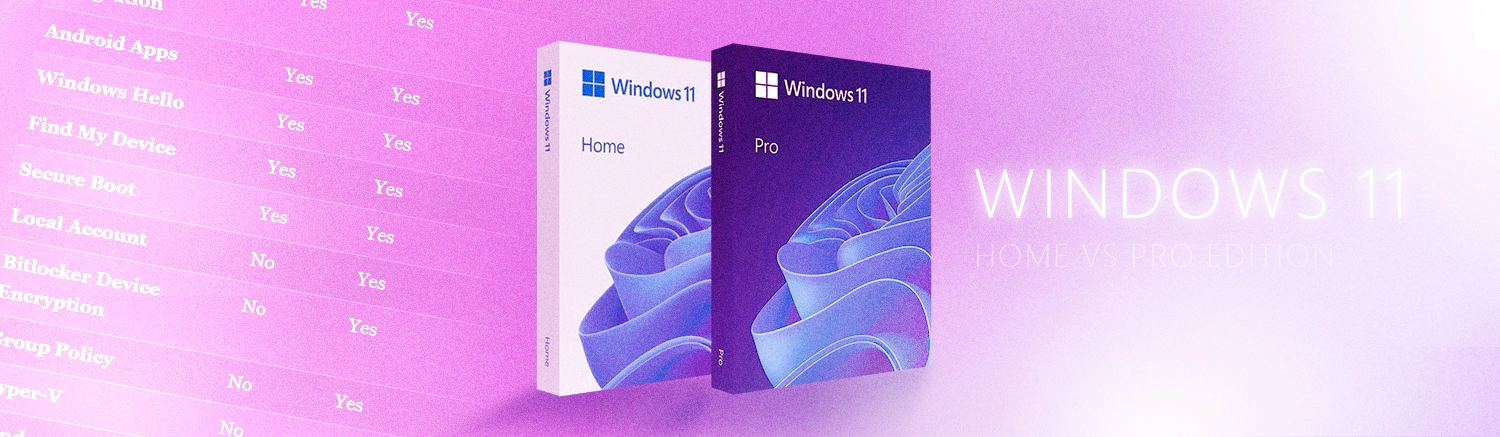
Windows 11, Microsoft’s latest operating system, is designed for many users. It comes in several editions, each with unique features and capabilities.
Most users will encounter two primary editions: Windows 11 Home and Windows 11 Pro. Microsoft has tailored all these editions to different user needs and environments. Windows 11 Home is the standard edition of the operating system.
Microsoft has designed it for general use, and we typically find it on consumer-grade laptops and desktops. On the other hand, Windows 11 Pro includes all the features of the Home edition, plus additional tools and options for business and power users.
These include advanced security features like BitLocker, which provides full disk encryption, and device management tools like Group Policy support, which allows IT administrators to manage and configure settings across multiple devices in a network.
| Feature | Windows 11 Home | Windows 11 Pro |
|---|---|---|
| Target Audience | General consumers and home users | Small businesses and professionals |
| Price | Lower | Higher |
| BitLocker Drive Encryption management | No | Yes |
| Group Policy Management | No | Yes |
| Assigned Access | No | Yes |
| Dynamic Provisioning | No | Yes |
| Device Encryption | Available on eligible devices | Available on eligible devices |
| Remote Desktop | Client only (can connect to Pro) | Host and client |
| Hyper-V | No | Yes |
| Windows Sandbox | No | Yes |
| Microsoft Entra ID device join (formerly Azure AD) | No | Yes |
| Windows Update client policies (formerly Windows Update for Business) | No | Yes |
| Managed Windows settings backup / roaming | Not eligible for Entra-joined device setup | Requires eligible setup, policies and licences |
| Maximum RAM Supported | 128 GB | 2 TB |
| CPU Socket Limit | 1 | 2 |
| Virtualisation Support | WSL 2 supported; full Hyper-V feature not included | Hyper-V and Sandbox on compatible hardware; WSL 2 supported |
| Windows 11 in S mode | Available on some devices | Not available |
| Windows Hello | Yes | Yes |
| Gaming Features | Yes (DirectX 12, Game Mode) | Yes (same as Home) |
| Personal-use initial setup | Internet and Microsoft account required | Internet and Microsoft account required |
| Enhanced Security Features | Microsoft Defender, firewall, Windows Hello; eligible Device Encryption | Core security plus BitLocker management and policy controls |
| Joining a Domain | No | Yes |
| Remote Management | Basic (limited) | Additional management (Group Policy, Microsoft Entra join) |
For business decision-makers, a technical list of specs is only half the story. Here is how those features translate into operational benefits:
| Feature | Business Benefit | Impact on IT Team | Recommended For |
|---|---|---|---|
| BitLocker Encryption | Helps protect data on an encrypted lost or stolen device; does not guarantee compliance. | Centralised management of recovery keys. | Teams needing managed encryption and recovery controls. |
| Microsoft Entra ID / Domain Join | Secure, single-sign-on (SSO) for company apps and cloud services. | Simplified onboarding and offboarding of staff. | Organisations that require company device joining. |
| Group Policy | Enforces company-wide security standards (e.g., password complexity). | Automatic configuration; no need to touch every PC. | Businesses scaling their workforce. |
| Remote Desktop (Host) | Allows employees to access their office PC securely from home. | Requires a reachable host and appropriately secured network access. | Hybrid or remote working teams. |
| Hyper-V | Ability to run virtual machines for testing software safely. | Isolated environments for testing updates before rollout. | IT departments and software developers. |
| Kiosk Mode | Locks a PC to a single app, preventing unauthorised use. | High security for public-facing or floor-level terminals. | Retail, reception, and manufacturing. |
An important consideration: Windows 11 in S-Mode
When purchasing a new device, you may encounter Windows 11 Home in S mode. In Windows 11, S mode is available only in Home, not Pro. It restricts app installation to the Microsoft Store. Check this before buying if you need desktop software from another source.
What is S-Mode, and what does it stand for?
Microsoft describes S mode by its restrictions and supported experience; there is no need to rely on an unofficial expansion of the letter ‘S’. The practical question is whether the apps you need are available through the Store.
- App installation: S mode allows apps from the Microsoft Store. This limits installation choices, but should not be read as a guarantee that every app or online activity is risk-free.
- Compatibility: Check the Store for each application you need before deciding to stay in S mode. Performance and battery life still depend on the particular device, workload and configuration.
The primary limitation, however, is the very source of its security: the inability to install traditional desktop applications (like Google Chrome, Adobe Photoshop, or Steam) from outside the Microsoft Store. For users who need specific software for work or hobbies, this can be a significant roadblock.
Switching out of S-Mode in Windows 11
If S mode is too restrictive, you can switch to Windows 11 Home without S mode. This is free and permanent. Buying Pro is a separate edition upgrade and is not required just to install apps from outside the Store.
Be aware that some system prompts can be confusing, occasionally mixing the option to switch out of S-Mode with separate, paid offers to upgrade from Home to Pro. The process to simply disable S-Mode does not have a cost.
Follow Microsoft’s S-mode instructions to switch out. The wording may vary with your installed build:
- On your PC, open Settings > System > Activation.
- Find the section for switching out of S mode. Do not select the separate option to upgrade your Windows edition.
- Follow the Store link in the S-mode switching section to the Switch out of S mode page.
- On the “Switch out of S mode” page in the Store, click the “Get” button to begin the free process.
Key features of Windows 11 Home
Microsoft has designed Windows 11 Home to provide a secure and easy-to-use operating system for everyday users. It includes a host of features aimed at enhancing user experience and productivity.
One of the key features of Windows 11 Home is the new, centred Start Menu, which provides a more streamlined and intuitive user interface than previous Windows versions.
Snap layouts and Snap groups help organise open windows. These are shared Windows features rather than reasons to pay for Pro. For everyday apps, consider your processor, memory, storage and display as well as the operating-system edition.
Windows 11 Home also includes Microsoft Edge, Microsoft’s web browser. Windows 11 Home supports the Xbox app; games and subscriptions may need to be purchased separately. The Home edition also supports touch, pen, and voice inputs, making it a versatile choice for various devices.
Finally, Windows 11 Home includes Microsoft’s basic security features, such as Microsoft Defender Antivirus and Windows Hello, for password-free sign-ins.
Key features of Windows 11 Pro
Windows 11 Pro, on the other hand, is designed for business and power users. It includes all the features found in the Home edition, plus several additional tools and capabilities.
One of Pro’s useful additions is BitLocker Drive Encryption management. It gives more control over encryption and recovery than Home’s eligible-device encryption interface. Pro also supports company device joining and policy tools. These capabilities help IT manage a device; they do not replace a wider data-protection or backup plan.
For IT administrators, Windows 11 Pro offers Group Policy support, allowing them to manage and configure settings across multiple devices in a network. The Pro edition also supports Remote Desktop, enabling users to access their PC from another device remotely.
Finally, Windows 11 Pro includes advanced features like Hyper-V for running virtual machines and Windows Sandbox for safely testing applications.
These features make Windows 11 Pro a powerful tool for professionals and businesses.
User interface and experience: Home vs Pro
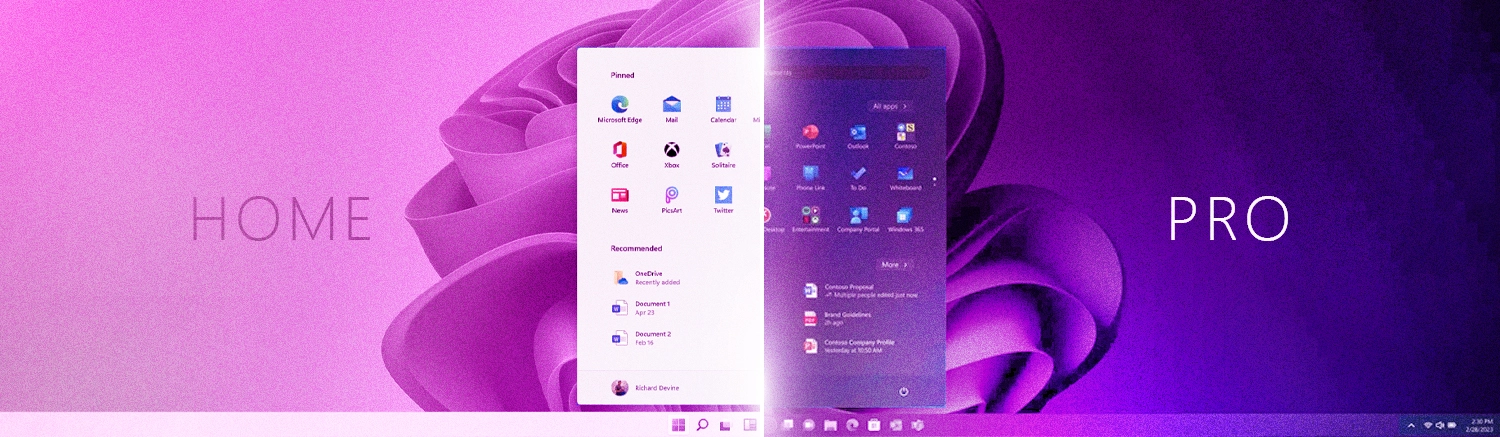
The user interface and experience are crucial aspects of any operating system. They determine how users interact with their devices and perform tasks efficiently. Windows 11 Home and Pro share the same core user interface.
This interface includes the centred Start Menu, the new Taskbar, and the redesigned Action Center. Both editions also support Snap Layouts and Snap Groups, which enhance multitasking by allowing users to organise and manage open windows more effectively.
However, Windows 11 Pro offers additional features to enhance the user experience for professionals and business users. For instance, the Pro edition includes advanced management tools like Group Policy, which you can use to customise the user interface and control various system settings.
This customisation can benefit a business environment where IT administrators may need to enforce specific configurations or restrictions.
Security features: A detailed comparison

Security is a paramount concern for any operating system user, whether they’re a casual user or a professional. Windows 11 Home and Pro both come with a robust set of security features.
Both editions include Microsoft Defender Antivirus, Windows Firewall and Windows Hello. Hello supports a PIN and, with suitable hardware, facial or fingerprint sign-in. Keep updates, backups and account protection in place whichever edition you choose; no edition or antivirus guarantees protection from every threat.
Pro adds BitLocker Drive Encryption management and policy capabilities useful in a managed environment. Home can also provide Device Encryption on eligible hardware. Separate the question ‘is this drive encrypted?’ from ‘can IT centrally enforce and recover the encryption setup?’
These features provide advanced protection for your data and give you more control over your system’s security settings.
BitLocker and device encryption

BitLocker Drive Encryption management is included in Pro, as well as other supported business editions. Encryption helps protect data at rest if a device is lost or stolen. The actual protection depends on encryption being enabled, recovery being handled correctly and the device’s state.
For business users, recovery-key handling is as important as switching encryption on. IT should decide where keys are stored, who can access them and how a locked-out user will recover access.
Home’s Device Encryption uses BitLocker technology on eligible devices, including the operating-system and fixed drives. Pro’s distinction is the additional BitLocker management interface and controls. Check Settings > Privacy & security > Device encryption on Home rather than assuming the drive is unencrypted.
Consider this hypothetical scenario: an employee loses a laptop containing confidential files. The useful checks are whether encryption was active, how recovery keys were protected, whether the device was locked and what data was exposed. The edition label alone does not answer those questions. Pro can make managed encryption easier, but buying it does not remove every data-protection obligation.
Drive encryption and a folder password solve different problems. Our Windows folder and file password-protection guide explains when to use an encrypted archive, EFS or a container, including the limitations on Home and the recovery keys to keep.
Windows Information Protection: a legacy feature

Microsoft has deprecated Windows Information Protection (WIP). It should not be presented as a current feature to adopt when buying Windows 11 Pro in 2026.
Older comparison guides describe WIP’s separation of personal and corporate data. For a new deployment, assess currently supported information-protection tools and their separate licensing instead of assuming a Pro purchase includes a complete data-loss-prevention solution.
The Microsoft Store for Business retirement is another reason to review older charts carefully. Its legacy availability is not a Home-versus-Pro buying advantage today. Use supported app-deployment methods appropriate to your organisation.
Compliance and cyber insurance
Assess the controls your organisation requires, rather than treating Pro as an automatic compliance certificate. Home may have Device Encryption; Pro adds management options that can help IT enforce a consistent setup. Check any insurer or certification requirements directly, including account security, updates, backups and device configuration. Do not infer eligibility from the Windows edition alone.
Group Policy Management and its benefits
Group Policy is a feature in Windows 11 Pro that allows IT administrators to manage and configure operating system settings across multiple computers in a network.
With Group Policy, administrators can enforce security policies, manage user permissions, and control system updates, among other things.
This level of control makes Windows 11 Pro a more suitable choice for businesses and organisations that need to manage multiple devices efficiently.
If Pro already meets your Home-versus-Pro requirements, an Enterprise upgrade needs a separate justification. Our Windows 11 Pro vs Enterprise comparison explains which controls need Enterprise and which management services can also work with Pro.
Managing your fleet: Group Policy and IT efficiency
One practical cost of unmanaged business PCs is configuration drift: devices can end up with different settings, applications and update states. Pro’s management capabilities can help address that when they are deployed through a suitable identity and policy setup. Buying Pro on its own does not configure or monitor a fleet.
The power of Group Policy
In a suitable Active Directory environment, Group Policy lets administrators define supported settings and apply them to groups of devices or users. Local policies can also configure an individual Pro PC. Policy coverage, refresh timing and network access matter; a change is not a guarantee of immediate enforcement on every computer.
Microsoft Entra ID and device onboarding
Windows 11 Pro supports Microsoft Entra ID device join; Home does not. Microsoft Entra ID is the current name for Azure Active Directory. Device joining is different from signing into a work app. Access to files, applications and services depends on the organisation’s licences, provisioning, permissions and policies.
For a distributed workforce, use a documented onboarding and offboarding process covering accounts, device access, apps, local data and recovery. Disabling an account does not by itself guarantee that every cached session or offline file disappears. Agree the required Windows edition with IT and check separate management licences before ordering laptops.
Virtualisation and remote management
Virtualisation and remote management are two areas where Windows 11 Pro truly shines.
These features cater to the needs of advanced users, IT professionals, and businesses.
Windows 11 Pro includes Hyper-V, a hardware virtualisation feature that allows users to create and run virtual machines on their computers.
Hyper-V is particularly useful for developers and IT professionals who must test applications in different environments without affecting their primary system.
In addition to Hyper-V, Windows 11 Pro offers advanced remote management capabilities.
These include Remote Desktop, which allows users to access their computer from another device remotely, and Group Policy Management, which provides centralised management and configuration of operating systems, applications, and users’ settings in an Active Directory environment.
Hyper-V virtualisation in Pro edition

Hyper-V is a native hypervisor in Windows 11 Pro that allows users to create and run virtual machines on their computers.
This feature is handy for developers who must test their applications in different operating systems or environments.
Using Hyper-V, they can easily create a virtual machine with a different operating system and run their applications in that environment.
Hyper-V allows them to identify and fix compatibility issues without affecting their primary system.
The full Hyper-V feature is not available on Home. Pro supports it on compatible hardware, including the required virtualisation capabilities. However, WSL 2 works on both Home and Pro. A developer who only needs Linux tools should check the workflow before assuming Pro is essential.
Remote desktop capabilities
Hosting a remote desktop on your PC is different from buying a hosted Cloud PC. Our Windows 11 vs Windows 365 comparison separates those models and explains internet dependence, licence prerequisites and the access device you still need.
Remote Desktop is another feature that sets Windows 11 Pro apart from the Home edition.
This feature allows users to remotely access their computer from another device, which can be incredibly useful for businesses and IT professionals.
With Remote Desktop, they can troubleshoot issues, install software, and manage files on a remote computer as if sitting in front of it.
Home can act as a Remote Desktop client, but not as Microsoft’s built-in Remote Desktop host. A Home laptop can connect to a properly configured Pro desktop. The reverse connection into a Home desktop is not supported by that built-in host feature; third-party remote-access products have their own requirements.
This matters when you need to connect into the PC using Microsoft’s built-in feature. Follow Microsoft’s Remote Desktop guidance and have IT secure access outside the office. The host must be reachable and configured for the user; Pro does not replace a secure network access solution.
Performance and power: Home vs Pro
Regarding performance and power, Microsoft has designed both Windows 11 Home and Pro to maximise your hardware’s potential.
They both support a wide range of processors and memory configurations, ensuring smooth and responsive performance for most users.
However, there are some differences in how these two editions handle processor and memory limits.
The editions differ in hardware capacity limits. Microsoft’s Windows 11 memory table lists 128 GB for Home and 2 TB for Pro. These are maximum supported capacities, not recommended memory amounts for an ordinary laptop.
If a workstation needs more than 128 GB of RAM, Home’s ceiling matters. Check the supported Windows edition, motherboard and application requirements together before buying. Pro does not automatically make the same processor or installed RAM faster.
Processor and memory limits
Windows 11 Home supports one physical processor socket and Pro supports two. A physical socket is not the same thing as a processor core: a laptop with a multi-core CPU is still normally a single-socket device. Consult the device vendor for unusually large workstation configurations.
Pro’s higher memory ceiling can matter for specialist workstations. Windows 11 Pro is a client operating system, not a replacement for Windows Server or the licensing required by a server workload.
For a typical single-processor laptop with 16 GB or 32 GB of RAM, these capacity limits are unlikely to decide the purchase. Storage speed, cooling, graphics and application requirements are more immediate considerations.
Some specialist applications or large datasets need more memory, but that requirement should come from the workload. Check the application’s recommendations and the actual laptop or workstation specification instead of selecting Pro solely because the work sounds demanding.
Both editions use the Windows 11 minimum hardware requirements. Optional features can require additional hardware. Microsoft also requires internet connectivity and a Microsoft account for initial setup of Home and Pro for personal use; Pro is not a universal exemption.
Windows Update client policies
Another significant difference between Windows 11 Home and Pro is how they handle updates.
Microsoft now calls this capability Windows Update client policies, formerly Windows Update for Business. Pro supports policy-based controls for managing update offerings and rollout timing.
Microsoft documents deferral limits of up to 365 days for feature updates and 30 days for quality updates. These are different update categories; the longer limit is not a blanket licence to delay all security updates for a year.
This level of control can be crucial for businesses that need to ensure stability and minimise downtime.
Home still receives Windows updates and provides consumer controls such as active hours. It does not offer the same Windows Update client policy capabilities. For business devices, plan testing, deployment deadlines and supported-version maintenance rather than postponing updates indefinitely.
Windows edition and feature-update version are separate choices. Our Windows 11 26H2 upgrade guide explains support deadlines, upgrade routes and the known issues to check before a rollout.
Gaming on Windows 11: Home vs Pro editions
Choosing Home or Pro is separate from choosing Windows 10 or Windows 11. Our Windows 11 vs Windows 10 gaming comparison explains the current benchmark evidence, feature requirements and a checklist for testing FPS and frame consistency on your own PC.
Gaming is a significant aspect of the Windows experience, and Microsoft has made considerable efforts to enhance gaming capabilities in Windows 11.
Home and Pro support gaming features such as Auto HDR and DirectStorage on suitable hardware and in supported games. These features are not unlocked simply by upgrading the edition to Pro.
However, the question remains: is there a difference in gaming performance between Windows 11 Home and Pro?
Read More:
Windows 10 vs. Windows 11 Gaming Performance
Microsoft Windows Server Support Dates and Lifecycle
The Ultimate Guide to Upgrading from Windows 10 to Windows 11 in 2025
Which Windows 11 edition should you choose?
How to Run Windows on Mac with a Virtual Machine: The Complete Guide
The answer is not really.
Both editions provide virtually the same gaming experience, as the gaming features are not tied to the Windows edition but to your PC’s hardware.
Whether you’re using Home or Pro, your gaming experience largely depends on your PC’s hardware capabilities.
However, Windows 11 Pro does offer some features that could indirectly benefit gamers.
Pro’s update policies can help manage rollout timing, but they do not guarantee that gaming is never interrupted. Use active hours and keep the machine updated; Home also provides everyday restart controls.
Also, features like BitLocker can provide an extra layer of security for your game data.
In conclusion, while both editions offer a great gaming experience, Windows 11 Pro does have a few additional features that could benefit gamers.
Cost analysis: Is Pro worth the upgrade?
Cost is a significant factor when considering the upgrade from Windows 11 Home to Pro.
The price difference between the two editions can be substantial, with Pro typically costing more than Home.
However, it’s essential to consider what you’re getting for that extra cost.
Windows 11 Pro has many advanced features that are unavailable in the Home edition. These include enhanced security features like BitLocker, enterprise-grade features like Domain Join and Group Policy Management, and advanced tools for developers like Windows Sandbox.
If you’re a home user who primarily uses your PC for basic tasks like browsing the web, watching videos, or playing games, the Home edition should suffice.
However, if you’re a power user, a professional, or a business owner who needs advanced features for better security, management, and productivity, the Pro edition could be worth the extra cost.
Ultimately, whether or not Pro is worth the upgrade depends on your specific needs and how you plan to use your PC.
Advanced features for developers and IT professionals
Microsoft has packed Windows 11 Pro with advanced features that cater to the needs of developers and IT professionals.
These features provide a robust software development, testing, and deployment environment.
One such feature is Windows Sandbox, an isolated environment for testing untrusted applications.
Another is Domain Join, which allows computers to become part of a corporate network.
Managed Windows settings roaming is also setup- and licence-dependent; it is not an automatic app-sync entitlement included with every Pro purchase. Microsoft changed the management experience for Enterprise State Roaming in July 2026.
These features, among others, make Windows 11 Pro a compelling choice for professionals who need more than just the basics.
Windows Sandbox and application testing
Windows Sandbox is a standout feature in Windows 11 Pro.
It provides a temporary and isolated environment for testing untrusted applications.
Sandbox isolates a temporary desktop from the host, but its configuration still matters. Microsoft’s Sandbox documentation notes that networking is enabled by default and can expose untrusted applications to the internal network. For unknown files, review networking and shared-folder settings.
Closing Sandbox discards software, files and state inside that environment. It does not undo effects on a shared folder or network resource, so do not treat it as a promise of zero residual risk. Use a suitable test environment for genuinely sensitive workloads.
Domain Join and Enterprise State Roaming
Domain Join is a crucial feature for IT professionals managing a network of computers.
It allows computers running Windows 11 Pro to become part of a corporate network. It facilitates centralised management of devices, enhancing security and efficiency.
Enterprise State Roaming concerns supported Windows settings, rather than automatically copying every app and file. Microsoft’s 2026 migration guidance says management moved from the Entra admin centre to Windows settings backup and restore in July 2026.
IT now needs to review eligible devices, licences and backup policies managed through Intune, another MDM provider or Group Policy. For a new deployment, verify the current requirements rather than treating a ‘Yes’ in an older comparison chart as sufficient.
How to choose the right edition for your needs
Choosing between Windows 11 Home and Pro depends mainly on your needs and use cases.
Both editions offer a robust and user-friendly experience but cater to different user groups.
Windows 11 Home is sufficient for casual users and those primarily using their computers for personal tasks.
However, for professionals who require advanced features and capabilities, Windows 11 Pro is the better choice.
Let’s delve deeper into the considerations for specific user groups.
For software developers
For software developers, Windows 11 Pro offers several advantages.
Features like Windows Sandbox provide a safe environment for testing new applications.
Moreover, the Pro edition’s advanced networking and security features can benefit developers working on enterprise-level applications.
For tech startup founders
For tech startup founders, the decision between Home and Pro may hinge on cost, scalability, and specific business needs.
Windows 11 Pro, with its advanced management and security features, can support startups’ growth and scalability.
However, the higher cost of the Pro edition may be a consideration for startups operating on a tight budget.
For technology journalists
Understanding the nuances of Windows 11 Home and Pro is crucial for technology journalists.
This knowledge allows them to provide clear, detailed, and comprehensive coverage of the latest developments in Windows 11.
Moreover, being familiar with both editions can help journalists cater to a broader audience, from casual users to IT professionals.
The business decision matrix: Which edition do you really need?
If you are unsure which version to choose, stop looking at the price tag and start looking at your risk profile. Use the following qualifying questions to determine the right fit.
Do you need managed encryption and recovery? Pro is useful when IT must control encryption settings and recovery keys. Home can provide Device Encryption on eligible devices. Check the actual configuration and organisation’s requirements rather than inferring protection from the edition name.
Must devices join the company identity environment? Choose a supported edition such as Pro when Microsoft Entra ID or Active Directory join is required. There is no universal five-device threshold; the management method, controls and IT workload determine the decision.
Must the office PC host Microsoft’s Remote Desktop? If yes, Home does not provide that host capability; Pro does. If you use a different remote-access product, check its own requirements. In either case, arrange secure access and test the intended connection before rollout.
Are you subject to specific security or insurance requirements? Review the applicable controls directly with the responsible team. An edition purchase does not certify compliance. Pro may help implement required management capabilities, but configuration, licences and operational processes remain part of the decision.
The cost of getting it wrong: buying the features you need
Compare the edition cost with the actual work required. Pro can avoid a later upgrade when your organisation already needs company joining, policy controls or remote hosting. Equally, paying extra for features you will never use is an unnecessary expense. Consider the whole device specification and support plan.
Potential costs of choosing an edition that does not meet your requirements include:
- The labour cost of manually configuring every PC.
- The work required to establish and verify the right encryption and recovery controls.
- The productivity loss when a remote worker cannot access their office desktop.
- The cost of upgrading licences and reworking device provisioning later.
For a managed business PC, Pro is often the practical choice when the required controls depend on it. For an independent user whose applications and access needs work on Home, the decision may be different. Document the required features before approving an edition upgrade.
How to check your edition and upgrade from Home to Pro
Before paying, open Settings > System > About and check Windows specifications. Then open Settings > System > Activation to confirm activation. If the computer already runs Pro, you do not need to buy the same edition again.
For an activated Home installation, expand Upgrade your edition of Windows in Activation. Use Change product key with a valid Pro key, or follow the Microsoft Store option to purchase the upgrade. Check the price for your region and account. Follow Microsoft’s Home-to-Pro upgrade instructions and restart when prompted.
The edition upgrade normally preserves applications and files. Still, back up important files, save encryption recovery keys independently of the PC, and check business applications before changing a production device. Verify activation and the new edition afterwards. Switching out of S mode is a separate, free, one-way change; it does not itself turn Home into Pro.
Check encryption rather than assuming it is enabled
On an eligible PC, check Settings > Privacy & security > Device encryption. Availability and encryption state depend on hardware and setup. On Pro, also check BitLocker management controls. Record where recovery keys are stored and who can access them. The edition label is not a substitute for checking actual drive protection.
Does an AI PC or Copilot+ PC need Windows 11 Pro?
The edition choice and AI hardware choice answer different questions. Copilot+ PC capabilities depend on eligible hardware and each feature’s requirements. Buying Pro does not add a neural processing unit or make an older PC a Copilot+ PC. Check Microsoft’s current Windows specifications and feature requirements, including region, account and software availability.
A Snapdragon-based Windows laptop also introduces application, driver and peripheral compatibility considerations. Our Snapdragon vs Intel comparison explains how to check processor generations and test the complete workflow before buying. Assess the actual processor generation and required software separately from the edition. For business procurement, establish compatibility and hardware needs, then choose Home or Pro according to required management features.
What does a Pro licence include?
A Pro licence is not a bundle of every Microsoft business service. Microsoft 365 applications, Intune, premium Entra capabilities and other services may require separate licences. Having Pro does not establish that your organisation has configured those services. Confirm device licensing, subscriptions, deployment and support responsibilities with your IT provider.
Conclusion: Making an informed decision
The choice between Windows 11 Home and Pro is more than a one-size-fits-all decision.
It depends on your specific needs, the nature of your work, and your budget.
While Windows 11 Home offers a user-friendly experience for casual users, Windows 11 Pro provides advanced features that cater to professionals and businesses.
Final thoughts and recommendations
In conclusion, whether you’re a casual user or a gamer, Windows 11 Home should meet your needs.
However, if you’re a professional, a software developer, or running a tech startup, the advanced features of Windows 11 Pro could be worth the extra cost.
Remember, it’s not just about the cost but also the value you get from the operating system.
Ultimately, the best way to decide is to assess your needs carefully and choose the edition that best meets those needs.
Whether you’re a home user seeking a secure and visually refined experience or a business professional requiring advanced features, the decision between Windows 11 Home and Pro should be based on long-term needs. For businesses or individuals managing multiple devices, remote access, and security protocols, Windows 11 Pro can be an appropriate choice when its management features are required, particularly when paired with professional IT support. With the right support team, users can fully leverage Pro’s features such as Group Policy, BitLocker, and Hyper-V, ensuring a stable, secure, and efficient operating environment.
FAQs about Windows 11 Home vs Pro Versions
Looking to optimise your business infrastructure?
Choosing the right software is the first step for your business.
Read more:
Windows 11 Vs Windows 365
Windows 11 Pro Vs Enterprise
How to Take a Screenshot in Windows: The Complete 2025 Guide
Lets Talk!
If you have additional comments or questions about this article, you can share them in this section.
This seems to be a great article. However, there is one critical bit of info missing. Can you load and run your own favorite programs without the horrid S-Mode getting in the way? I returned a new computer the very next day because after buying it, windows 11 would not allow me to turn off S-Mode without paying another $100 to Microsoft. I call that extortion.
That’s a fantastic point, thank you for raising it!
Switching out of S-Mode should always be free. The $100 charge you saw was likely a confusing prompt to upgrade to Windows 11 Pro, not just to turn off S-Mode.
You’re 100% right that this is a critical piece of information we missed. We’ll update the article this week to cover it properly. Thanks for helping us improve the post!
Worst I’ve ever used. Run away from Windows 11 Pro. I want to remove it and go back to 10.
What are your thoughts on the Windows 11 Ent Eval ? Have you given that a go?
If you’re in IT or need to test enterprise features, absolutely. For personal use, Home or Pro may suffice.