
Windows does not have a universal “add password to this folder” button. For a folder you want to send or store behind a separate password, create an AES-encrypted 7-Zip archive. For files you edit regularly, an encrypted VeraCrypt container may be more practical. EFS unlocks through your Windows encryption key, while BitLocker protects a drive; neither adds a separate password prompt to each folder.
Start with what you need to protect: a shared copy, a stolen laptop, or files from another Windows account. Those are different problems. This guide covers Windows 11, explains the limitations of each method, and keeps the relevant Windows 10 paths for existing installations. Sources and method checks reviewed: 8 October 2026.
Choose the method that matches your goal
| Your goal | Method | What it does not do |
|---|---|---|
| Send a folder with a separate password | 7z archive with AES-256 and encrypted filenames | Does not encrypt the original folder or extracted copies. |
| Keep a working collection behind a password | VeraCrypt encrypted container | Files are accessible while the container is mounted. |
| Encrypt local files for your Windows account | EFS on supported editions and NTFS | Does not ask for a new folder password; recovery needs the private key. |
| Protect a lost or stolen device/drive | BitLocker or eligible Device Encryption | Does not isolate folders from someone using an already-unlocked session. |
| Separate users on the same PC | Separate accounts and NTFS permissions | Access control, not encryption or portable password protection. |
| Protect a single Word, Excel or PowerPoint file | Desktop app’s Encrypt with Password option | Editing restrictions and read-only settings are not equivalent to opening-password encryption. |
For the quickest folder-password workflow, jump to the 7-Zip steps. If you need a particular built-in feature, check your edition under Settings → System → About and compare Windows 11 Home and Pro.
- Choose the method that matches your goal
- Why password-protect files and folders?
- Built-in Windows methods
- Password-protecting with ZIP/7-Zip archives
- Password-protect a single Office document
- Using VeraCrypt and container-based encryption
- Third-party tools (free and paid)
- Command line and script workarounds
- Limitations, risks, and recovery options
- Best practices for password security
- Performance and compatibility considerations
- What was checked for this refresh
- Frequently asked questions (FAQ)
- Final thoughts
Why password-protect files and folders?
Encryption makes stored data unreadable without the appropriate key. Permissions tell Windows which accounts may read or change it. Hiding a folder changes its visibility. A password box is useful only if it actually controls a suitable encryption or access mechanism.
- For shared files: encrypt the copy you send and agree how the recipient will open it. Send the password through a separate, trusted channel.
- For a shared PC: use separate Windows accounts and lock your session when you leave. Someone using your unlocked account can generally access what you can.
- For loss or theft: drive encryption helps protect stored data against offline access. An encrypted archive adds protection to a specific copy.
- For business documents: use your organisation’s approved storage and sharing process. A password alone is not a complete data-handling policy.
Built-in Windows methods
Built-in options protect different things. Choose deliberately rather than treating EFS, BitLocker and folder permissions as interchangeable.
Encrypting File System (EFS)
EFS encrypts individual files on NTFS using a certificate and private key associated with an authorised user. It is not available in Windows Home. Your normal signed-in session can open the files transparently, so EFS is not a separate folder password. Microsoft documents the EFS Properties workflow and NTFS encryption requirements.
- Back up important data first. On a work PC, check the organisation’s EFS and recovery policy before changing it.
- Right-click the file or folder and select Properties → General → Advanced.
- Select Encrypt contents to secure data, then OK → Apply.
- For a folder, apply the change to the folder, subfolders and files if you intend to encrypt existing contents too. For a single file, consider encrypting its parent folder to reduce the chance of unencrypted versions being saved.
- Follow the certificate/key backup prompt. Store the password-protected private-key backup securely away from the only encrypted copy, and confirm your recovery process before relying on EFS.
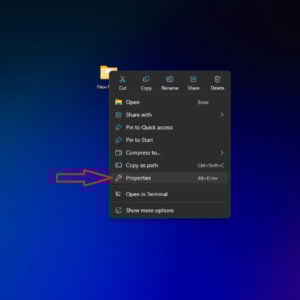
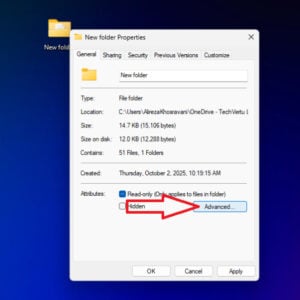
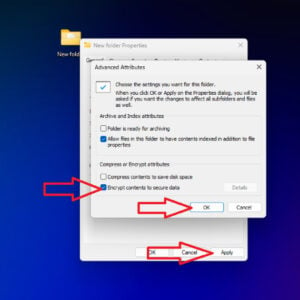
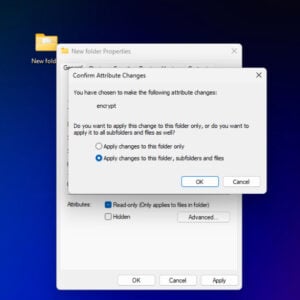
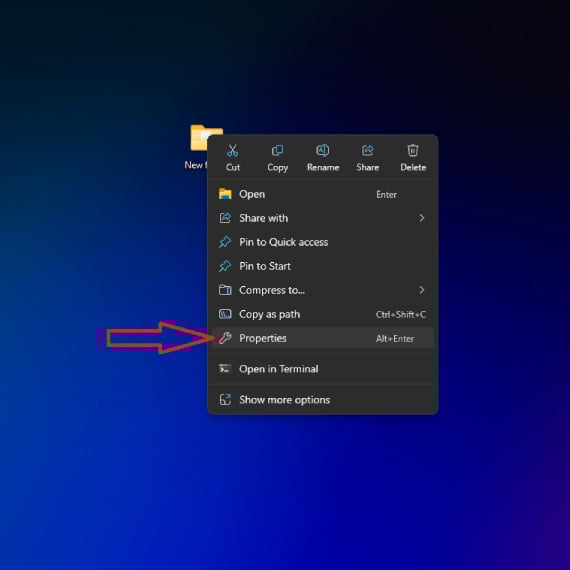
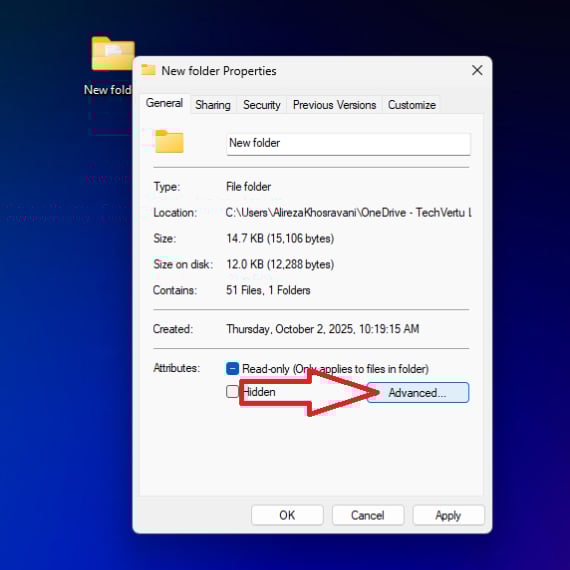
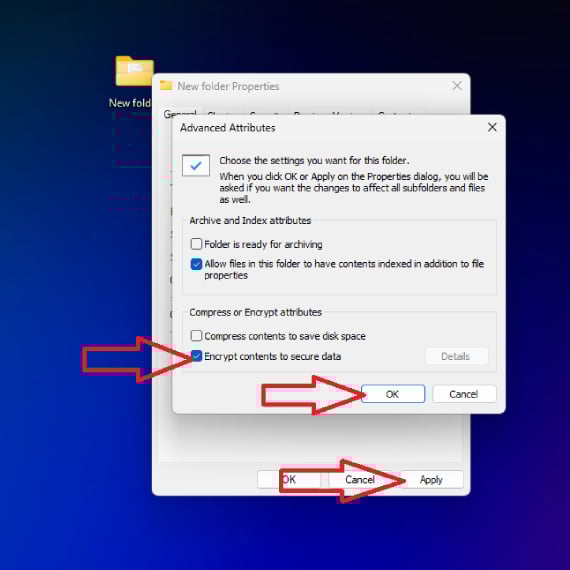
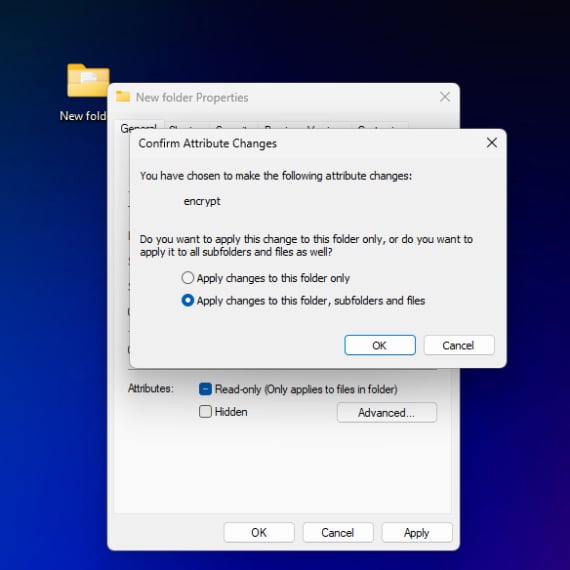
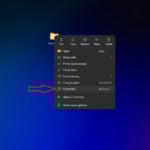
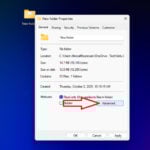
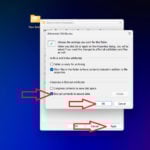
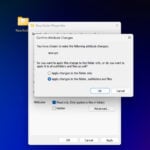
Existing Windows screenshots show Properties, Advanced Attributes and the scope confirmation. Their labels were reviewed for this refresh; the screenshots were not newly captured.
If the encryption checkbox is unavailable: check Windows edition, an NTFS location and whether NTFS compression is enabled. EFS cannot encrypt compressed files. Organisation policy can also restrict it. Do not attempt to solve this by deleting certificates or changing recovery policy.
For key backup, Microsoft’s cipher documentation describes certificate/key export. Never send someone your EFS private key or its PFX backup to share one document. EFS can authorise another user with that user’s certificate; see Microsoft’s user-sharing model. A recipient-password archive is usually simpler for a one-off transfer.
EFS is convenient for authorised local use but less convenient for portable sharing. Verify how copies, backups and sync destinations handle the data; do not assume the encrypted attribute survives every transfer. Compare Windows 11 Pro and Enterprise if you are deciding how to manage Windows security features.
BitLocker drive encryption
BitLocker protects an entire drive, including an OS drive or a removable data drive. Manual BitLocker Drive Encryption is available on Pro, Enterprise and Education. It protects data at rest against offline access, rather than asking for a password whenever you open a folder. Follow Microsoft’s BitLocker setup instructions.
- Sign in with an administrator account. On a managed PC, check with IT rather than changing existing encryption settings.
- Search Start for Manage BitLocker, or open the BitLocker Drive Encryption Control Panel applet.
- Choose the intended drive and select Turn on BitLocker.
- Follow the unlock options offered for that drive and its policy. OS-drive options differ from removable/data-drive options; do not assume every drive offers a simple password unlock.
- Back up the recovery key to an approved, accessible location, then complete the wizard and check that encryption and protection finish successfully.
Windows 11 Home may have Device Encryption. On eligible devices, check Settings → Privacy & security → Device encryption. Its availability depends on the device and account; it is not a folder-password feature. Microsoft explains Device Encryption prerequisites and account-based recovery backup.
Keep the recovery key available outside a locked device. If recovery is requested, match its key ID with the stored key and follow Microsoft’s recovery guidance. A work or school administrator may hold it. Microsoft Support cannot recreate a missing key; resetting a device to regain use removes its files.
NTFS permissions (access control)
NTFS permissions are useful for controlling access by separate accounts. They do not encrypt the file contents or add a password to a copy you email. Administrators can change ownership/permissions, and unencrypted data can be exposed through offline access.
- Use a personal folder under your own Windows profile where possible, rather than a broadly shared folder.
- To review access, right-click the folder and open Properties → Security. Use Advanced to understand inherited entries and effective access.
- If access needs changing, work on a backed-up test folder first and grant only the intended accounts the required rights. Verify with the relevant account before applying changes to important data.
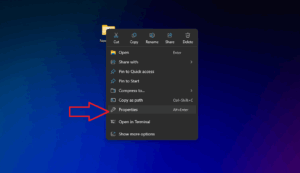
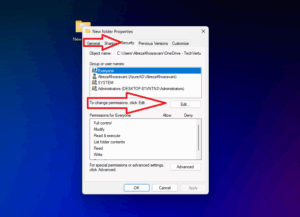
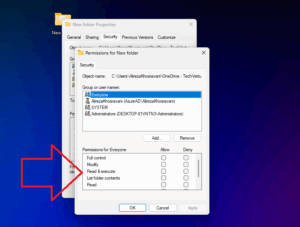
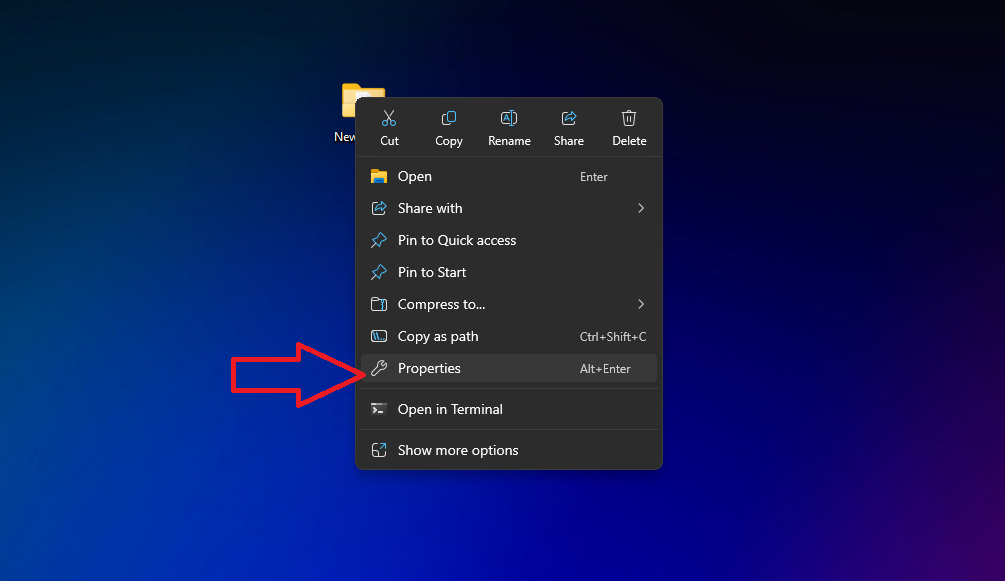
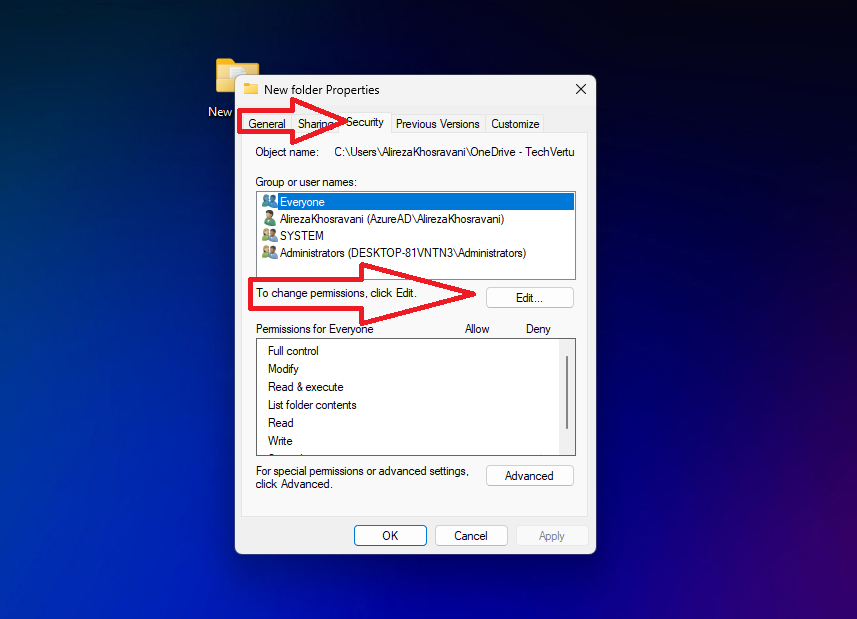
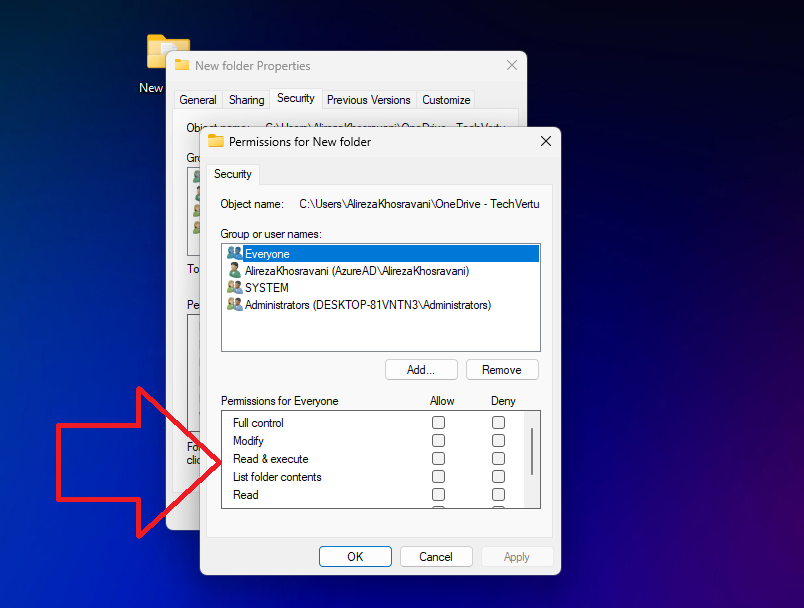
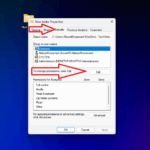
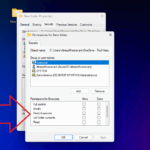
Avoid a blanket “Deny Everyone” recipe. Group membership and inheritance can produce unexpected results, including locking out the intended user. The screenshots illustrate the dialogs, not a universal permissions configuration. Microsoft’s access-control explanation describes how allow and deny entries are evaluated.
Windows built-in “password protection” myths
There is no generic right-click folder-password command. The Hidden attribute, read-only settings and batch-file “lockers” do not encrypt content. EFS and drive encryption have their own key/unlock models. Some applications can encrypt individual documents with a separate password, as explained below.
Password-protecting with ZIP/7-Zip archives
An encrypted archive is a practical choice for a static folder copy. It works on Windows Home too, provided you can install or use an approved archive tool. Windows’ ordinary Compress to ZIP operation is compression, not password encryption. Microsoft states that File Explorer does not support operations on encrypted archives; use a compatible application at both ends.
Using 7-Zip (free and open source)
- Install a current version from the official 7-Zip site or your organisation’s approved software source.
- Right-click your folder and choose Show more options → 7-Zip → Add to archive if 7-Zip is not in the first Windows 11 menu. You can also select the folder in 7-Zip File Manager and use Add.
- Choose Archive format: 7z. Give the archive a destination outside the source folder so you do not confuse the original and encrypted copy.
- Under Encryption, enter and confirm a long, unique password. For 7z, the encryption method is AES-256.
- Select Encrypt file names if names are sensitive, then create the archive. Leave Delete files after compression off while you verify the result.
- Close and reopen the archive. Check that a wrong password fails and the correct one lets you extract a test copy. If filenames are encrypted, listing them should require the password too.
The 7z format supports AES-256 encryption. If a recipient requires ZIP, explicitly select AES-256 in the ZIP encryption options and test their application. Do not switch to legacy ZipCrypto merely to make an old extractor accept the file. ZIP AES encrypts contents but does not provide the same filename-hiding option as encrypted 7z headers.
The original folder is still there. Creating an archive normally leaves the plaintext source untouched. Extracting it produces another readable copy. Decide where those copies belong, confirm your backup, and follow your data-retention process. Ordinary deletion is not a promise of secure erasure, particularly on SSDs, synced storage or backups.
Use Extract to a chosen protected location rather than assuming that opening or dragging a document leaves no temporary data. 7-Zip’s FAQ explains that drag-and-drop to Explorer uses temporary files. Avoid editing directly inside an archive when you need a predictable working-file and backup workflow.
Password-protect a single Office document
For a Word file in the desktop app, use File → Info → Protect Document → Encrypt with Password, enter and confirm the password, then save. Close and reopen the file to check it. Excel and PowerPoint use their corresponding Protect Workbook or Protect Presentation menu for file encryption. Microsoft documents Word password encryption and the Office file-encryption workflow.
Use an opening password for confidentiality. “Mark as Final”, worksheet protection or editing restrictions address different goals. Word for the web cannot password-encrypt or edit these encrypted documents; use the desktop application. Store the password securely because ordinary forgotten-password recovery is not available.
Using VeraCrypt and container-based encryption
A VeraCrypt container is a file that mounts as an encrypted virtual drive. It can be useful for a collection you repeatedly edit: unlock it, work inside the mounted drive, then close applications and dismount it when finished. It does not convert the original folder in place.
How it works
- Use the official VeraCrypt download or approved software source. Read the vendor’s beginner tutorial before using important files.
- Select Create Volume → Create an encrypted file container → Standard VeraCrypt volume.
- Select a new container filename. Do not select an existing valuable file: creating the container can overwrite it.
- Choose the encryption options, size, a unique password and a filesystem suitable for your intended use. Follow the wizard’s instructions, including the random-data step, and create the volume.
- Select the container, choose an available drive letter and select Mount. Enter the password and copy test files into that drive.
- Close files and applications, then Dismount. Reopen a test copy with the password and check your backup/recovery process before moving important data.
While mounted, authorised applications can read the files. Their caches, temporary files and malware can expose plaintext. Review VeraCrypt’s security precautions and malware limitations. A container password is not antivirus protection. Avoid simultaneous editing of multiple synced copies; backup and sync behaviour need to be checked for the particular service.
Containers involve more setup than a static archive, and forgetting the password or necessary keyfile can lose access. Back up the container and required recovery material through an approved process. Hidden volumes have additional risks and operating rules; they are not necessary for this basic folder-protection workflow.
Third-party tools (free and paid)
Other options include AxCrypt, Folder Lock, Wise Folder Hider and WinRAR. Check the exact edition, encryption mode, update policy and recipient compatibility rather than choosing from a generic “security level” score. These alternatives were not hands-on tested for this refresh.
In particular, hiding and encryption may be separate modes in one product: Wise Folder Hider documents hiding separately from encrypted lockers. Do not assume a tool’s login password means every hidden file is independently encrypted. Test the mode you select on disposable data first.
Command line and script workarounds
A batch file that checks a typed password and hides or renames a folder is not encryption. Someone can inspect the script or bypass its hiding operation. Do not use a folder-locking batch script for sensitive documents.
For technical users, EFS commands are documented by Microsoft and 7-Zip provides archive-encryption switches. Keep real passwords out of saved scripts and command history; use a supported password prompt or the GUI. A command-line tool still has the same limits around originals, extracted files and missing recovery keys.
Limitations, risks, and recovery options
| Problem | What to check |
|---|---|
| No EFS checkbox / checkbox disabled | Windows edition, NTFS location, compression and organisation policy. |
| Archive opens without asking for a password | Check whether you are viewing filenames rather than decrypting contents, whether names were encrypted, and whether the application still has credentials in memory. Test with the program closed and reopened. |
| Recipient cannot extract the archive | Confirm their extractor supports the selected 7z or ZIP AES format. Share a disposable compatibility test first; do not weaken encryption to solve it. |
| EFS file inaccessible after reinstall or account change | Locate the correct private-key backup or organisation recovery agent. Do not delete the only encrypted copy. |
| BitLocker recovery screen | Match the recovery key ID with the saved key; contact the organisation administrator where relevant. |
| Files appear outside the protected location | Check source copies, extraction destinations, application temporary files, cloud version history and backups. |
Encryption and backup solve different problems. Keep a recovery-tested backup and protect the passwords, private keys or recovery keys needed to use it. For a broader plan, see data backup and recovery strategies.
Best practices for password security
- Use a long, unique password or passphrase, ideally generated and stored by a trusted password manager. Do not rely on predictable substitutions or personal dates. NCSC guidance explains memorable random-word passwords and password managers.
- For work files, use approved encryption and sharing tools. Send a sharing password through a separate trusted channel.
- Keep recovery material accessible if the device is lost, and restrict who can obtain it. Never share your EFS private key.
- Lock the session, dismount containers when finished and control plaintext working copies.
- Keep the OS and encryption applications supported and updated. Windows 10’s ordinary support ended on 14 October 2025; eligible ESU arrangements have separate requirements. Encryption does not replace security updates.
Performance and compatibility considerations
Avoid treating encryption products as a speed or security ranking. Performance depends on hardware, data size, compression settings and workload. Test representative copies when that matters. Portability depends on whether the recipient has a compatible application and the required keys.
- EFS: transparent local editing, but tied to certificate/private-key access and supported NTFS workflows.
- BitLocker: drive-level protection; unlock options and management depend on drive type and policy.
- 7-Zip: useful for a static shared copy, with extra extraction and plaintext-copy management.
- VeraCrypt: useful for repeated editing in a mounted container, with extra mounting, dismounting and backup steps.
What was checked for this refresh
Disposable-file checks on Windows 11 build 26200 with 7-Zip 26.04 verified encrypted 7z and ZIP creation, correct/wrong-password behaviour, 7z filename encryption, extraction hash equality, unchanged plaintext originals and EFS encryption/decryption with transparent access for the same account. NTFS permissions were inspected, not tested with a second account. BitLocker, Device Encryption, Office and VeraCrypt setup paths were checked against primary documentation, not completed as fresh GUI installations. No sensitive user files were used.
Frequently asked questions (FAQ)
For the underlying algorithm, NIST’s AES standard specifies the three AES key sizes. The practical choice still needs the right password, implementation and file-handling process.
Final thoughts
For a folder copy with a separate password, start with an AES-encrypted archive and verify it before sharing. For regular editing, consider a container. Use EFS for its account-based local encryption role and drive encryption for offline device protection. Keep readable copies under control and prove that you can recover your data before relying on any method.
Lets Talk!
If you have additional comments or questions about this article, you can share them in this section.