

To schedule a Windows 11 shutdown in one hour, save your work, press Windows + R, enter shutdown /s /t 3600 and press Enter. To cancel the pending countdown, run shutdown /a. For a shutdown at a particular time each day, use Task Scheduler instead.
Save first: Microsoft documents that a timeout greater than zero implies forced app closure. That means shutdown /s /t 3600 can close apps and lose unsaved work even though you did not type /f. A timer is not a promise that downloads, backups or other work will finish first.
Source-checked on 15 October 2026. Instructions are based on Microsoft documentation; no shutdown was executed on a test PC for this article. Task Scheduler images are genuine older vendor reference screenshots, clearly labelled below.
- Set a one-off shutdown timer
- Cancel or change the countdown
- Choose a timer or a scheduled task
- Schedule a shutdown at a fixed time or every day
- Check sleep, battery and missed-run settings
- Stop a recurring shutdown without leaving a surprise
- Troubleshoot a shutdown that did not happen
- Frequently asked questions
Set a one-off shutdown timer
- Save open documents and check that no installation, firmware update or important file transfer is running.
- Press Windows + R to open Run.
- Enter the command below, then press Enter. The countdown starts when the command is accepted.
shutdown /s /t 3600/s requests shutdown; /t sets the delay in seconds. This example uses 3,600 seconds, or one hour. Choose a different duration before running it:
| Delay | Command |
|---|---|
| 15 minutes | shutdown /s /t 900 |
| 30 minutes | shutdown /s /t 1800 |
| 1 hour | shutdown /s /t 3600 |
| 2 hours | shutdown /s /t 7200 |
| 4 hours | shutdown /s /t 14400 |
Each positive-delay example can force apps to close at the end of the countdown. These commands schedule a shutdown, not a restart: do not substitute /r unless you want a restart. See Microsoft’s shutdown command reference for the switches and forced-close behaviour.
Cancel or change the countdown
Before the timeout expires, press Windows + R, enter the following command and press Enter:
shutdown /aTo change the delay, abort the old countdown first, then start a new one with the required number of seconds. The new delay runs from that new command, not from the original start time.
Cancellation has a boundary: /a aborts a pending shutdown during its timeout period. It cannot undo a completed shutdown, and it does not disable a Task Scheduler entry that will run again tomorrow. A task using /t 0 provides no countdown window in which to abort it.
Choose a timer or a scheduled task
| What you want | Use | Important distinction |
|---|---|---|
| Turn off after a delay from now | shutdown /s /t seconds | One countdown; positive delays imply forced app closure. |
| Turn off at 22:00 tonight | Task Scheduler with a One time trigger | A clock time, rather than a number of seconds from now. |
| Turn off every evening or every weekday | Task Scheduler with a Daily or Weekly trigger | A persistent task; disable it when you no longer want the routine. |
| Turn off after a backup or download finishes | The application’s supported completion action, if available | A fixed timer cannot detect successful completion. |
A sleeping computer and a switched-off computer are not the same thing. A scheduled task also needs the PC to be available, and its account and power conditions must allow it to run. Check those settings before relying on a nightly routine.
Schedule a shutdown at a fixed time or every day
Task Scheduler is built into Windows. Microsoft describes tasks as triggers, actions and conditions: the trigger chooses when to start, the action chooses what to run, and conditions can prevent execution.
- Open Start, search for Task Scheduler and open it. Choose Create Basic Task in the Actions pane.
- Give it a recognisable name, such as Nightly shutdown. Include its purpose in the description.
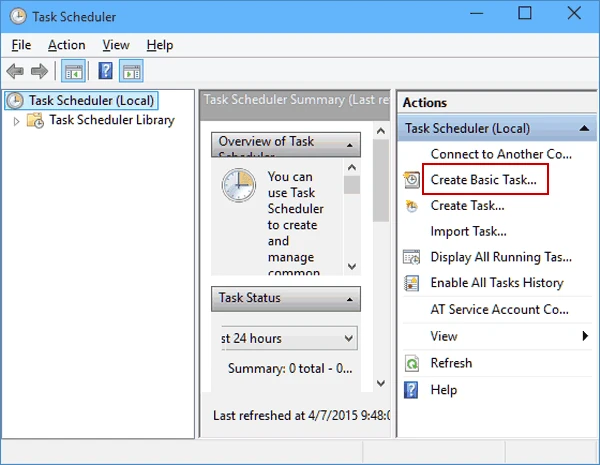
- Choose One time for a single scheduled date, Daily for every day, or Weekly to select particular days. For weekdays only, use Weekly and select Monday to Friday.
- Set the start date and local clock time, for example 22:00. Review the computer’s date, time and time zone if it travels or has recently changed location.
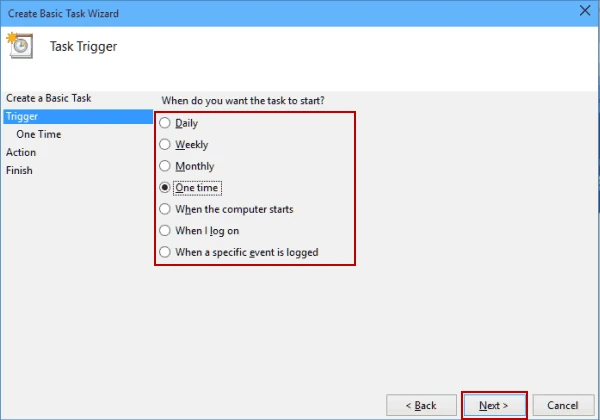
The older example above has One time selected. Select Daily or Weekly instead if that is the routine you intend. Microsoft’s daily-task example explains the daily-trigger and executable-action model.
- Choose Start a program.
- In Program/script, enter
C:\Windows\System32\shutdown.exefor a Windows installation on C:. If Windows is installed elsewhere, use its actual System32 location. - In Add arguments, enter
/s /t 0. Leave Start in blank. Keep the executable path and arguments in their separate fields. - Review the summary and choose Finish. Locate the task in Task Scheduler Library, then open Properties to check its account, Conditions and Settings.
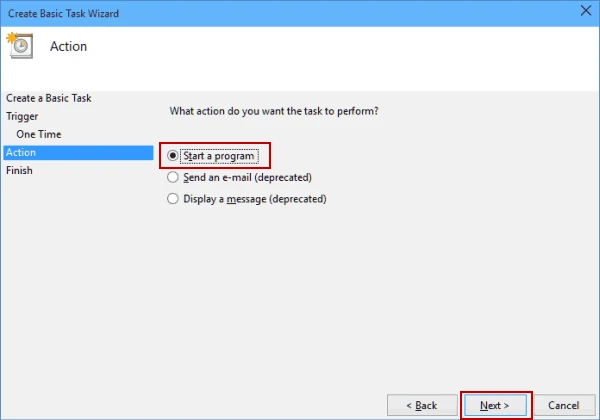
Why use /s /t 0 here? The trigger supplies the waiting time, so the action does not need a second countdown. Without /f or a positive timeout, this avoids deliberately forcing app closure; an app may still block the shutdown. Save your work anyway. It is a choice to favour an orderly request over a guaranteed switch-off time, not a guarantee against data loss.
If you change the arguments to /s /t 600, the shutdown is requested ten minutes after the trigger time and forced-close behaviour applies again. A task triggered at 22:00 with that delay targets roughly 22:10, not 22:00.
Check sleep, battery and missed-run settings
| Setting or condition | What to decide |
|---|---|
| General: account and logon options | Run only when user is logged on will not cover periods when that user is signed out. Logged-off execution needs a suitable account and rights; ask IT on a managed PC. |
| Conditions: AC power | A battery restriction can prevent a laptop task from starting. Decide whether running on battery is appropriate rather than clearing every condition automatically. |
| Conditions: Wake the computer to run this task | Use only if you want supported sleeping or hibernating hardware to wake. Hardware and power policy matter; this is not a promise to boot a fully powered-off PC. |
| Settings: Run task as soon as possible after a scheduled start is missed | For an ordinary nightly shutdown, leave catch-up disabled unless you deliberately want it. A missed evening task could otherwise run later during working hours. |
| Conditions: idle requirement | An idle-only condition can prevent or postpone the expected run. Keep it only if that is part of your intended policy. |
Microsoft documents these behaviours separately: waking to run, battery restrictions, running after a missed start and idle conditions. Turning the display off does not establish that the computer is asleep.
Do not choose SYSTEM or “Run with highest privileges” as a blanket fix. The command requires the Shut down the system user right; local or organisational policy determines who has it. Microsoft’s task security-context guidance explains why the account and permissions matter. If access is denied on a work computer, ask IT to review the task rather than bypassing policy.
Stop a recurring shutdown without leaving a surprise
| Situation | Action |
|---|---|
| A positive-delay shutdown is counting down now | Run shutdown /a before the timeout expires. |
| You do not want future scheduled runs | Open Task Scheduler Library, select your shutdown task and choose Disable. Delete it only when you no longer need its definition. |
| A scheduled task has already launched a countdown | Abort the pending countdown and disable the task if you also want to stop future runs. Disabling alone does not recall an already issued shutdown command. |
| You are editing the shutdown time | Change the trigger, inspect the action and conditions, then confirm the next scheduled run. Do not create a second task accidentally. |
Before creating Windows installation media or starting a long update, check both any active countdown and any recurring shutdown task. Likewise, coordinate the schedule with your backup and recovery routine. Leave enough time for verification; the clock cannot tell whether a backup succeeded.
Troubleshoot a shutdown that did not happen
- Check Next Run Time and the enabled state in Task Scheduler Library. Confirm the intended trigger date and recurrence.
- Open the action and check the executable path and arguments separately. Check that you selected shutdown rather than restart.
- Check whether the PC was asleep, on battery, signed out or blocked by an idle condition. Review the task’s History if logging is enabled, and Last Run Result. A task starting is not proof that the computer finished shutting down.
- If apps remained open with the non-forcing action, save and close them. Do not add forced closure without accepting the unsaved-work risk.
For a read-only inspection, open a terminal and query your exact task name. This command displays details; it does not run the shutdown task:
schtasks /query /tn "Nightly shutdown" /fo LIST /vReplace the name if yours differs; include its Task Scheduler folder path if it is not in the root library. Microsoft’s query reference describes the detailed output. Do not click Run on a live shutdown action just to see whether the trigger looks correct. Save work and choose a controlled time before testing an actual shutdown.
Lets Talk!
If you have additional comments or questions about this article, you can share them in this section.