

Thinking about the Windows 10 to 11 upgrade? Here’s what you need to know upfront:
- Is it free? Yes, the upgrade from a genuine Windows 10 to Windows 11 is completely free from Microsoft.
- Can my PC run it? You must check your computer’s hardware compatibility first. The easiest way is with Microsoft’s free PC Health Check app.
- What’s the #1 rule? Always, always back up your important files and data before you begin the upgrade. It’s your safety net.
- Is it safe? Yes, the upgrade is a stable and well-tested process. By following this guide, you can ensure it’s a safe transition.
Hello there! If you’re reading this, chances are you’re considering making the jump from Windows 10 to the fresh, new experience of Windows 11. With its sleek design, enhanced security, and clever productivity tools, it’s a fantastic upgrade.
But we get it. Any major software change can feel daunting. Will my files be safe? Is my computer compatible? Will it be complicated?
Don’t worry. As your friendly UK-based IT experts at TechVertu, we’ve helped countless individuals and businesses make this exact transition smoothly. Our goal with this guide is to put your mind at ease and walk you through every step, making the process as stress-free as possible.
Let’s get you upgraded.
- Why upgrade? The compelling benefits of Windows 11 in 2025
- Step 1: The pre-flight check: Is your PC ready for Windows 11?
- Step 2: CRITICAL STEP: Back up everything!
- Step 3: The Windows 10 to 11 upgrade: Your step-by-step guide
- Step 4: Windows 10 to 11 Upgrade for IT managers & businesses: Upgrading at scale
- Step 5: Welcome to Windows 11: Post-upgrade checklist
- Troubleshooting common issues (FAQs)
- A smooth Windows 10 to 11 upgrade is within reach
Why upgrade? The compelling benefits of Windows 11 in 2025
Before we get into the how, let’s talk more deeply about the why. Upgrading isn’t just a recommendation; in 2025, it’s a strategic move for security, productivity, and performance.
1. The clock is ticking: Windows 10 end of life
This is the most critical reason to upgrade. Microsoft has officially announced that support for Windows 10 will end on October 14, 2025. What does this mean? After this date, your Windows 10 PCs will no longer receive security updates, non-security updates, or assisted support.
Running an unsupported operating system is a significant risk for anyone, but for a business, it’s a critical vulnerability. It opens the door to malware, ransomware, and data breaches that could have devastating consequences. Upgrading to Windows 11 is the definitive step to ensure your devices remain protected.
2. A fortress of modern security
Windows 11 was built from the ground up with today’s security threats in mind. Its strict hardware requirements, like TPM 2.0 (the “security guard” chip), are there for a reason. They enable powerful, hardware-level security features that protect your identity, data, and device from the moment you turn it on. Features like Virtualisation-Based Security (VBS) and built-in phishing protection in Microsoft Defender SmartScreen provide a robust defence that simply isn’t as integrated in Windows 10.
3. A calmer, more productive experience
Microsoft put a lot of thought into how people actually work on their PCs. The result is a cleaner, more intuitive interface designed to help you focus.
- Snap layouts & snap groups: This is a multitasking game-changer. Easily arrange multiple windows on your screen in perfect layouts and save them as a group. Want to bring back your research setup? One click, and all your windows snap back into place.
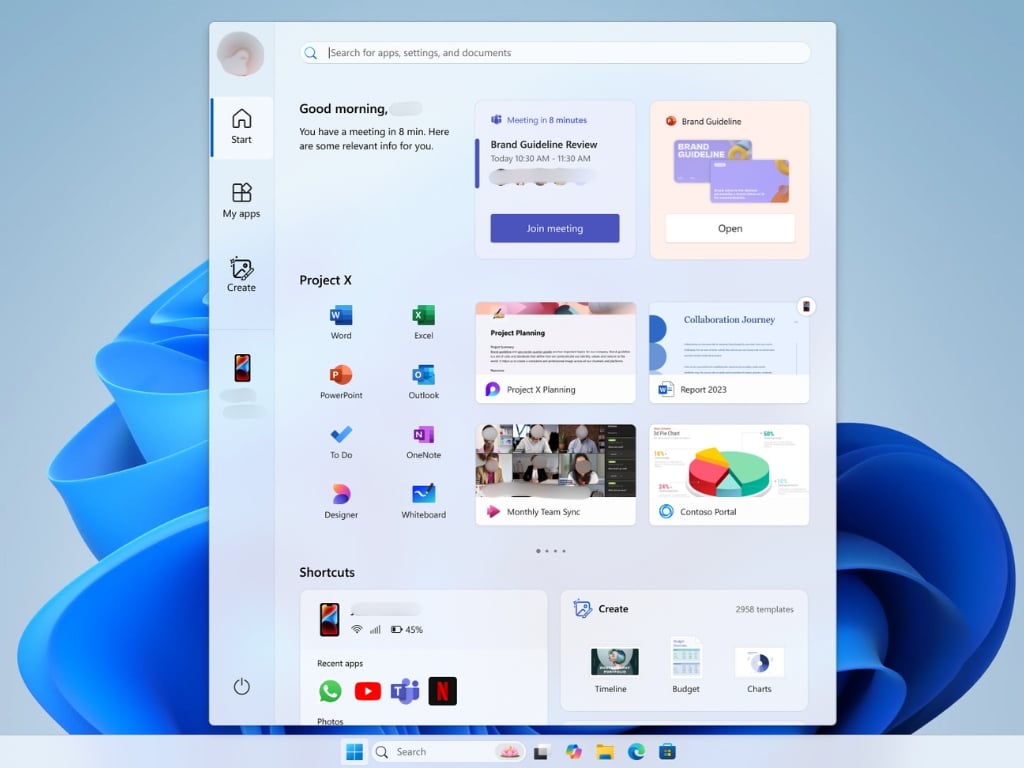
- A centred, smarter start menu: The redesigned Start Menu uses the power of the cloud to show you your recent files, no matter what device you last viewed them on. It’s cleaner and less cluttered.
- Widgets: Get curated, at-a-glance information like your calendar, the weather, or news without breaking your workflow by picking up your phone.
4. Superior performance under the hood
Windows 11 isn’t just a visual makeover; it’s faster where it counts. It features significant improvements in how it manages your computer’s resources.
- Intelligent resource management: The OS now intelligently allocates more processing power, RAM, and system resources to the application you are actively using in the foreground. This makes the entire system feel snappier and more responsive, especially when you’re juggling multiple tasks.
- Faster Wake from Sleep: Your PC can wake from sleep up to 25% faster, allowing you to get back to work almost instantly.
5. The best OS for gaming, Period
For gamers, the upgrade is a no-brainer. Windows 11 includes technologies directly from the Xbox ecosystem to elevate your PC gaming experience.
- DirectStorage: This incredible technology allows your graphics card to load game data directly from a high-speed NVMe SSD, bypassing the CPU bottleneck. The result is drastically reduced loading times and more detailed, expansive game worlds.
- Auto HDR: This feature automatically adds High Dynamic Range (HDR) visuals to a huge library of older games built on DirectX 11 or higher, making them look more vibrant and immersive without any effort from you or the game developer.
6. A bridge to your mobile world with Android apps
Through the Windows Subsystem for Android™ (WSA), Windows 11 can run many of your favourite Android apps directly on your desktop. Sourced via the Amazon Appstore, this feature bridges the gap between your phone and your PC. Imagine using a mobile-only social media app, a food delivery service, or a simple mobile game in a window right next to your PowerPoint presentation.
7. Enhanced for touch, pen, and modern devices
If you use a 2-in-1 laptop or a tablet like a Microsoft Surface, you’ll feel the difference immediately. Windows 11 features larger touch targets, more intuitive gestures, and better haptic feedback for stylus use, making it a much more fluid and natural experience for digital artists, note-takers, and anyone who interacts directly with their screen.
Step 1: The pre-flight check: Is your PC ready for Windows 11?
Before we press the big green button, we need to make sure your computer is ready for the journey. The main hurdle is the specific hardware Windows 11 requires to run securely and smoothly.
First, check the hardware requirements for Windows 11
Here are the official minimum requirements from Microsoft. Don’t worry if some of these terms look like alphabet soup; we’ll show you an easy way to check them all at once in the next step.
| Component | Minimum Requirement |
|---|---|
| Processor | 1 gigahertz (GHz) or faster with 2 or more cores on a compatible 64-bit processor |
| RAM | 4 gigabytes (GB) or greater |
| Storage | 64 GB or greater available storage |
| System Firmware | UEFI, Secure Boot capable |
| TPM | Trusted Platform Module (TPM) version 2.0 |
| Graphics Card | Compatible with DirectX 12 or later with WDDM 2.0 driver |
| Display | High definition (720p) display, 9″ or greater monitor, 8 bits per colour channel |
A quick, reassuring word on TPM 2.0: This is the requirement that catches most people out. Think of TPM as a dedicated security guard chip inside your computer. It provides hardware-level protection for your passwords and encryption keys, making your PC much harder to hack. It’s a key part of what makes Windows 11 so secure.
The easiest way to check if your PC meets Windows 11 requirements: Microsoft’s PC Health Check App
The best way to know for sure is to let Microsoft’s own tool give you a simple yes or no.
- Download the App: Go to the official Microsoft PC Health Check page and download the application. (Or download it directly from here)
- Install and Run: Install the app just like any other program. Once it opens, you’ll see a simple dashboard about your PC’s health.
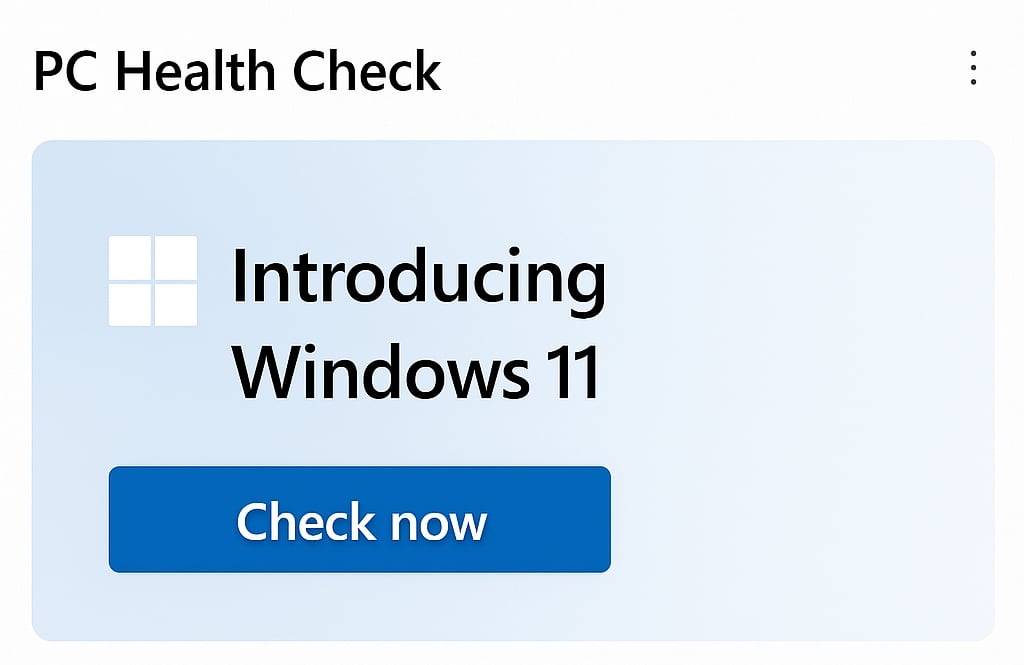
- Check for Windows 11: At the top, you’ll see a banner for Windows 11. Click the blue “Check now” button.
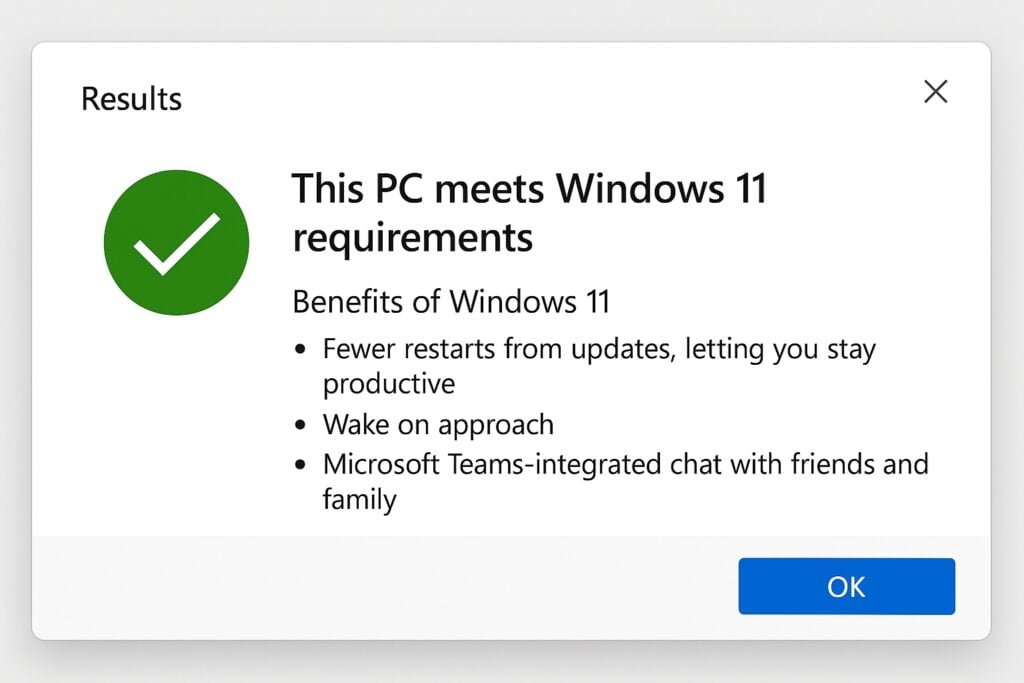
- See your results: Within seconds, you’ll get a pop-up.
- Good news: A green checkmark and the text “This PC meets Windows 11 requirements” means you’re good to go!
- Not yet: A red X means something doesn’t meet the requirements. The app will tell you exactly what the issue is (e.g., “TPM 2.0 must be supported and enabled on this PC”).
Step 2: CRITICAL STEP: Back up everything!
If you take only one piece of advice from this entire guide, let it be this: Back up your data before you begin.
The Windows 11 upgrade is very reliable and designed to keep all your files in place. But in the world of IT, we always plan for the unexpected. A power cut, an internet drop, or a rare glitch could cause issues. Your backup is your 100% safe return ticket.
For Home Users: You have two simple options:
- Cloud backup (Easiest): Use a service like OneDrive (built into Windows), Google Drive, or Dropbox. Ensure your Desktop, Documents, and Pictures folders are actively syncing.
- External hard drive: Plug in an external hard drive and use Windows’ built-in “File History” tool. Just search for “File History” in the Start Menu and follow the prompts to select a drive and back up your files.
For businesses: A business’s data is its lifeblood. You need to ensure you have a robust, verified, and potentially off-site backup of all critical company and user data before attempting any OS upgrade.
While backing up a single PC is straightforward, ensuring data integrity for an entire business is another level. If you’re unsure, our team at TechVertu can manage your business’s data migration securely.
Step 3: The Windows 10 to 11 upgrade: Your step-by-step guide
With your data safely backed up and your PC confirmed as compatible, it’s time for the exciting part.
Method 1: The simple path via Windows update (Recommended)
This is the easiest and most common way to upgrade.
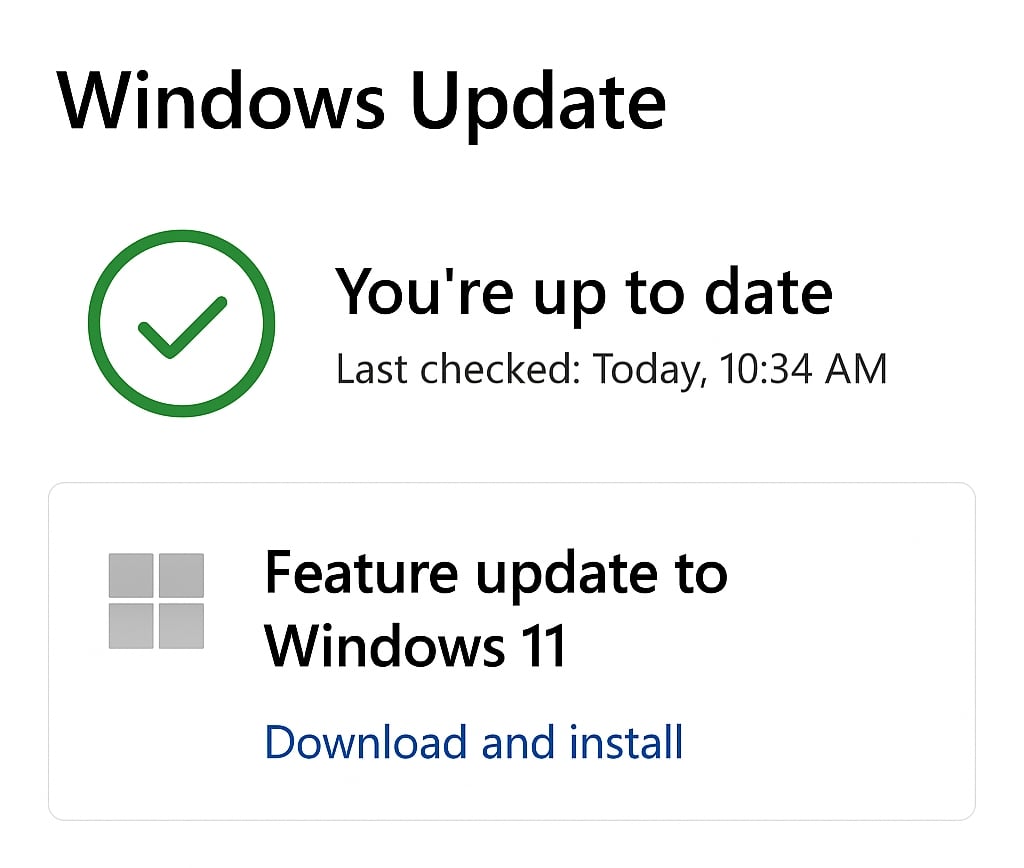
- Navigate to Settings > Update & Security > Windows Update.
- Click “Check for updates”.
- If your PC is ready and the update has been rolled out to you, you will see a large, clear banner that says “Upgrade to Windows 11 is ready—and it’s free!“.
- Click the “Download and install” link.
Now, it’s a waiting game. Your PC will download the files (which can take a while depending on your internet speed), prepare the installation, and then prompt you to restart. It will restart several times during the process. Just let it do its thing – this is perfectly normal. Grab a cup of tea and relax!
Method 2: The manual path (If the update doesn’t appear)
Sometimes, the update might not show up in Windows Update, even on a compatible PC. No problem. We can start it manually.
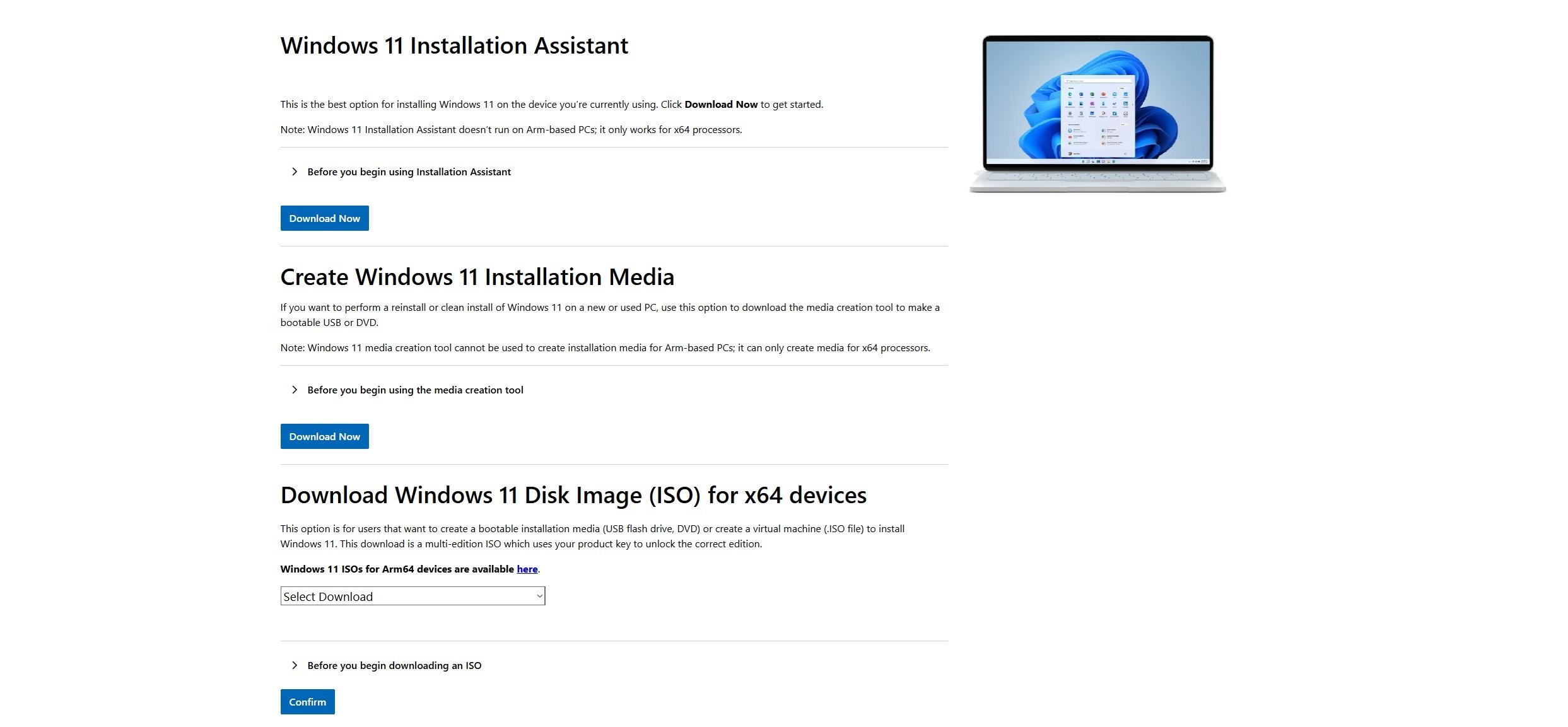
- Go to the official Microsoft Software Download page for Windows 11.
- You’ll see three options. The best one for an in-place upgrade is the first one: the Windows 11 Installation Assistant.
- Click “Download Now” under this option, run the file, and follow the on-screen instructions. It will perform the same compatibility checks and then guide you through the download and installation process.
Step 4: Windows 10 to 11 Upgrade for IT managers & businesses: Upgrading at scale
Upgrading a single computer is one thing. Rolling out Windows 11 across an entire organisation is a strategic project that goes far beyond a simple download.
Strategic business advantages of a standardised Windows 11 environment
- Drastically improved security posture: Standardising on Windows 11 ensures every endpoint in your organisation benefits from the latest, hardware-enforced security protocols. This simplifies compliance audits and presents a unified, hardened front against cyber threats.
- Simplified IT management: A single, modern OS reduces complexity for your IT team. Patching, policy enforcement, and troubleshooting become more efficient, lowering the total cost of ownership (TCO) and freeing up IT resources for more strategic initiatives.
- Enhanced employee productivity & experience: Providing a fast, modern, and intuitive OS is a direct investment in your team. It reduces friction and frustration, boosts productivity, and demonstrates that the company values providing high-quality tools for its staff.
These benefits, however, are only realised through a well-managed deployment. You face a different set of challenges:
- Hardware diversity: Ensuring hundreds of different device models meet the new requirements.
- Application compatibility: Verifying that your critical business software works flawlessly on the new OS.
- Data & compliance: Managing a centralised backup and deployment process that adheres to UK data protection regulations.
- Minimising downtime: Planning a phased rollout to avoid disrupting business operations.
A successful business-wide deployment relies on careful planning, testing, and execution using centralised management tools. For modern workplaces, this is often handled through platforms like Microsoft Endpoint Manager (Intune), which allows IT teams to control the rollout, enforce security policies, and deploy the OS remotely with zero user intervention.
Planning a Windows 11 rollout for dozens or even hundreds of employees?
Don’t leave it to chance. TechVertu specialises in seamless, remote OS deployments for UK businesses, having handled projects for over 600 computers at a time at John F Hunt. Contact us today for a consultation and let us manage the complexity for you.
Step 5: Welcome to Windows 11: Post-upgrade checklist
Congratulations, you’ve made it! Once your PC boots into the new Windows 11 desktop, here are a few final steps to take:
- Check for updates (Again!): Go to Settings > Windows Update and check for any new driver or security updates specifically for Windows 11.
- Verify your files: Quickly check that your important documents and photos are where you left them.
- Test key apps: Open the applications you use most (e.g., Microsoft Office, your web browser, any special software) to ensure they’re working correctly.
- Get acquainted: Take a few minutes to explore! Click the new centred Start Menu, check out the Widgets panel, and see how you can customise the new look.
Troubleshooting common issues (FAQs)
A smooth Windows 10 to 11 upgrade is within reach
As you can see, upgrading to Windows 11 in 2025 is a straightforward and highly beneficial process. By following these checks and steps, you can enjoy a modern, more secure operating system with confidence.
Whether you’re a home user upgrading the family PC or a business leader planning a company-wide deployment, a successful transition is all about preparation.
If you have any doubts or if you’re a business looking for an expert partner to handle your IT, we’re here to help. Reach out to TechVertu, and let’s make your IT work for you.
For further information:
Windows 11 Home vs Pro: The Difference Between the Two Versions with Comparison Table
Windows 11 Pro Vs Enterprise: The Main Differences
Microsoft Windows 11 24H2: What’s New?
Do I Need an Antivirus for Windows 11 to Protect My PC?
How Long Does Server Maintenance Usually Last?
Which Windows 11 Version is Best? A Complete Guide for 2025
How to Run Windows on Mac with a Virtual Machine: The Complete Guide
How to Take a Screenshot in Windows: The Complete 2025 Guide
Lets Talk!
If you have additional comments or questions about this article, you can share them in this section.