

To find a file in Linux by name, use find . -type f -name 'report.pdf'. This searches the current directory and its subdirectories. Replace report.pdf with your filename; use -iname if you are unsure about capital letters. To find a folder instead, change -type f to -type d.
Looking for a word inside a file? Use grep or rg. Need a quick lookup across an existing filename index? Try locate. The distinction matters: a filename search for “invoice” will miss a file called notes.txt even if its contents mention an invoice.
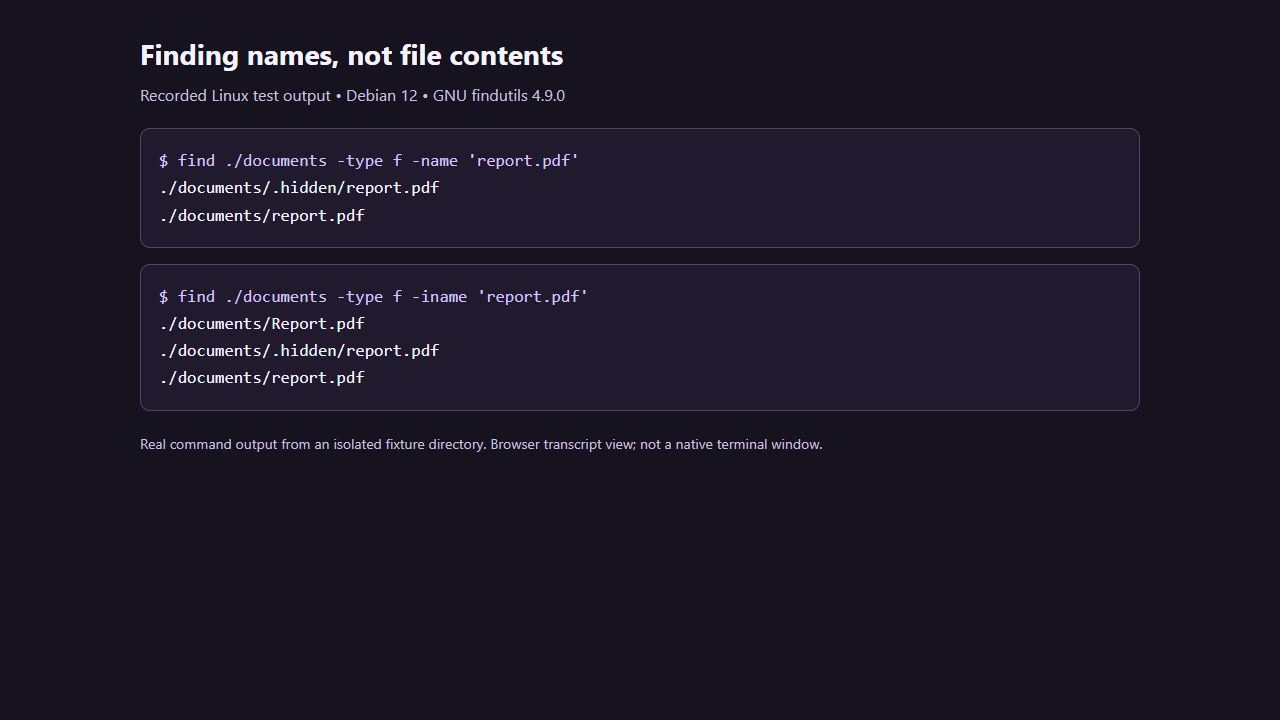
Checked for this refresh: the examples were tested in an isolated Debian 12 directory using GNU findutils 4.9.0, GNU grep 3.8, plocate 1.1.18, fd 8.6.0 and ripgrep 13.0.0. The screenshots show recorded output from those tests. GNU-specific options are identified below; minimal Linux installations and other implementations may differ.
TL;DR – Quick command reference
. means the directory you are in; ~ means your home directory. These quick searches only read files. Start in the most likely folder, rather than searching from /.
| What you need | Command |
|---|---|
| Exact filename | find . -type f -name 'report.pdf' |
| Ignore case | find . -type f -iname 'report.pdf' |
| Part of a filename | find . -type f -iname '*report*' |
| Find a directory | find . -type d -iname 'reports' |
| Text inside files | grep -rInF -- 'search term' . |
| Indexed filename lookup | locate -i report.pdf |
Which tool should you choose? find walks the directory tree and can filter names, types, sizes and dates. locate searches indexed paths, so new files may be missing. fd searches names with developer-friendly defaults. grep and rg search text contents. Neither find nor locate reads file contents to match your search term.
The examples below use folders such as ./documents, ./logs and ./projects. Replace them with folders that exist on your machine. Linux paths are case-sensitive: documents and Documents are different names.
- TL;DR – Quick command reference
- Using the find command
- Basic syntax and searching by name
- Filtering by file type
- Searching by size
- Filtering by modification and change time
- Searching by permissions
- Executing commands with -exec and -delete
- Handling filenames with spaces and special characters
- Optimising find with -prune and -fstype
- Using -printf for custom output
- Using locate and updatedb
- Modern alternatives: fd and ripgrep
- Searching file contents with grep
- Real-world practical scenarios
- Combined workflow examples
- Troubleshooting and security considerations
- Performance tips
- Further reading
Using the find command
find searches each starting path recursively. It examines the filesystem as it goes, rather than consulting a filename database. This lets it find files created after the last locate update, but it is not a frozen snapshot: files can move, change or disappear during a search.
Basic syntax and searching by name
Think of the command as find starting-path tests action. A useful first search is:
find ./documents -type f -name 'report.pdf'
find ./documents -type f -iname 'report.pdf'
find ./documents -type f -iname '*report*'
The first line matches only regular files with the exact name report.pdf; the second also matches Report.pdf. The third matches names containing “report”, including annual-report.pdf. -name and -iname compare the final filename, not its parent directories.
Quote wildcard patterns so your shell does not expand them before find sees them. * matches any sequence of characters, ? matches one character, and brackets specify a set or range. For a full-path match, use -path:
find ./projects -type f -name 'test_*.py'
find ./documents -type f -path '*/reports/*.pdf'
Unlike fd, find does not automatically skip hidden files or obey .gitignore. A search can therefore return ./documents/.hidden/report.pdf as well as a visible file with the same name.
Filtering by file type
find ./projects -type f -name '*.conf'
find ./testdir -type d -name 'empty*'
find ./projects -type l
find ./projects -type s
f means regular file, d directory, l symbolic link and s socket. To find a directory by name, use find . -type d -iname 'reports'. Without a type filter, a directory named report.pdf can also match a filename search. By default, find does not follow symbolic links.
Searching by size
GNU find uses c for bytes, k for 1,024-byte units, M for MiB and G for GiB. A leading + means greater than the stated number of units; - means less than it.
find ./logs -type f -size +100M
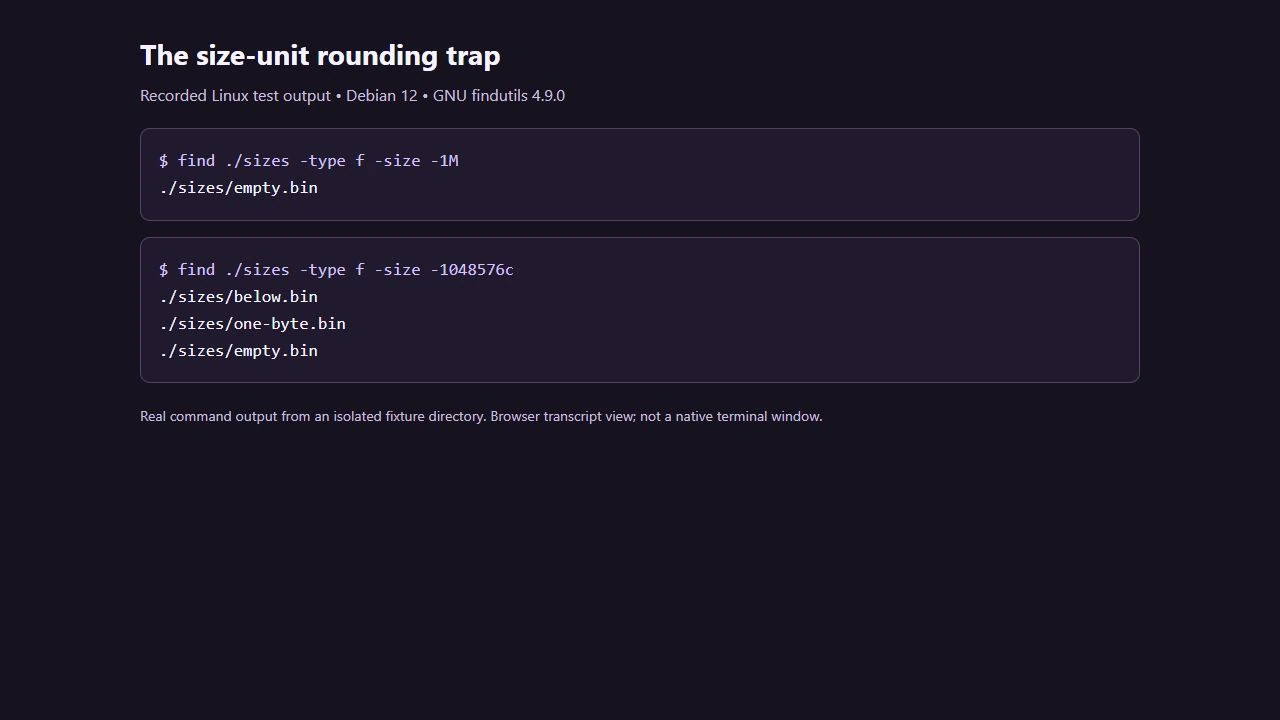
find ./sizes -type f -size -1048576c
find ./sizes -type f -size 0
These find files larger than 100 MiB, smaller than 1,048,576 bytes, and empty files. The easily missed rule is rounding: GNU find rounds sizes up to the chosen unit. Consequently, -size -1M matches only zero-byte files, not every file below 1 MiB. Use -size -1048576c for that exact byte limit. An unprefixed -size 1M matches non-empty files up to and including 1 MiB, rather than only files exactly 1 MiB long. See GNU’s size-test explanation.
To inspect larger matches without changing them, pass them to ls:
find ./logs -type f -size +50M -exec ls -lh -- {} +Filtering by modification and change time
-mtime tests when file contents were last modified. -ctime tests the last status change, such as a permission change; it is not creation time. -atime tests access time, whose updates depend on filesystem mount settings.
find ./documents -type f -mtime -7
find ./logs -type f -mtime +30
find ./documents -type f -mtime 0
Without -daystart, these use 24-hour periods measured backwards from the search time. -mtime 0 means less than 24 hours ago, not “since midnight”. Fractions are discarded: -mtime +30 means at least 31 complete days old. Use GNU -newermt when a date is clearer:
find ./documents -type f -newermt '2026-10-01'
find ./documents -type f -newermt '1 week ago'
The date is interpreted in your local timezone; the relative expression is evaluated when the command runs. -newermt is a GNU extension, so check man find before reusing it on a different implementation. GNU’s age-range documentation explains the rounding rules.
Searching by permissions
-perm 644 matches an exact permission mode. -perm -644 requires all of those bits to be set, while GNU -perm /644 requires any of them. For example:
find ./projects -type f -perm 777
find ./projects -type f -perm -u=w -perm -g=w
find ./projects -type f -perm /o=w
The lines find exact mode 777, files writable by both owner and group, and files writable by others. Mode 777 allows every user to write and execute the file, so review whether that access is intended. To find files writable by either the group or others, group the alternatives:
find ./projects -type f \( -perm -002 -o -perm -020 \) -lsThat is a group-or-world-writable search, not a world-writable-only search. Parentheses matter because implicit AND tests bind more tightly than -o. You can also filter by the current owner’s name or numeric ID:
find ./projects -type f -user "$(id -un)"
find ./projects -type f -uid "$(id -u)"
Executing commands with -exec and -delete
-exec passes matching paths as command arguments. {} represents those paths. End with \; to run once per match, or + to batch matches within the system’s argument limits. Both forms handle spaces in filenames; batching is not inherently less safe.
find ./testdir -type f -name '*.tmp' -exec ls -lh -- {} \;
find ./testdir -type f -name '*.tmp' -exec ls -lh -- {} +
Deletion is optional and irreversible from the shell. Use a disposable test directory first. Preview the exact scope and filters before running the second command:
find ./testdir -depth -type f -name '*.tmp' -mtime +30 -printOnly after checking the matches and any errors, the corresponding deletion command is:
find ./testdir -depth -type f -name '*.tmp' -mtime +30 -delete-delete implies -depth, so include it in the preview to use the same traversal order. Keep the action at the end. Do not combine -delete with -prune: depth-first traversal prevents pruning from protecting a directory in the usual way. A preview also cannot prevent files changing between commands. Back up important data first; our data backup and recovery guide covers planning beyond a one-off copy.
Handling filenames with spaces and special characters
Avoid splitting filenames on spaces or newlines. A simple choice is -exec command -- {} +. When a pipeline is necessary, use NUL-delimited paths with GNU xargs:
find ./projects/weird -type f -print0 | xargs -0 -r ls -ld ---print0 and -0 preserve filename boundaries; GNU -r avoids running the command when there are no matches. -- ends options for ls. Do not insert a discovered filename into a sh -c script: quotes, dollar signs and other characters can become shell code. Also, xargs -I usually runs a command for each input item, rather than giving the same batching benefit as ordinary xargs.
Optimising find with -prune and -fstype
Skip version-control data or dependencies with -prune:
find ./projects -type d \( -name .git -o -name node_modules \) -prune -o -type f -name '*.conf' -printThe left side stops descent into matching directories; the right side prints other matching files. The explicit -print prevents skipped directories being included as ordinary results. GNU -fstype is different: it tests a file’s filesystem type, but does not itself stop traversal. Group OR conditions correctly:
find ./projects \( -fstype ext4 -o -fstype xfs \) -type f -name 'config.yaml' -printThis prints matching regular files on either ext4 or XFS. It will produce no matches on other filesystem types. If your aim is to avoid crossing onto another filesystem, use -xdev instead; its limitations are explained below.
Using -printf for custom output
GNU -printf can display size, date and path without a separate ls process:
find ./projects -type f -printf '%s %p\n' | sort -n
find ./documents -type f -printf '%TY-%Tm-%Td %p\n'
%s is size in bytes, %p the path, and the %T directives format modification time. These newline-separated examples are for human inspection. Filenames containing newlines can make their display ambiguous; use NUL-separated output when passing paths to another command. -printf is not a POSIX requirement.
Using locate and updatedb
locate searches an existing database of filenames and paths. It can make a broad lookup quicker than walking the whole tree, but its coverage depends on how that database was built. The implementation may be plocate, mlocate or GNU locate; check locate --version.
locate report.pdf
locate -i report.pdf
locate -b report.pdf
locate -e report.pdf
For plocate, these match paths containing the supplied text. -i ignores case, -b matches only the basename, and -e returns indexed entries that still exist. A plain report.pdf pattern is a substring lookup, not an exact filename test. Use find for an unambiguous exact-name search.
If a new file is missing: use find in its likely directory. locate -e can remove stale deleted-file results, but cannot add a file created since indexing. A system database is often refreshed by a scheduled timer or cron job; the interval and excluded paths vary by distribution and configuration. Hidden files are not automatically excluded simply because their names start with a dot.
An administrator can refresh the configured system index with sudo updatedb, where that tool is installed. This writes a database and may do substantial disk work; it is not necessary for a local find search. Do not assume it indexes every mounted directory. For plocate, see the locate options, updatedb manual and index exclusions. Database visibility controls and permissions also affect what a user can see; filename discovery is not proof they can read the file contents.
Modern alternatives: fd and ripgrep
The fd command
fd searches entry names. Its default patterns are regular expressions, and it uses smart case: a lowercase pattern is case-insensitive, while an uppercase letter makes the search case-sensitive. It skips hidden entries and respects applicable ignore files by default.
fd -g -t f 'config.yaml' ./projects
fd -t f -e log . ./logs
fd -H -I -t f 'secret' ./projects
fd -t f '^test_.*\.py$' ./projects
-g switches to a glob, making the first example an exact name match rather than a regex in which the dot means any character. -H includes hidden entries and -I disables ignore-file filtering. The . in the extension example is a match-all pattern before the search path. Debian and Ubuntu package this tool as fd-find and usually expose the command as fdfind; replace fd accordingly. Check the official fd installation and usage guide for your distribution. Use find when you need its detailed permission tests or a script that does not depend on fd being installed.
Using ripgrep for content searching
ripgrep, invoked as rg, searches file contents recursively. These examples use -F for literal text and -n for line numbers:
rg -n -F 'def validate_user' ./projects
rg -n -i -F 'error' ./logs
rg -n -t py -F 'import requests' ./projects
The built-in Python type is py, not python. By default, ripgrep skips hidden files, ignored files and binary data. For hidden and ignored text files, add --hidden --no-ignore; those flags do not remove binary-file filtering. Check the official ripgrep documentation for installation and other options. Its filtering is useful for source code, but can explain why an expected file is missing. Do not treat fewer results as proof of a faster equivalent search.
Searching file contents with grep
Use grep when you remember the text but not the filename:
grep -rInF -- 'ERROR' ./logs
grep -rInF -- 'console.log' ./projects
grep -rliF -- 'todo' ./logs
grep -rlF -- 'import sys' ./projects
-r recurses, -I skips binary matches, -n adds line numbers, -i ignores case and -l lists matching filenames only. -F treats the search string literally: the dot in console.log will not match the “X” in consoleXlog. -- ends options so a pattern beginning with a hyphen is not mistaken for a flag.
GNU grep -r skips symbolic links encountered during recursive traversal; -R follows them, potentially leaving the intended tree. Grep’s exit status is 0 for a match, 1 for no match and normally 2 for an error. No output alone therefore does not tell you whether a search succeeded. See the GNU grep manual.
Combining find with grep
Let find choose the files, then let grep inspect their contents:
find ./logs -type f -name '*.log' -exec grep -nHIF -- 'authentication failure' {} +
find ./projects -type f -name '*.js' -exec grep -nHIF -- 'console.log' {} +
-H keeps the filename in the output even if a batch contains only one file. {} + passes multiple filenames safely without constructing a shell script. If a pipeline is needed, preserve boundaries and avoid running grep with no file arguments:
find ./projects -type f -name '*.js' -print0 | xargs -0 -r grep -nHIF -- 'console.log'Real-world practical scenarios
Scenario 1: Find and archive large log files
To review old logs, start with a folder of archived logs that is yours to manage. This preview finds .log files at least 31 complete days old and larger than 50 MiB:
find ./logs -type f -name '*.log' -mtime +30 -size +50M -printAfter checking the list, permissions and backup, compress those same matches by passing filenames directly to gzip:
find ./logs -type f -name '*.log' -mtime +30 -size +50M -exec gzip -- {} +gzip normally replaces each original with a .gz file. Do not apply this blindly to active system logs: use the application’s log-rotation policy instead. This version avoids embedding filenames in sh -c, where a specially crafted filename could execute unintended commands.
Scenario 2: Locate a missing SSH configuration file
Your personal SSH client configuration is usually ~/.ssh/config; the system client configuration is typically /etc/ssh/ssh_config, as described in the OpenSSH client configuration manual. If you are searching from your home directory, check the personal path first:
find ./.ssh -type f -name 'config'For an unfamiliar key location, search names within a directory you control. This lists paths, not secret key contents:
find . -type f \( -name 'id_rsa*' -o -name 'id_ed25519*' -o -name 'ssh_config' \) -printThe grouped -o tests mean any of the three names can match, while -type f applies to them all. With fd, include hidden and ignored entries so .ssh is not skipped:
fd -H -I -t f 'id_rsa|id_ed25519|ssh_config' .Scenario 3: Find function definition across project files
To find a Python definition containing the literal text def validate_user, search the project’s contents:
rg -n -t py -F 'def validate_user' ./projects/webappOr select Python files with find and search those:
find ./projects/webapp -type f -name '*.py' -exec grep -nHIF -- 'def validate_user' {} +These are text searches, not Python parsers: comments can match too. The ripgrep version also applies its default ignore rules, so the two searches need not inspect the same files. Compare coverage before drawing conclusions about speed.
Combined workflow examples
Searching and changing files are separate decisions. The following workflows deliberately start with a preview. Use test copies first and check your backup before modifying anything important.
Find and change permissions
If your project’s policy requires ordinary PHP files to be mode 644, inspect the selected files first:
find ./projects/webapp -type f -name '*.php' -lsOnly if that permission policy is appropriate for every match, apply it:
find ./projects/webapp -type f -name '*.php' -exec chmod 644 -- {} +Mode 644 allows everyone to read the file. It may be wrong for configuration files containing secrets. Avoid a blanket directory or file permission reset: scripts may need execute bits and private directories may need tighter access.
Find and delete empty directories
For a disposable ./testdir, preview empty directories from the deepest level upwards:
find ./testdir -depth -mindepth 1 -type d -empty -printAfter confirming that the directory tree is disposable, remove only empty directories:
find ./testdir -depth -mindepth 1 -type d -empty -delete-mindepth 1 protects the starting directory. During deletion, a parent can become empty after its children are removed, so it may also be deleted even if it was not empty in the preview. -delete already implies depth-first processing; adding -depth makes that behaviour explicit.
Find recently modified files and copy to backup
From the parent of your documents directory, preview files modified in the last 24 hours:
find ./documents -type f -mtime 0 -printChoose a destination outside the searched tree, then copy while preserving relative directories with GNU cp:
mkdir -p ./backup-daily
find ./documents -type f -mtime 0 -exec cp --parents -t ./backup-daily -- {} +
For example, ./documents/reports/annual.pdf becomes ./backup-daily/documents/reports/annual.pdf. Existing destination files can be overwritten. This is a selective copy, not a complete backup system: it does not track deletions or guarantee a consistent copy of files being edited. See our backup and recovery strategies for retention and restore testing.
Troubleshooting and security considerations
Permission denied errors
A permission error means the search could not inspect part of the tree. Narrow the starting path or ask the directory owner for appropriate access. Do not add sudo automatically. To separate results from diagnostics, save standard error to a log outside the searched folder:
find ./documents -type f -name '*.conf' 2>./search-errors.log
cat ./search-errors.log
2>/dev/null hides all error messages, not just permission errors, and does not make the search complete. A non-zero find exit status can accompany partial results. If nothing matches, check the starting directory, filename case, quoted pattern, file type and whether you meant a contents search.
Avoiding symbolic link loops
Default find traversal does not follow symbolic links. Use -L only when you intentionally want to inspect linked targets; place it before the starting path:
find -L ./projects -maxdepth 5 -type f -name '*.pdf'GNU find detects filesystem loops and reports them. A depth limit reduces traversal but does not repair a looping link. Following links can also lead outside your expected directory, so review the targets before combining -L with any action that modifies files.
Searching only local filesystems
To stay on the starting path’s filesystem, use -xdev:
find ./documents -xdev -type f -size +1GThis is a filesystem-boundary rule, not a local-versus-network detector. If your starting directory is on a network filesystem, find will still search that filesystem. Bind mounts can share the same device and may not be excluded. Choose a known local starting path and prune unwanted directories explicitly when that is the requirement.
Performance tips
- Start in the most likely directory; a search from
/can traverse large trees and produce avoidable permission errors. - Prune dependency folders such as
node_moduleswhen you do not need their contents. - Use a depth limit when you know the likely nesting level. GNU options such as
-maxdepthgo before the matching tests. - Use locate for an indexed first pass, then find for newly created files or detailed filters.
- For source code, fd and ripgrep’s ignore rules are useful, but verify that they have not filtered out the target.
- Do not assume moving
-typebefore-namealways makes GNU find faster; its optimiser can reorder tests. Reducing the tree being traversed is usually the more useful change.
find ./projects -maxdepth 2 -type f -name '*.conf'For a repeatable support workflow, record the search path, command, tool version, errors and expected result in your IT support documentation. That makes a copied one-liner easier to check before someone reuses it on a different server.
Further reading
- GNU Findutils manual — find expressions, execution, deletion and xargs safety.
- GNU grep manual — literal patterns, recursion, binary files and exit status.
- plocate manual — indexed searches and existence filtering.
- fd documentation — smart case, hidden files and distribution-specific installation.
- ripgrep documentation — content searches, file types and default filtering.
For most missing-file searches, begin with a quoted name pattern in a narrow directory. Switch to grep or ripgrep when the clue is text inside the file, and use locate when an indexed path lookup is enough. Review matches before turning a search into a command that changes them.
Lets Talk!
If you have additional comments or questions about this article, you can share them in this section.