

Windows 11 26H2 is available, but the right upgrade decision depends on your installed version, edition, update level and working requirements. Eligible 24H2 and 25H2 PCs have a small enablement-package route. PCs running the hardware-specific 26H1 release follow a different path. For a business, check support deadlines, exposed workflows and recovery before approving a wider rollout.
Research checked on 6 October 2026. Microsoft released the Windows 11 2026 Update on 29 September, with phased availability. This guide combines current Microsoft documentation with TechVertu’s proposed decision method and editable worksheets. It does not report TechVertu laboratory tests or promise that every feature is present on every device. Microsoft’s release announcement confirms the launch.
- Windows 11 26H2 at a glance
- What changed from Windows 11 25H2?
- Which PCs can update to 26H2?
- Which features will you actually get?
- Backup and recovery: check what each tool restores
- Known issues to check before upgrading
- How to get Windows 11 26H2
- Why is 26H2 not showing in Windows Update?
- Should your business upgrade now or wait?
- A practical 26H2 rollout checklist
- Frequently asked questions
- How this guide was researched
- Get help planning a supported Windows rollout
Windows 11 26H2 at a glance
| Question | Answer |
|---|---|
| What is it? | Windows 11 2026 Update, version 26H2; build family 26300. |
| When was it released? | 29 September 2026. A phased rollout means individual offers can arrive later. |
| Who has the enablement route? | Eligible Windows 11 24H2 and 25H2 devices, with the required servicing update. |
| When does Home/Pro support end? | 10 October 2028. |
| When does Enterprise/Education support end? | 9 October 2029. |
Sources: Microsoft’s release and servicing table and 26H2 enablement-package requirements. A release version is separate from an edition: Home, Pro and Enterprise describe capabilities and licensing, while 24H2, 25H2 and 26H2 describe releases. Our Windows 11 Home vs Pro guide explains that choice.
Our recommendation is to prioritise a supported destination for a PC approaching its servicing deadline, pilot deliberately on a supported fleet, and investigate any affected workflow before expanding deployment. Installing the newest version is only one part of keeping a device supportable.
What changed from Windows 11 25H2?
There are three different changes to consider: the new support period, features whose defaults change, and improvements distributed during the year. Microsoft’s Windows update release-cycle guidance explains why an annual release and monthly feature delivery overlap. A freshly patched 25H2 PC can already look different from the same PC a year earlier.
| Area | 25H2 | 26H2 | What to check |
|---|---|---|---|
| Servicing foundation | Shares the servicing foundation with 24H2. | Uses the same foundation; eligible devices have an enablement route. | Starting release and cumulative-update prerequisite. |
| Home/Pro support | Until 12 October 2027. | Until 10 October 2028. | Installed edition and servicing channel. |
| Enterprise/Education support | Until 10 October 2028. | Until 9 October 2029. | Enterprise licensing and rollout plan. |
| Feature experience | Depends on installed monthly updates and effective policies. | Also depends on servicing, policies and feature eligibility. | Actual feature state on a representative device. |
| Commercial defaults | Some previously introduced features were held behind temporary controls. | Selected taskbar and File Explorer capabilities become default-on for commercial devices. | Existing policy and the feature-specific documentation. |
The commercial changes are documented in Microsoft’s 26H2 feature overview. Settings backup has its own eligibility and policy rules, covered below. Do not infer a speed improvement from a version number: app launches, meetings and specialist workloads need comparable measurements on the actual devices.
Our earlier 25H2 versus 24H2 article covers the preceding release comparison. For the current upgrade decision, use the dated Microsoft guidance and tables in this guide rather than carrying historical launch expectations forward.
Which PCs can update to 26H2?
Start with Settings > System > About and record the Windows specifications. For a fleet, also record its management policy, architecture and OEM model. Buying a particular processor brand does not tell you the installed Windows release or prove application support.
| Starting device state | Route or boundary | Support pressure | Practical next action |
|---|---|---|---|
| 24H2 Home/Pro | Eligible devices can move directly to 26H2; installing 25H2 first is not required. | 24H2 servicing ends 13 October 2026. | Prioritise a supported destination. Assess 26H2, or supported 25H2 where appropriate, against actual blockers. |
| 24H2 Enterprise/Education | Eligible enablement-package route. | Supported until 12 October 2027. | Plan a representative pilot and do not borrow the Home/Pro deadline. |
| 25H2 Home/Pro | Eligible enablement-package route. | Supported until 12 October 2027. | Balance the longer 26H2 support window against app and recovery readiness. |
| 25H2 Enterprise/Education | Eligible enablement-package route. | Supported until 10 October 2028. | Test changed defaults and required workflows before expanding. |
| 26H1 on selected new hardware | Different Windows core; no upgrade to 26H2. | Follow the installed 26H1 edition’s lifecycle. | Continue supported monthly servicing and await Microsoft’s future release path. |
| 23H2, earlier Windows 11 or Windows 10 | The 26H2 enablement package is not the documented route from these starting points. | Check the exact release, edition and any applicable support programme. | Assess a supported full upgrade or replacement path; verify hardware and apps. |
| Enterprise or IoT LTSC | Separate servicing channel and lifecycle. | Use the specific LTSC product’s dates. | Follow the organisation’s LTSC servicing and licensing plan. |
The dates come from Microsoft’s release-information table; eligibility comes from the enablement-package documentation. Microsoft’s 26H1 guidance says a future Windows release will provide its upgrade path, without naming the year. “26H1” is not a universal label for Snapdragon laptops.
Two similar laptops can need different decisions
Consider two illustrative office laptops on 24H2. One runs Pro; the other runs Enterprise. Their release label matches, but their servicing deadlines do not. The Pro device needs a supported destination sooner. That does not justify bypassing a compatibility block: identify an approved alternative and its recovery plan.
Now consider two Snapdragon laptops: one reports 25H2, the other 26H1. The CPU brand alone would hide the different update routes. If hardware procurement is part of your plan, use our Snapdragon vs Intel compatibility guide alongside the installed-version check. These examples are decision scenarios, not results from tested TechVertu devices.
Which features will you actually get?
Treat a feature claim as a question about delivery, defaults and conditions. “Documented in 26H2” does not establish that a control is enabled, licensed or visible on your particular PC. The ledger below separates those checks; its device-observation fields belong in your pilot record.
| Capability | What the documentation establishes | Condition to verify | Practical test |
|---|---|---|---|
| Windows settings backup | Eligible commercial backup defaults change in 26H2; existing configured policies are honoured. Backup policy documentation. | Supported join/user configuration; backup and restore policies separately. | Restore supported settings on an authorised test device. |
| Taskbar actions and File Explorer defaults | Selected previously controlled capabilities become default-on commercially. 26H2 defaults. | Effective organisation policy and supported app/feature. | Check the actual action needed by users. |
| Start, taskbar and Search improvements | Microsoft lists Start controls, taskbar positioning/size and Search improvements among changes delivered since 25H2. Desktop changes. | Installed servicing level and feature availability. | Check the specific layout/search behaviour; record the build. |
| Administrator protection | Available, but off by default. Configuration and restrictions. | Supported workload; configuration route; preview status of some controls. | Validate an app’s elevated operation and authentication. |
| Built-in Sysmon | Optional and off by default. Sysmon overview. | Supported deployment and event-collection configuration. | Confirm required events reach the monitoring workflow. |
| Point-in-time restore | 26H2 changes the managed-device default; volume-size conditions apply. Recovery guide. | OS volume, actual settings/restore points and available recovery route. | Verify usable recovery and key access in the approved pilot. |
| Quick machine recovery | A connected recovery mechanism; managed/domain-joined devices remain off unless enabled. Recovery configuration. | Effective policy and recovery-network access. | Validate the recovery plan rather than assume a fix exists. |
| AI and accessibility actions | Explorer Summarize covers OneDrive/SharePoint files and requires an active Microsoft 365 subscription plus Copilot licence. Flexible voice access has a separate supported Copilot+ hardware condition. Feature conditions. | Check document location/licensing separately from voice hardware/language. | Complete the real document or accessibility task. |
Copilot+ is a device class with additional requirements, not another Windows edition. Microsoft separates ordinary Windows 11 requirements from Copilot+ requirements. A device can receive an eligible Windows feature update without qualifying for every Copilot+ experience. Use the Windows editions guide if licensing is also being reviewed.
Security features need a configuration decision
Administrator protection isolates elevated activity into a separate profile. Microsoft excludes Windows 365 and AVD and warns about Hyper-V-dependent devices and apps sharing files across profiles. Some configuration surfaces remain labelled preview. Before enabling it, test elevation, settings and authentication in the required apps; follow the administrator protection documentation for the supported route.
Built-in Sysmon records telemetry; your collection and analysis process determines whether that data becomes useful. It cannot run enabled alongside standalone Sysmon, and the Windows update does not automatically migrate an existing standalone deployment. Check Microsoft’s Sysmon prerequisites before changing the configuration.
Also audit scripts that call WMIC. Microsoft’s WMIC removal notice applies to 24H2 and later through servicing; WMI remains supported. Search for the executable or command in your management scripts, then validate the replacement command and its output. A successful desktop update does not prove an overnight automation still works.
Allow for delayed driver-trust enforcement
Microsoft documents a driver-trust compatibility audit lasting at least 100 hours and three restarts before enforcement. This is among the changes delivered since 25H2, rather than an exclusive 26H2 promise. See the driver-security section of the 26H2 feature documentation.
Where that transition applies, an immediate driver or peripheral pass is incomplete evidence. Record the audit/enforcement state and validate required drivers after enforcement as well. Do not treat a fixed elapsed time as proof the transition completed: check the actual state, vendor support and a recovery route for the affected device.
Backup and recovery: check what each tool restores
A backup setting, a restore point and a complete recovery plan answer different questions. A useful rollout record names the data you must recover, the device or account needed to recover it, the credentials required and the person responsible. It should also say how the restored device returns to a compliant state.
| Capability | Scope and location | Limit to understand | Evidence to record |
|---|---|---|---|
| Windows settings backup/restore | Supported settings and Microsoft Store app lists for eligible users/devices. | Not a full-system or personal-file backup. Restore policies need separate configuration. | Effective backup AND restore policy; authorised restore result. |
| Point-in-time restore | Local system-volume snapshots including apps, settings and local files. | Short retention; later local changes can be lost and snapshots may be evicted. | Usable points, storage conditions, key access and recovery result. |
| System Restore | System files/settings, using event-triggered or manual restore points. | Personal files are unaffected; coverage differs from full-state recovery. | Appropriate point and the app/system outcome. |
| Quick machine recovery | Connected WinRE searches for remediation through Windows Update. | Best effort; a matching remediation is not guaranteed. | Approved policy, network access and fallback route. |
| Independent file/device backup | Whatever the selected product and policy actually protect. | Retention, replacement-device support and restore access must be checked. | Recoverable copy, tested restore and named recovery owner. |
Sources for the Windows tools: settings backup and restore, Microsoft’s restore comparison and quick machine recovery. The independent-backup row is a selection checklist: it does not claim that every backup product covers the whole device.
The 26H2 point-in-time restore default has conditions
Microsoft documents default activation on IT-managed devices starting with 26H2, where the Windows OS volume is at least 200 GB. Smaller volumes can enable it manually. Default snapshots are approximately daily, retained for up to 72 hours. Restoration can remove later local changes and revert security updates; cloud-held files are unaffected. Encrypted devices need access to their BitLocker recovery key. See the point-in-time restore user guide.
The detailed configuration documentation still contains older preview wording for WinRE restoration. It also describes storage pressure and other limits. We therefore distinguish the documented 26H2 default from what you have verified on a device: check its settings and usable points before relying on it, and investigate a missing or different recovery experience.
Use a recovery proof chain
Policy configured → recoverable data/point present → credentials and keys accessible → restore exercised → apps and security revalidated. Record each stage separately. A tick beside “backup enabled” cannot substitute for the other four checks.
For example, a helpdesk may have working settings backup but no authorised restore policy on replacement devices. Another PC may have local snapshots but need recovery after disk failure, when the local copy cannot be read. Both situations need a different recovery route. These are illustrative failure modes to test, not claims about any customer environment.
Known issues to check before upgrading
Status checked 6 October 2026; Microsoft’s page last updated 2 October. The live 26H2 release-health page lists the following exposures. “Mitigated” means a workaround or mitigation exists; it does not mean a permanent fix has shipped. Read the current issue detail before acting.
| Exposure | Documented status | Would staying on 25H2 avoid it? | Test/action before expansion |
|---|---|---|---|
| USB Audio Class 1.0 equipment | Mitigated; some remaining symptoms need business support. | Not established by the release label; other versions are affected. | Use the exact affected-class headset/interface, including required audio modes. |
| Domain trust / Machine Identity Isolation | Mitigated; specific enforcement configurations need review. | No general assurance; the issue spans releases. | Check policy/domain functional level and test live authentication, not only cached sign-in. |
| AVD hosts using FSLogix | Mitigated through version-specific Known Issue Rollback. | No general assurance; other releases are affected. | Follow the applicable KIR guidance and test existing user profiles. |
| Apps using Windows AC-3 decoding | Confirmed, fix pending; follows KB5124010 or later on 24H2, 25H2 and 26H2. | No: serviced 25H2 is explicitly affected. | Exercise the real media operation; launching the app alone is insufficient. |
This table is a workflow-selection aid. We have not run these tests. Record the cumulative update and effective mitigation alongside the version, because an issue can be tied to a shared servicing change. Avoid recommending “stay on 25H2” as a universal fix for a problem that also affects patched 25H2.
A known-issue row is not itself proof that your PC has a safeguard hold. Equally, no public hold ID on that page is not proof that no hold exists. Microsoft’s safeguard guidance explains protection through Windows Update and why administrators using other deployment channels must still assess compatibility.
How to get Windows 11 26H2
For a personal, eligible 24H2 or 25H2 PC
- Open Settings > System > About. Record edition, release and build; identify whether you are actually on 26H1.
- Check independent backup and access to required recovery credentials/keys. Make sure the device is powered and has the space Windows Update requires.
- Install the required servicing updates. KB5121794 specifies KB5124010 (22 September 2026) or a later cumulative update as its prerequisite.
- Open Settings > Windows Update. Microsoft’s launch instructions describe the latest-updates toggle for eligible early offers. Check for updates and install 26H2 when it is offered to your device.
- Restart when requested, then check the installed release and your important apps, hardware and recovery settings.
The enablement package requires a restart; that is not a promise about total deployment time. Downloading prerequisites, preparing recovery and checking applications can take longer. Do not use an unsupported package or force an upgrade to work around a missing offer.
For an organisation-managed PC
Follow the approved update ring and target-version policy. Microsoft makes commercial deployment available through Windows Autopatch and Microsoft 365 administration, with eligible WSUS deployment also documented. Start with a representative pilot, then expand after its required checks pass. Use the commercial rollout guidance and current channel documentation; an employee should not override a deferral policy to obtain a new version.
A monthly optional preview update and an Insider build are different release mechanisms. Joining an Insider channel is not a necessary step to receive a generally available release through its supported route.
Why is 26H2 not showing in Windows Update?
- The rollout has not reached this eligible device yet.
- A required servicing update is missing or has not finished installing.
- A compatibility safeguard or another eligibility condition prevents the offer.
- An organisation’s target-version, pause or deferral policy controls deployment.
- The PC runs 26H1, an older starting release, or a different servicing channel that needs separate handling.
Work through the checks rather than repeatedly pressing the update button. Record the installed state, the message shown and the effective management policy. If a managed device is affected, ask the administrator to assess that evidence; absence of the offer does not establish that the hardware is broken.
Should your business upgrade now or wait?
Use support urgency and workflow readiness as separate inputs. A deadline tells you how soon you need a supported destination. A test tells you whether a particular destination works for your business. A feature announcement does neither on its own.
- 24H2 Home/Pro: prioritise leaving the expiring release through an approved supported route. If 26H2 is blocked or a critical workflow fails, assess supported 25H2 or another documented option rather than bypassing the blocker.
- A supported 25H2 fleet: schedule a representative pilot. The longer 26H2 lifecycle can be useful, but does not remove the need to test changed defaults.
- 26H1 devices: keep the current branch serviced and follow its separate future upgrade path.
- An exposed critical workflow: assign mitigation and recovery owners, define acceptable evidence and withhold expansion until required checks pass.
A pilot cohort should represent the risks you actually have. Twenty identical laptops do not cover a different dock, an older business app, a domain policy or an existing virtual-desktop profile. Choose cohorts by dependency: model/architecture, application stack, peripherals, identity and recovery route. The cohort size and observation period should follow those risks, not an arbitrary percentage.
A practical 26H2 rollout checklist
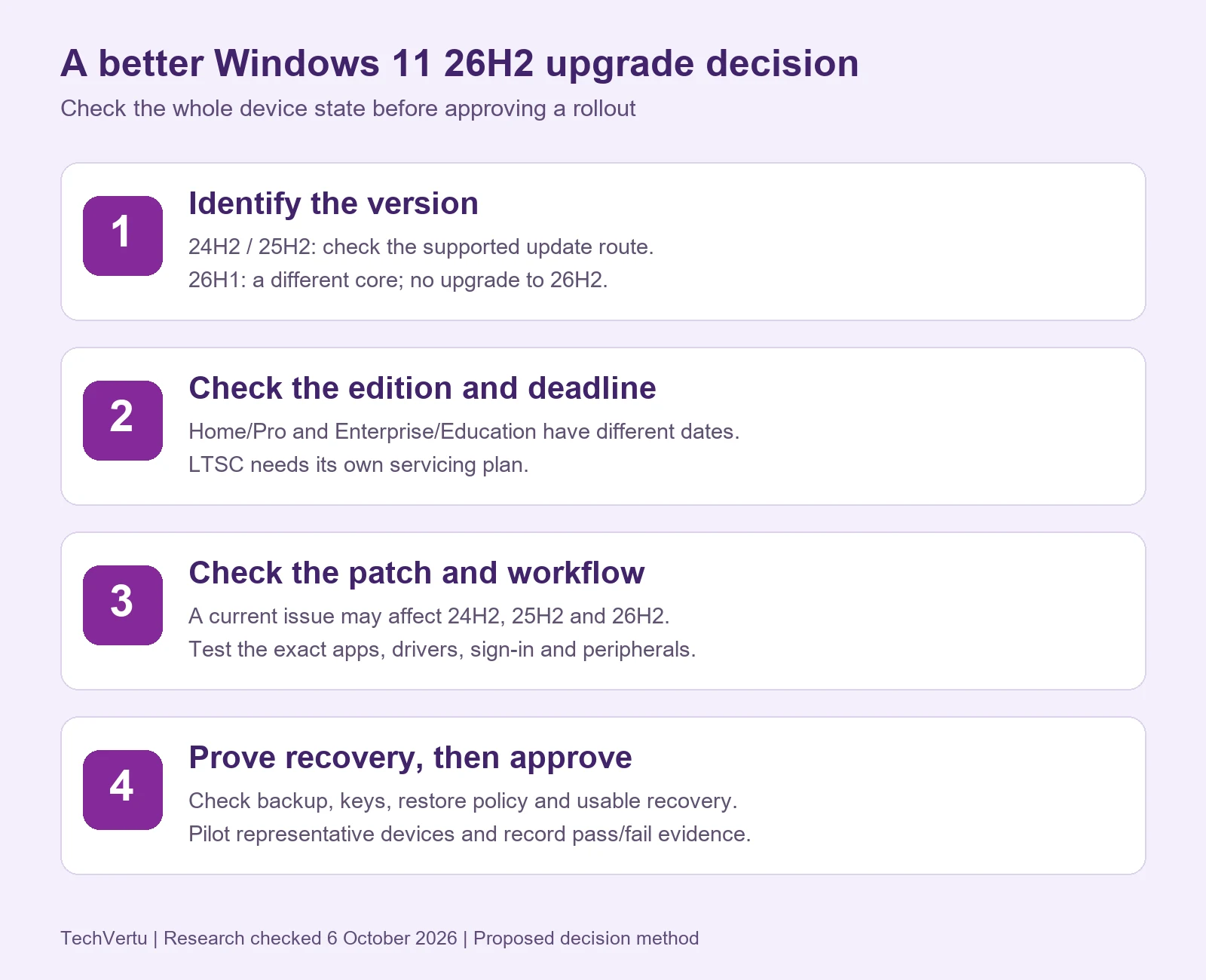
Set the acceptance criteria before installation. Give every required check an owner, an observable outcome and somewhere to record evidence. “Not tested” is useful information and should remain distinct from “pass”.
| Gate | Test action | Pass evidence | Stop condition |
|---|---|---|---|
| Device state and route | Record edition/channel/version/build, model and effective update policy. | Supported route and servicing deadline identified. | Starting state or approved route unknown. |
| Critical applications | Complete a real task with add-ins, macros, exports and authentication. | Correct output without an unapproved workaround. | Any required workflow fails. |
| VPN, security and management | Connect with MFA, resume/reconnect and check required agent reporting. | Access and required security/management signals intact. | Access or a required control is missing. |
| Peripherals and accessibility | Print, dock, use audio and assistive tools; repeat after sleep/restart. | Required devices and accessibility tasks work. | A required device or access method fails. |
| Driver trust, where applicable | Record audit/enforcement state and validate required drivers after the transition. | Required drivers still work in the applicable enforced state. | Driver compatibility is unproven after enforcement. |
| Identity and virtual desktops | Test live domain sign-in and existing AVD profiles where applicable. | Correct authentication and desktop load; mitigation evidence if needed. | Sign-in/profile failures remain. |
| Scripts and telemetry | Run scheduled management scripts; check current Sysmon deployment. | Expected output and supported event collection. | Broken automation or unsupported coexistence. |
| Recovery readiness | Verify protected data, actual restore access, keys and fallback route. | An authorised recovery test meets the declared need. | Required data or keys cannot be recovered. |
| Post-recovery posture | Check updates, enrolment, agents and effective policies after recovery. | Device returns to the required supported/security state. | Restored system remains unpatched or unmanaged. |
| Rollout approval | Review representative evidence and outstanding blockers. | Named owner signs off required criteria. | A critical blocker or owner is missing. |
For a media-heavy office, add an actual AC-3-dependent task if one is used. For a mobile team, test the VPN after a network change. For virtual desktops, test an existing profile as well as a new one. These are examples of turning a dependency into a test; they are not claims that your products are affected.
Define the rollback or replacement route before broad deployment, including who approves it and how users regain access to work. Do not assume every recovery feature restores the same data or remains available indefinitely. If rollback happens, record the resulting version, patch and security state before returning the device to service.
Use the editable tools: Download the 26H2 business pilot worksheet (CSV) and download the feature availability worksheet (CSV). The pilot file includes twelve test rows; observed results and approval fields are intentionally blank. The feature file separates published claims from device observations. Open them in a spreadsheet and adapt the pass criteria to your environment.
Frequently asked questions
How this guide was researched
Release, lifecycle, feature and issue statements were checked against Microsoft primary documentation on 6 October 2026. The decision matrices, recovery proof chain, pilot criteria and downloadable worksheets are TechVertu’s editorial synthesis. They are proposed tools for gathering evidence, not completed device tests. The featured artwork is a conceptual illustration; the infographic is an original explanation of the method.
Recheck Windows release health before a deployment and release information when confirming servicing dates. The version-specific KB identifier is used for the prerequisite because its linked build label is inconsistent with the cumulative-update page. Dates and issue statuses in this guide are a checked snapshot, not a guarantee about later updates.
Get help planning a supported Windows rollout
If your business needs a supported upgrade plan, TechVertu’s fully managed IT services can help coordinate device inventory, application checks, deployment and recovery. Bring the installed edition/version, critical workflow list and outstanding blockers so the conversation starts with the decisions your organisation needs to make.
Lets Talk!
If you have additional comments or questions about this article, you can share them in this section.