For free photo editing on Windows 11, start with Microsoft Photos for quick fixes, Paint.NET for straightforward layered edits, GIMP for open-source retouching, Affinity for advanced photo and design work, Photopea for browser-based PSD editing, or darktable for a RAW photography workflow.
The right choice depends on what you need to finish. Cropping a holiday photo should not require learning a professional suite. Equally, a simple filter app is the wrong tool for a layered client file or a folder of camera RAW images.
Researched against official product pages on 15 October 2026. Recommendations are based on documented capabilities and workflow fit, not a hands-on speed benchmark. Screenshots are attributed vendor examples; their versions and appearance may differ from your installation.
- Compare the free Windows 11 photo editors
- Microsoft Photos for quick edits without another download
- Paint.NET for approachable layered editing
- GIMP for open-source retouching and composites
- Affinity for advanced photo editing with a free account
- Photopea for browser-based PSD work
- darktable for camera RAW development and organisation
- Check what free means before moving your photo library
- Use an export-and-reopen check to choose your editor
- Frequently asked questions
Compare the free Windows 11 photo editors
| Editor | Choose it for | What is free | Main limitation to check |
|---|---|---|---|
| Microsoft Photos | Crop, straighten and everyday adjustments | Core editing in the Windows Photos app | Not a replacement for a layered composition editor; some additional features depend on hardware. |
| Paint.NET | JPEG/PNG edits, text and simple compositions | Classic desktop download | Microsoft Store edition is paid; check current CPU requirements. |
| GIMP | Detailed retouching, selections and composites | Open-source desktop application | More controls to learn; RAW work uses a separate developer integration. |
| Affinity by Canva | Advanced photo editing plus design and layout | Core Pixel, Vector and Layout studios | Free Canva account and online activation; Canva AI requires a premium plan. |
| Photopea | Opening and editing layered PSD files without installing an app | Core browser editor | Ads and paid options; large documents still depend on your hardware. |
| darktable | Organising and developing camera RAW photographs | Open-source desktop workflow | Check the exact camera and RAW variant; not a Photoshop-style layer editor. |
These are six different starting points, not a measured first-to-sixth ranking. If you only need to improve a JPEG, try Photos before downloading anything. If you need layers, start with Paint.NET, GIMP or Affinity. Choose the RAW workflow first when your camera files are the main reason for editing.
Microsoft Photos for quick edits without another download
Open Start, search for Photos and open your image. Press Ctrl + E or select Edit image. Microsoft documents crop, rotation, light and colour adjustments, filters and markup. Use Save as copy where available to keep the original.
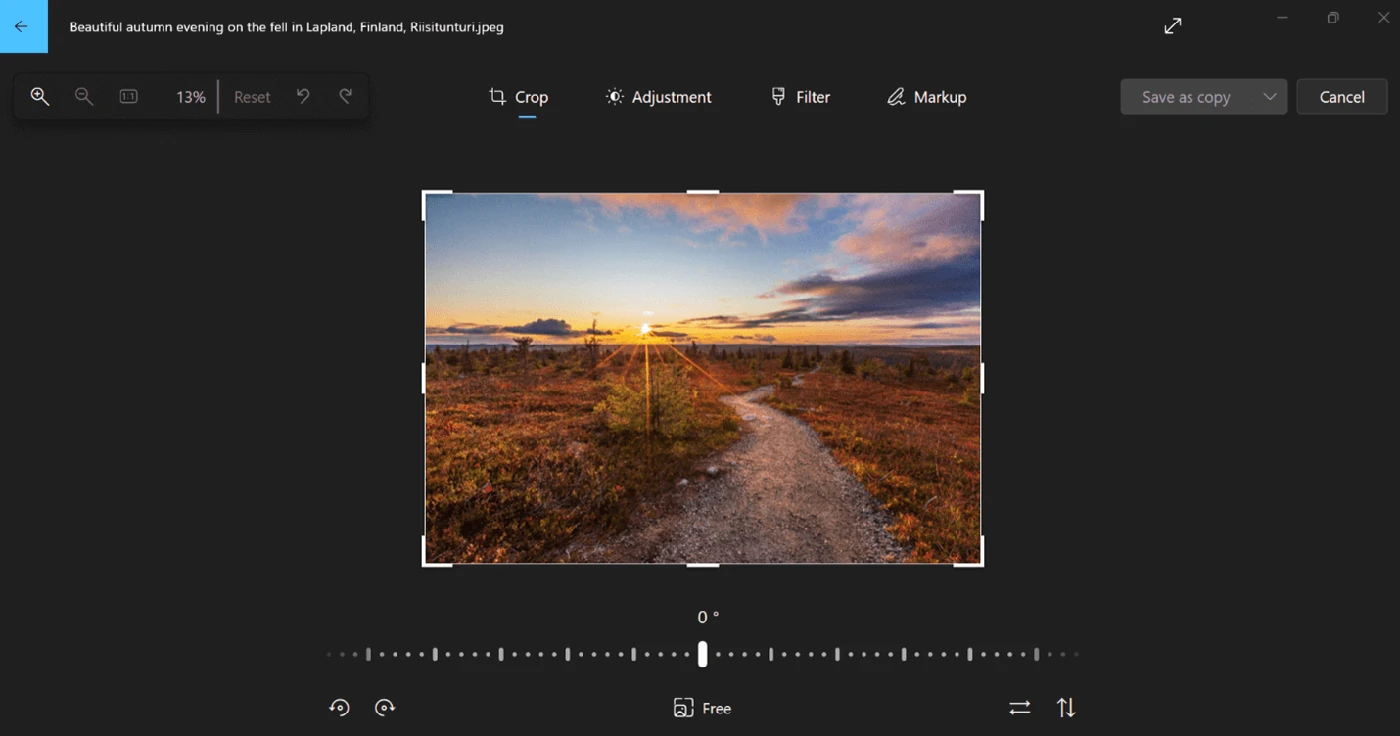
Choose it when: your job is a straighter horizon, a tighter crop or a brighter image. Move to a layered editor when you need to combine several images or repeatedly revise separate elements. Do not assume every AI feature demonstrated for a Copilot+ PC is available on an ordinary Windows 11 laptop.
If Photos is missing, use the Microsoft Store to find Microsoft Photos from Microsoft Corporation. The official help page is a useful starting point for checking the controls. This guide recommends its standard editing tools rather than promising every optional feature on every device.
Paint.NET for approachable layered editing
Paint.NET is a separate application from Microsoft Paint. Its official feature list includes layers, image tabs, effects and common formats such as JPEG, PNG and WebP. That makes it a sensible step up for adding text, combining a few elements or preparing an image for a document.
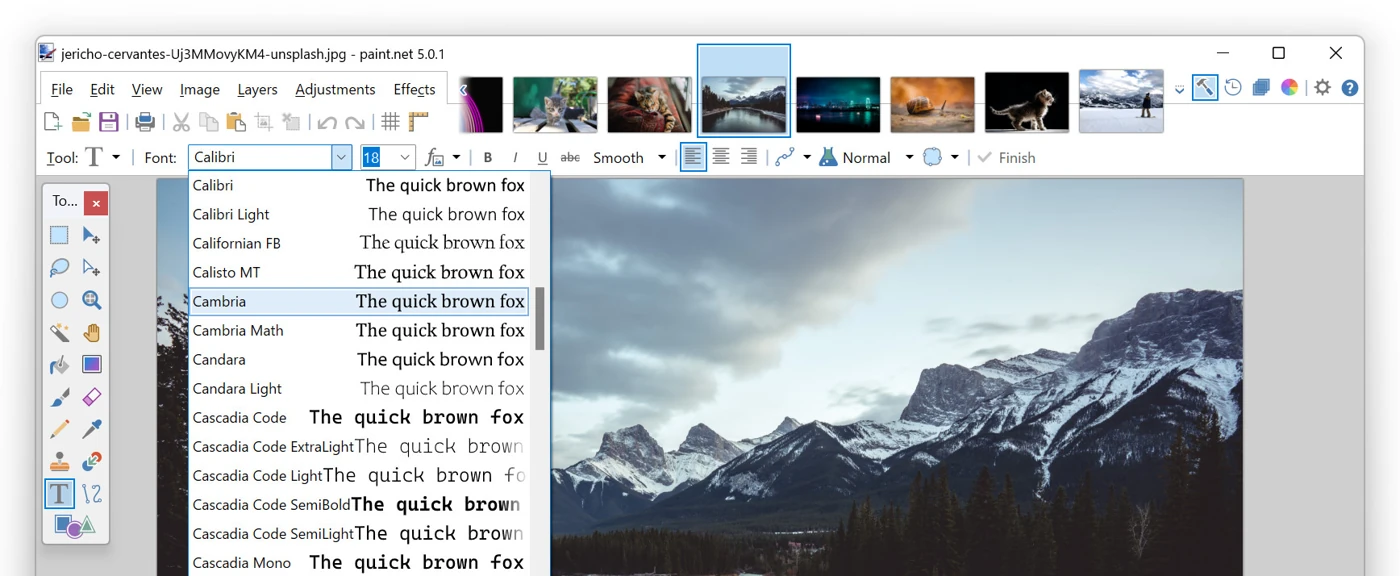
Get the genuinely free version: use the Free classic desktop option on the official Paint.NET download page. The Microsoft Store option on that same page is paid. A price in the Store does not mean the classic edition has stopped being free.
Check before installing: the current download page specifies a 64-bit Intel/AMD CPU with AVX2, or ARM64, with at least four cores, plus Direct3D 11 graphics. Windows 11 compatibility alone does not establish that an older processor meets every app requirement. Choose a RAW developer for a photography library rather than relying on extra plug-ins to turn Paint.NET into a different kind of editor.
GIMP for open-source retouching and composites
GIMP suits people who want a free desktop editor with room to learn. It covers photo retouching and image composition without requiring a vendor account to start. Its interface has more to explore than a quick-fix app; begin with a crop, a tonal adjustment and a layer mask rather than trying every tool at once.
Old comparisons can understate what modern GIMP does. The GIMP 3.2 release notes document link and vector layers, improvements to non-destructive filters, and updated text controls. “GIMP has no non-destructive editing” is no longer a useful blanket description. That does not mean every operation stays editable: save a working project and check the specific tools you use.
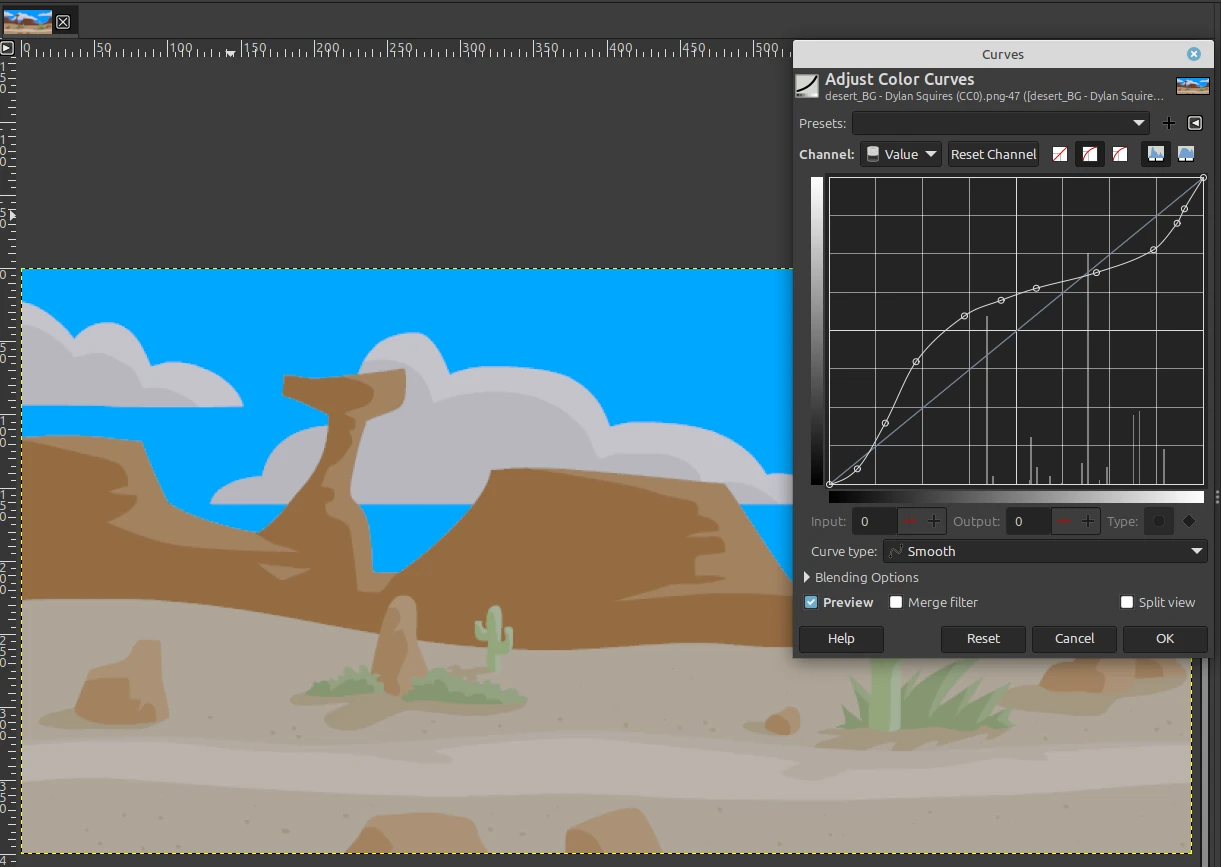
Use the official GIMP downloads page and select the Windows stable release. At this check it lists GIMP 3.2.6, with x86-64 and ARM64 support. Prefer the current stable installer to an old download mentioned in a tutorial.
For camera RAW files, GIMP explains its RAW developer plug-ins for tools such as darktable and RawTherapee. A useful two-stage workflow is to develop the RAW image first, then retouch or combine the result in GIMP. That is different from claiming GIMP itself is a complete Lightroom-style catalogue.
Affinity for advanced photo editing with a free account
The new Affinity by Canva combines photo, vector and layout tools. Canva explains its free model; it should not be confused with older paid Affinity Photo V1 or V2 purchases. Its photo-editing specification includes RAW development, masks, adjustment layers, live filters and batch processing.
The catch to understand: the official download FAQ requires a free Canva account and an internet connection to download and activate the app. Normal desktop work can then continue offline. Canva AI tools require a premium Canva plan, and online integrations still need connectivity.
This is a strong candidate if you need photo retouching and design in the same project. If avoiding account activation matters more than having an integrated suite, consider GIMP instead. Check the current Windows installer choice for Intel/AMD or ARM hardware.
Keep a copy before moving an older Affinity project to the new app. The download FAQ says V1 and V2 cannot open files saved by the newer app. For PSD collaboration, Affinity also warns that smart objects and advanced filters may flatten on import. A file opening successfully is not proof that every part remains editable.
Photopea for browser-based PSD work
Photopea is useful when you need layers, masks and PSD editing without installing a desktop application. Open the official Photopea editor in your browser. Its documented format support includes opening and saving PSDs, as well as common image formats.
For an editable copy, use File > Save as PSD. For a finished JPEG or PNG, use File > Export As. Photopea’s saving guide explains the distinction. Save before closing the tab; an image still visible in the browser is not a backup.
Browser-based does not automatically mean uploaded: Photopea says ordinary file editing happens on your device. Its privacy policy separately describes optional cloud-storage access. Do not extend the local-editing claim to every AI service, integration or future feature without checking its own terms.
Expect advertising and paid account options. Check the current offer before depending on AI tools; this recommendation is for the core editor. A browser app still uses your computer’s memory and processor, so “no installation” does not guarantee that a large PSD will be comfortable on a low-memory laptop.
darktable for camera RAW development and organisation
darktable is for a photographic workflow: import, organise, adjust and export. Its project overview describes a database-backed lighttable and non-destructive RAW development. Choose it for a shoot’s worth of exposure and colour work rather than for building a poster from layers of text and cut-outs.
Download from the official darktable installation page. It currently lists separate Windows x64 and Windows-on-ARM builds. Check the camera support list before relying on it for a particular camera setting. The list explicitly excludes some RAW variants, including Nikon high-efficiency NEFs and Apple ProRAW DNGs; the filename extension alone is not enough.
If you prefer another RAW processor, RawTherapee is another free, open-source option with official Windows download routes. Compare it using one of your own camera files. Neither choice needs to be the editor you use for layered retouching afterwards.
Check what free means before moving your photo library
| Question | What to verify |
|---|---|
| Can I finish without paying? | Export an ordinary image using only the free tools. Check the required output size, watermark behaviour and any premium asset warnings. |
| Do I need an account? | Affinity needs free Canva activation. GIMP and darktable are desktop alternatives when a vendor sign-in is unwanted. |
| Can I work offline? | Separate the installed editor or already-loaded browser editor from AI tools, cloud storage and stock libraries. Test the workflow you actually need. |
| Can another person edit the result? | A flattened JPEG or PNG is a delivery image, not an editable layered project. Test the recipient’s required format. |
| Is it suitable for work photos? | Follow your organisation’s software and data rules. Free software does not automatically approve a cloud integration or license every font and stock asset. |
There is little value in a long list that mixes permanent free editors, short trials and paid features without saying which is which. The shortlist here focuses on usable free core editing. Download links go to the publisher or project rather than a third-party installer catalogue.
Use an export-and-reopen check to choose your editor
Before importing hundreds of images, make a copy of one representative file and run this small acceptance check. It gives you a practical result for your files and computer rather than a generic score. This is a suggested check, not a claim that we benchmarked every app.
- Open the real file type. Try a phone image, camera RAW or layered PSD matching your work. Check colour, orientation and missing-font warnings.
- Make your usual changes. Crop, adjust exposure, add text or mask a subject as needed. If you need batch processing, include a small second set.
- Save the editable version. Close and reopen it. Can you still change the text, mask, layer or RAW settings you expected to keep?
- Export the delivery version. Use your required pixel dimensions and format. Check for a payment prompt, watermark, lost transparency or unexpected downscaling.
- Open the export outside the editor. Compare it with the project and inspect the edges at normal size and zoomed in. Share a sample with the recipient if format compatibility matters.
For example, a transparent product cut-out and a family JPEG have different success criteria. The product image must preserve its transparent edge and delivery dimensions; the family photo may only need a clean crop and natural colour. Decide which failure would actually stop your work before comparing optional features.
Keep originals separate from exports and include working projects in your backup routine. If your source is a screen capture, our Windows screenshot guide covers capturing it before you edit. Turning a single photo is also different from rotating the Windows display.
Lets Talk!
If you have additional comments or questions about this article, you can share them in this section.