

To boot Windows 11 in Safe Mode, open Settings > System > Recovery and choose Restart now beside Advanced startup. Then select Troubleshoot > Advanced options > Startup Settings > Restart. Press 4 or F4 for Safe Mode, or 5 or F5 for Safe Mode with Networking.
Cannot get to Settings? Hold Shift while selecting Power > Restart on the sign-in screen, then follow the same recovery-menu route. The screenshots below show which options to select.
Guidance checked against current vendor documentation on 12 October 2026. Screenshots are supplied by Microsoft, not photographs of a TechVertu test PC. Your recovery menu may include different additional options.
- Choose the route that matches your PC
- Check your password and recovery key first
- Start Safe Mode from Settings
- Start Safe Mode from the sign-in screen
- Follow the recovery menus
- Choose between F4, F5 and F6
- Start Safe Mode when Windows will not boot
- Use a command to open advanced startup
- Exit Safe Mode and restore normal startup
- Troubleshoot a blocked Safe Mode attempt
- Use the result to narrow down the fault
- Frequently asked questions
Choose the route that matches your PC
| What you can access | Where to start | What happens next |
|---|---|---|
| The Windows desktop | Settings > System > Recovery | Open recovery, then choose Startup Settings. |
| The sign-in screen, but no usable desktop | Shift + Power > Restart | Open the same recovery menus without signing in first. |
| Automatic Repair or a recovery screen | Advanced options | Look for Troubleshoot and Startup Settings. |
| No working Windows or recovery menu | Recovery options | You may need recovery media or manufacturer support; Startup Settings is not available in every recovery environment. |
These routes converge on the same numbered Startup Settings screen. Reaching the blue recovery menu is only the first stage; you still need to choose Safe Mode after the next restart.
Check your password and recovery key first
- Save open work and keep the laptop connected to power. You will restart the PC more than once.
- Have your account password ready. Microsoft says PIN and biometric sign-in are unavailable in Safe Mode. This route needs a Microsoft-account or local-account password. If you only use passwordless sign-in, resolve your sign-in options before proceeding; do not assume your PIN will work.
- Find your BitLocker recovery key before restarting. An encrypted device may ask for the 48-digit key. Use Microsoft’s recovery-key guidance and match the displayed key ID. For a managed work PC, contact IT if the key is held by your organisation.
- Keep the instructions on another device. Standard Safe Mode does not include the networking components added by the Networking option.
The account password and BitLocker recovery key solve different problems: one signs you into Windows; the other unlocks an encrypted drive. Neither substitutes for the other.
Start Safe Mode from Settings
- Press Windows + I to open Settings.
- Select System > Recovery.
- Find Advanced startup and select Restart now. Confirm the restart if prompted.
- After the PC restarts, follow the recovery screenshots below.
This is the Windows 11 path confirmed in Microsoft’s Windows Recovery Environment guide. If the desktop is freezing before you can reach Recovery, use the sign-in-screen method instead.
Start Safe Mode from the sign-in screen
- On the sign-in screen, select the Power icon.
- Hold down Shift while selecting Restart. Choose Restart, rather than Shut down.
- When the recovery menu appears, use the route shown below. You will need the account password when Safe Mode asks you to sign in.
The same Shift + Restart shortcut works through Start > Power > Restart if the desktop is usable. It is a shortcut into recovery, not a shortcut that immediately starts Safe Mode.
Follow the recovery menus
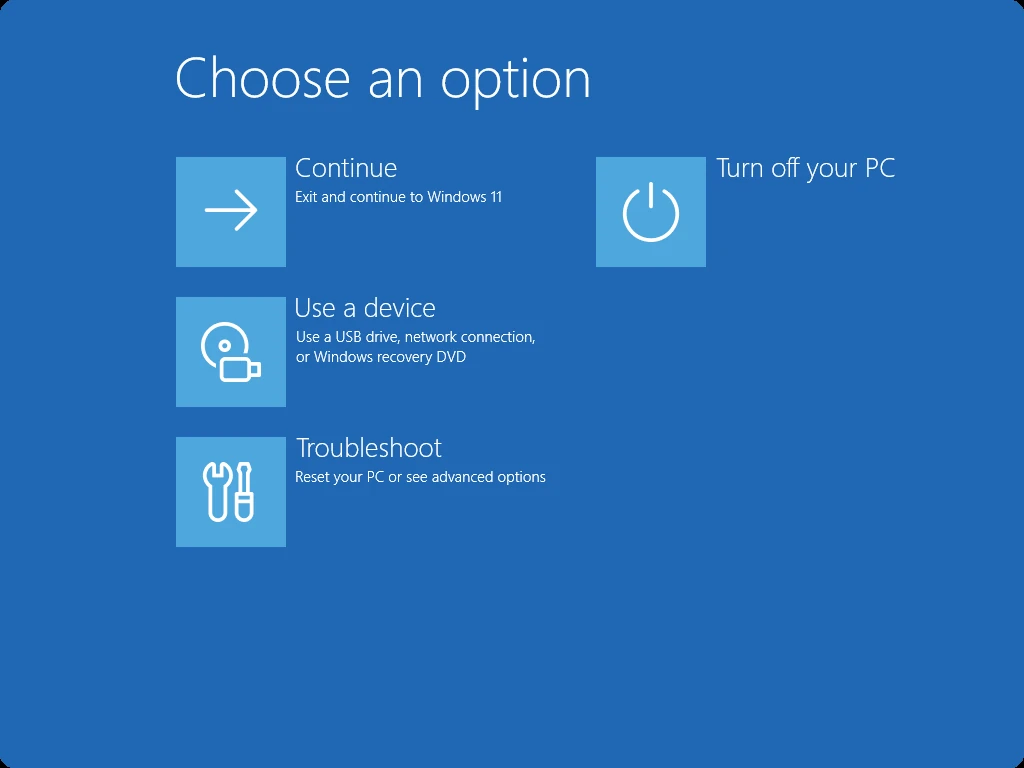
1. Choose Troubleshoot. On the Choose an option screen, select Troubleshoot rather than Continue, which returns you to Windows.
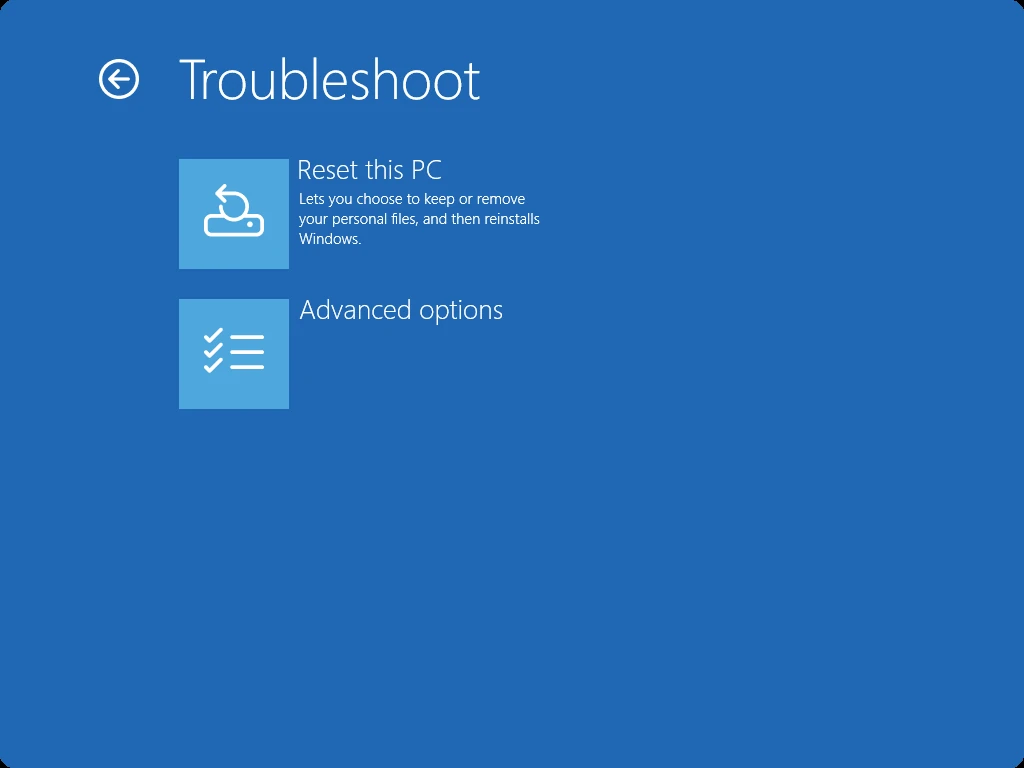
2. Choose Advanced options. You do not need Reset this PC to enter Safe Mode.
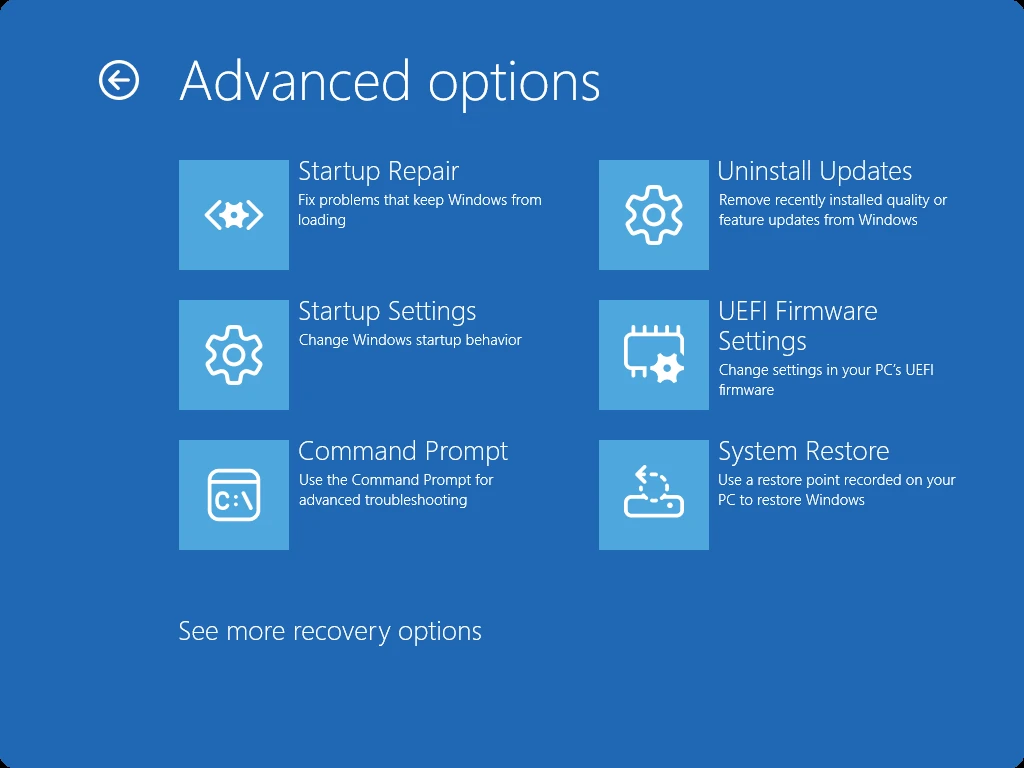
3. Choose Startup Settings, then Restart. Startup Repair is a separate tool; it is not the menu containing F4 and F5.
4. Select a Safe Mode option on the numbered screen. Use the number key if your function keys normally control brightness or volume.
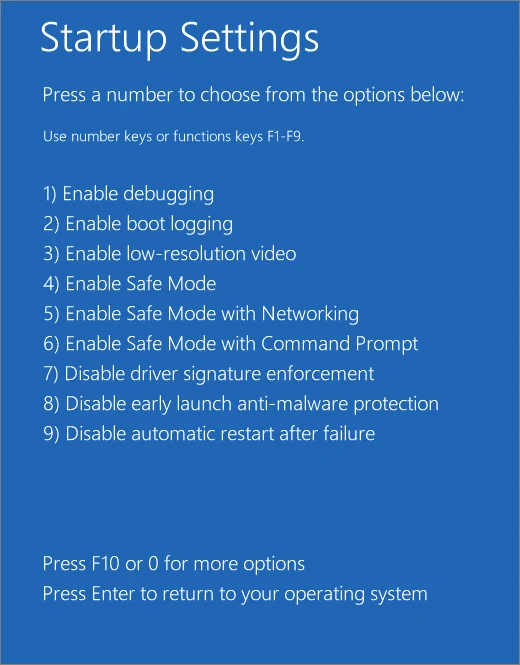
The numbered options are confirmed in Microsoft’s Startup Settings reference. If Startup Settings is missing, go to the troubleshooting section rather than choosing an unrelated recovery tool.
Choose between F4, F5 and F6
| Key | Option | When it helps |
|---|---|---|
| 4 or F4 | Safe Mode | Begin here for a basic diagnostic session that does not require a network connection. |
| 5 or F5 | Safe Mode with Networking | Use when the troubleshooting task needs network drivers and services. |
| 6 or F6 | Safe Mode with Command Prompt | For a technician following specific commands; the command window replaces the usual Windows interface. |
Networking adds components; it is not a promise that every Wi-Fi adapter, VPN or business sign-in service will work. If wireless access is unavailable, try a supported wired connection or get the instructions on a second device. Do not change security settings just to make the screen look like a tutorial.
Start Safe Mode when Windows will not boot
If Windows has already opened Automatic Repair, select Advanced options and look for the recovery route above. There is no need to force extra failed starts once that menu is available.
If you cannot reach either the desktop or sign-in screen, Microsoft documents interrupting Windows startup twice to trigger recovery on the third start:
- Turn the PC on. When the Windows or manufacturer logo appears during normal startup, hold the power button until the PC turns off.
- Turn it on and repeat that interruption once.
- Turn it on a third time and allow it to continue. If Automatic Repair appears, select Advanced options and follow the recovery-menu route.
Use forced shutdowns only when the normal routes are unavailable. They can lose unsaved work. Do not interrupt a Windows installation, update or firmware update. If the PC does not reach recovery, stop repeating power cycles and check its manufacturer’s recovery instructions.
A recovery drive or Windows installation USB can provide recovery tools when local recovery is unavailable. Our Windows 11 Media Creation Tool guide explains official downloads, USB preparation and the x64-versus-Arm distinction. Creating that USB erases its existing contents.
Boot the appropriate media and choose the option to repair the PC, rather than install Windows. The available tools vary: do not assume an installation USB will always show Startup Settings or directly boot the installed Windows into Safe Mode. If the required option is absent, use Microsoft’s recovery guidance or get help for the specific device before changing its boot configuration.
Use a command to open advanced startup
If Windows is running and you prefer a command, save and close your work, then enter this in Command Prompt or Windows Terminal:
shutdown /r /o /t 0This requests an immediate restart into advanced startup. It does not directly enable Safe Mode: still select Troubleshoot > Advanced options > Startup Settings > Restart, then 4 or 5.
In Microsoft’s shutdown command documentation, /r means restart, /o selects advanced boot options and /t 0 removes the countdown. We omit /f, which forces apps to close. A positive timeout implies forced closing, so adding a delay is not a substitute for saving your files first. If your organisation restricts the command, use its approved support route.
Exit Safe Mode and restore normal startup
If you entered through Startup Settings, select Start > Power > Restart. That should return Windows to normal startup.
If it keeps returning to Safe Mode, a persistent Safe boot setting may have been enabled through System Configuration. Microsoft’s exit instructions are:
- Press Windows + R, type
msconfigand select OK. - Open the Boot tab.
- Clear the Safe boot checkbox, then select Apply and OK.
- Restart the PC.
For an ordinary one-off diagnostic session, use Startup Settings rather than ticking Safe boot in msconfig. A persistent setting can leave you repeating the same restricted boot, especially if you discover too late that your password or network access is unavailable. Avoid changing other boot options while trying to undo this setting.
Troubleshoot a blocked Safe Mode attempt
| What you see | What to check next |
|---|---|
| The PIN is unavailable | Use the account password. Safe Mode does not provide PIN or biometric sign-in. |
| A BitLocker recovery prompt | Find the matching 48-digit recovery key; contact IT for an organisation-managed key. Do not reset the PC just to bypass the prompt. |
| F4 changes volume or brightness | Use the number key 4 on the numbered Startup Settings screen. It is not a key to press repeatedly during ordinary startup. |
| Startup Settings is missing | Check that you are in Troubleshoot > Advanced options. Different recovery media can expose different tools; do not mistake Startup Repair for Safe Mode. |
| No internet after choosing 5 | The Networking option adds drivers and services but your connection may still be unavailable. Try wired access or another device for guidance. |
| Safe Mode opens but the app will not run | An app may depend on services or drivers deliberately absent in Safe Mode. A failure here is not automatically a second fault. |
If Windows is running but one app or game needs a normal driver environment to reproduce the fault, Microsoft’s clean-boot procedure may be more useful. It isolates background software conflicts with more control over what is disabled. Keep a record of changes so you can restore normal startup afterwards.
Use the result to narrow down the fault
Treat Safe Mode as a comparison, not a repair button. Write down the symptom you wanted to test before entering it: for example, a crash after sign-in, a display problem or a repeated error. Then check whether that same symptom occurs under the reduced startup environment.
| Observation | Reasonable conclusion | What it does not prove |
|---|---|---|
| The same symptom disappears | Something different about normal startup is worth investigating. Record recent software and driver changes. | It does not identify a particular driver, prove the hardware is healthy or confirm malware is gone. |
| The same symptom remains | The fault needs further diagnosis; keep the exact error and when it occurs. | It does not prove hardware failure or mean a reset is the next step. |
| The affected game or app cannot run here | The diagnostic environment may lack what that program needs. | That is not a fair performance comparison or proof the program is broken. |
Change one thing at a time, restart normally and retest the original symptom. If you are investigating game crashes, our Windows 11 gaming performance guide explains hardware and feature dependencies; do not benchmark in Safe Mode. Before any later recovery action that could affect files, review your backup and recovery plan.
Frequently asked questions
Sources checked: Windows startup settings, Windows Recovery Environment, Windows sign-in troubleshooting, BitLocker recovery keys, shutdown command, clean boot and Secure Boot. Menu availability can depend on the device and recovery environment. No destructive recovery procedure is required merely to try Safe Mode.
Lets Talk!
If you have additional comments or questions about this article, you can share them in this section.