

To force quit an app on Windows, press Ctrl + Shift + Esc to open Task Manager, select Processes, right-click the frozen app and choose End task. If that shortcut does not work, press Ctrl + Alt + Delete and select Task Manager.
Unsaved changes in that app may be lost. If the window still responds, try its Close button or Alt + F4 first. Force quitting closes the app; it does not uninstall it or fix the reason it froze.
Checked against Microsoft and vendor documentation on 19 October 2026. Main steps cover Windows 11 and Windows 10; the optional taskbar shortcut is Windows 11-specific. Screenshots are genuine ASUS reference images, not a newly captured termination test.
- Force quit the app with Task Manager
- Try a normal close before ending a process
- Check the target before selecting End task
- Use the Windows 11 taskbar End task shortcut
- Use a targeted command when the visual route fails
- If Task Manager will not open or Windows is frozen
- If the app keeps freezing after you reopen it
- Frequently asked questions
Force quit the app with Task Manager
- If possible, save work in other responsive apps. Give a busy app a little time if it is exporting, saving or processing a large file.
- Press Ctrl + Shift + Esc. Alternatively, right-click Start and choose Task Manager.
- Select Processes. In an older compact Task Manager view, choose More details first.
- Find the app you intended to close. Right-click its entry and select End task; you may also see an End task button in the toolbar. Confirm only after checking the selected name.
- Reopen the app normally. If it offers recovery, review the recovered work and save a separate copy before continuing.
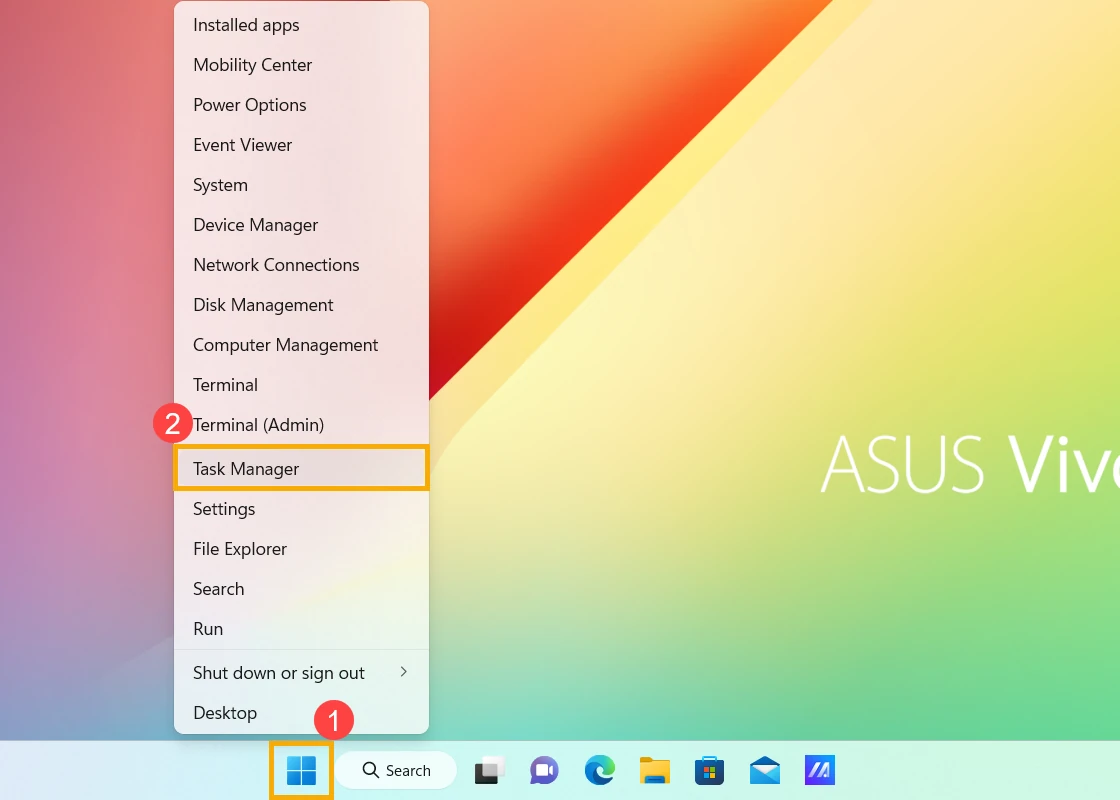
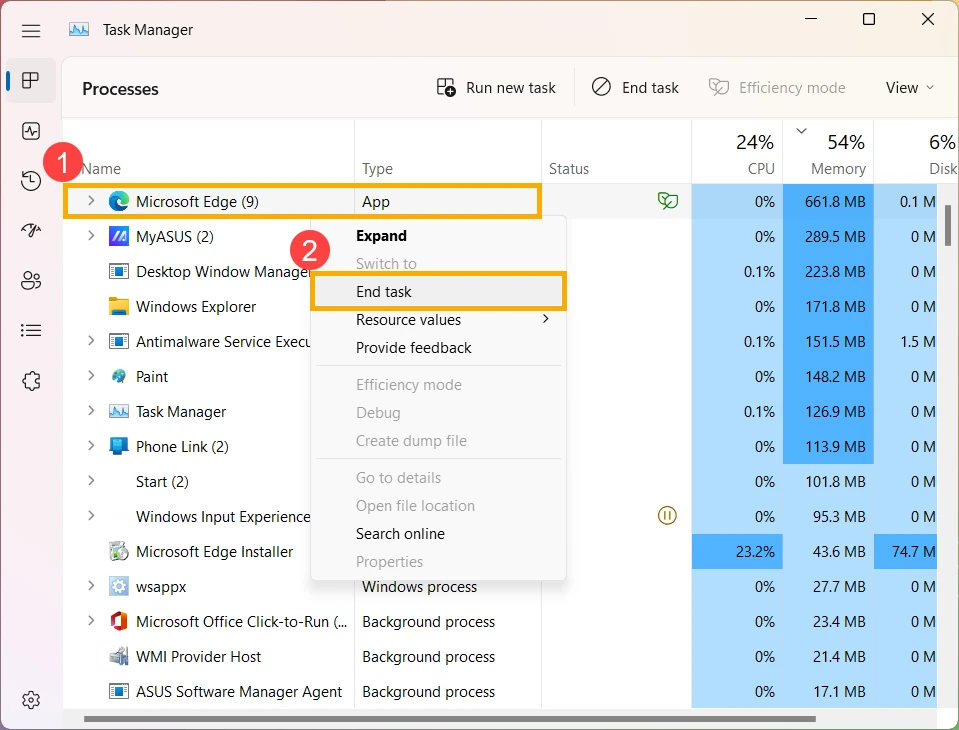
Microsoft’s Task Manager guidance explains the Processes view and End Task. Its instructions for an unresponsive Edge window use this same route. Ending a browser can close other windows and interrupt downloads or unsent forms; target the application deliberately.
If only a Chrome tab is stuck and the browser menus still respond, try More > More tools > Task manager inside Chrome, select the affected page and choose End process. Google documents this narrower browser route. It is different from ending the whole browser in Windows Task Manager.
Try a normal close before ending a process
Select the app’s window, then press Alt + F4. On a keyboard that uses the function row for media controls, you may need Fn + Alt + F4, depending on the device. The app must have focus: if the desktop is selected, Alt + F4 can bring up the Windows shutdown dialog instead.
Alt + F4 is a close request, not a guaranteed process kill. A responsive app may display a save prompt; a frozen one may ignore it. Use Alt + Tab to select the intended window if necessary. These shortcuts are listed in Microsoft’s keyboard reference.
| Action | What it does | Use it when |
|---|---|---|
| Close or Alt + F4 | Asks the active window to close normally | The app can still respond or offer a save prompt. |
| Task Manager → End task | Ends the selected app/task | Normal close fails and you accept losing unsaved work. |
| Restart Windows | Closes the whole user session and restarts the PC | The problem affects Windows more broadly or the targeted route fails. |
Check the target before selecting End task
Use this quick name, scope and work check. It is especially useful when Task Manager shows several similar entries:
- Name: does the selected entry match the app that froze? CPU usage alone does not identify a fault.
- Scope: is it an app group, an individual process or a Windows/background process? An app can use several processes, and a process can serve several windows.
- Work: could this also close another document, browser window, call or export that you still need? Save what remains accessible before proceeding.
If the group has an arrow, expand it to inspect its entries. Do not assume a number beside a browser means that many visible windows. If you cannot confidently identify an individual entry, avoid guessing from an unfamiliar executable name.
ASUS advises trying a normal close first and avoiding unfamiliar non-app processes. Do not select system components or security software simply because they use memory. Closing the wrong process can disrupt Windows or protection rather than resolve the frozen app.
Use the Windows 11 taskbar End task shortcut
If already enabled, right-click the running app’s taskbar icon and choose End task. This is different from Close window and still risks unsaved work. Treat it as an app-level action, not a promise to close only one document.
- Open Settings > System > Advanced on current Windows 11 releases.
- Find the End Task setting in the Taskbar section and turn it on if you want this shortcut.
- Right-click the affected app’s taskbar icon and choose End task.
Microsoft’s Advanced Windows Settings documentation says the former For developers settings appear under Advanced in Windows 11 version 25H2 and later. Older instructions may therefore show System > For developers. If the option is missing or managed by your organisation, use Task Manager; there is no need to enable Developer Mode, join an Insider channel or edit the registry for this guide.
Use a targeted command when the visual route fails
Use this fallback only when you can identify the app process. Open Command Prompt from Start. First inspect processes with the read-only command below. /v requests extra detail, including window information where available:
tasklist /vFor a narrower list, filter by the executable name you have identified. This example lists Notepad processes without closing them:
tasklist /fi "IMAGENAME eq notepad.exe" /vSee Microsoft’s tasklist reference. Check the image name, PID and available window information together; a PID identifies a process, not necessarily one document.
To force termination, replace 12345 below with the freshly checked PID of your target. The number is an example, not a PID to copy unchanged:
taskkill /pid 12345 /fMicrosoft documents /pid as the process identifier, /f as forced termination and /t as including child processes. This example deliberately omits /t. Recheck the PID if the app has restarted. Commands that select an image name can match several instances; broad wildcard or “end everything not responding” commands can affect unrelated work. Read the taskkill switches before changing the target or scope.
If you get Access is denied, do not bypass a managed-device policy or keep trying random processes. Ask IT to check the process owner and permissions. Administrator access is not a universal prerequisite for closing your own apps, and elevation is not a guarantee that every process can be ended.
If Task Manager will not open or Windows is frozen
| What you can still do | Next step |
|---|---|
| Keyboard responds but the app fills the screen | Try Ctrl + Alt + Delete, then Task Manager. If Task Manager opens, use its Settings → Always on top option if available to keep it visible. |
| Desktop or taskbar is missing or stuck | If Task Manager opens, look for Windows Explorer and choose Restart. This refreshes the shell; it is different from force quitting an ordinary app. |
| Windows responds but the app will not end | Save other work and use Start → Power → Restart. This affects every open app, not just the frozen one. |
| Nothing responds | Use the device maker’s forced-restart procedure only as a last resort. It can lose work across apps; do not interrupt an update or firmware installation casually. |
For a blank desktop, Microsoft documents restarting Windows Explorer in Task Manager. If Explorer is absent, its guidance describes starting explorer.exe through Run new task. For a complete device hang, follow the manufacturer’s procedure rather than assuming one power-button duration works for every PC.
If you are working inside Remote Desktop or a virtual machine, make sure Task Manager belongs to the Windows session containing the frozen app. Closing the local connection window is not the same as terminating the remote app; it can leave the work running on the remote computer.
If the app keeps freezing after you reopen it
Repeatedly ending a task is temporary recovery, not a diagnosis. Record the app/version, what you were doing, whether one file triggers the problem and any error message. Our Windows screenshot guide can help you capture an error without sharing unrelated account details.
Install the app publisher’s updates and try a different file or a session without optional extensions. For supported apps, Microsoft’s repair instructions use Settings > Apps > Installed apps > the app’s menu > Advanced options > Repair. Not all programs expose that option. Read the data warning before choosing Reset or reinstalling; neither is the same as simply ending a task.
For recurring Windows-wide problems, our Windows 11 Safe Mode guide explains a diagnostic startup route. If a photo editor froze during an export, check its recovery/project file before replacing it; our free Windows photo editor comparison explains editable projects versus finished exports. Back up important working files as part of a backup and recovery routine.
For a work PC with repeated application failures or access restrictions, use your IT team’s support route. TechVertu’s remote IT support page explains its support offering; include the app name, symptoms and steps already tried when requesting help.
Lets Talk!
If you have additional comments or questions about this article, you can share them in this section.