
Guidance checked against Microsoft documentation on 21 September 2026.
To schedule an email in Outlook on the web, write your message, open the arrow beside Send, choose Schedule send, select a date and time, and confirm. The email waits in Drafts until it is due. Microsoft’s web scheduling guide
Scheduling an email in Outlook is useful when you finish a proposal after hours, prepare tomorrow’s team update or work with clients overseas. The important part is choosing the instructions for your version—and checking that your message is actually scheduled before you close the app.
This guide covers new and classic Outlook for Windows, Outlook on the web, Mac, iPhone and Android. It also explains how to change your plans, investigate a missing message and avoid scheduling for the wrong time zone.
The screenshots below show the real Outlook interface, reproduced from Microsoft’s documentation. Some show older example dates or an earlier interface design; use your own future send date and follow the labels in your version.
- First, identify your version of Outlook
- How to schedule an email in new Outlook and on the web
- How to schedule an email in classic Outlook for Windows
- How to schedule an email in Outlook for Mac
- How to schedule an email on iPhone or Android
- How to edit, cancel or send a scheduled email now
- Check your setup before an important scheduled email
- Schedule for the recipient’s time zone, including GMT and BST
- Outlook scheduled email not sending: what to check
- More questions about scheduling Outlook emails
- Get help with Outlook and Microsoft 365
First, identify your version of Outlook
“Outlook 365” does not identify one particular interface. Before looking for a button, check which app you are using.
| Where you use Outlook | How to recognise it | Follow this section |
|---|---|---|
| New Outlook for Windows | A Settings cog in the top-right navigation area | New Outlook and web |
| Classic Outlook for Windows | A File tab with Office Account and product information | Classic Outlook |
| Outlook in a browser | Outlook.com for personal accounts; Outlook on the web for work or school | New Outlook and web |
| Outlook for Mac | Check Outlook > About Outlook in the Mac menu bar | Outlook for Mac |
| Outlook on a phone or tablet | The Outlook app on iOS or Android | Outlook mobile |
Microsoft’s version identification guide includes screenshots if you are unsure.
Check the sender as well as the app. If you have several accounts in Outlook, look at the From address before continuing. A feature available for your work mailbox may be unavailable for another account in the same app.
How to schedule an email in new Outlook and on the web
Use these steps for new Outlook for Windows, Outlook.com and Outlook on the web:
- Prepare the email. Check the sender, recipients, subject, message and attachments.
- Open the Send dropdown. Choose Schedule send.
- Set the timing. Pick a suggested slot or a custom date and time.
- Confirm with Send. Find the pending message in Drafts.
New Outlook does not support this feature for IMAP or POP accounts. These are ways of connecting a mailbox to an app; ask your IT team if you do not know your account type. Microsoft’s Windows and web instructions
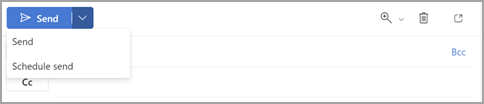
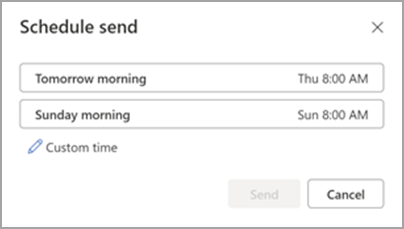
Before moving on, inspect the saved message for its scheduled date and time. A message merely sitting in Drafts is not evidence that scheduling is active. Check for the scheduling notice or controls as well.
How to schedule an email in classic Outlook for Windows
These are Microsoft’s documented single-message delay steps for an Exchange mailbox, such as a Microsoft 365 work account.
- Compose your email and choose Options > Delay Delivery. This opens the message’s Properties window.
- Under delivery settings, tick Do not deliver before and set the date and time.
- Select Close, then Send.
- Check Outbox for the pending message. Microsoft’s delivery options
If your ribbon looks different, open the Message Options launcher in Tags, or Options > More commands on the simplified ribbon. Microsoft’s alternative ribbon instructions
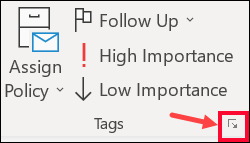
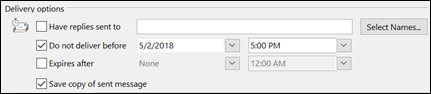
Closing the scheduling window alone does not complete the process. The final Send action matters.
Will classic Outlook send the email if the computer is off?
In Cached Exchange Mode, Outlook must be running and connected at the scheduled time. Microsoft explains that the delayed message is held in the local Outbox. A sleeping or switched-off laptop can therefore miss the intended send time.
There is an exception: Microsoft says this particular problem does not occur with an Exchange account configured in Online Mode. Here, “Online Mode” means a specific account configuration; simply connecting your laptop to Wi-Fi does not change cached mode into online mode. Microsoft’s delayed-delivery troubleshooting
For an unfamiliar business setup, keep classic Outlook open and the device awake and connected, or ask IT which scheduling method to use. Avoid changing your organisation’s Exchange settings just to schedule one message.
How to schedule an email in Outlook for Mac
- Write the email and add at least one recipient in To.
- Open the arrow beside Send and select Schedule send. Older versions call this Send Later.
- Enter the date and time, then select OK.
- Check the scheduled message in Drafts.
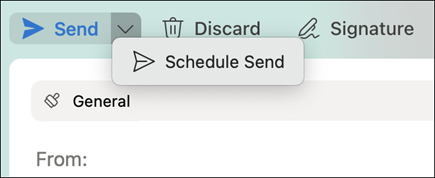
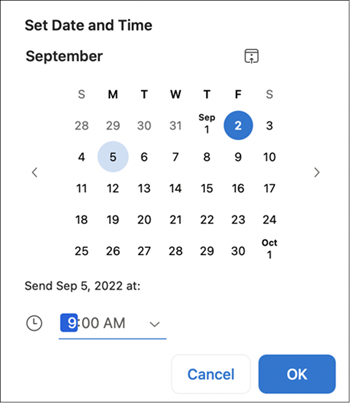
Microsoft says the Mac version can send the scheduled message even when Outlook is closed. Its scheduling feature requires a supported Exchange account; it is unavailable for accounts connected through IMAP or POP, including the Gmail, Yahoo and iCloud examples in Microsoft’s guidance.
To change your plan, open the message in Drafts, choose Cancel Send and confirm Yes. You can then revise it, send it immediately or schedule it again. Microsoft’s Outlook for Mac guide

How to schedule an email on iPhone or Android
Outlook mobile has an outgoing Schedule send feature. If it is available for your account:
- Start a message or open a draft.
- Open the three-dot menu in the compose screen.
- Choose Schedule send.
- Select a suggested time or choose your own, then confirm the schedule.
- Look in Drafts for the message marked [Scheduled].
Microsoft’s Outlook team says scheduled mobile drafts can be edited or deleted before sending. Microsoft’s mobile feature announcement
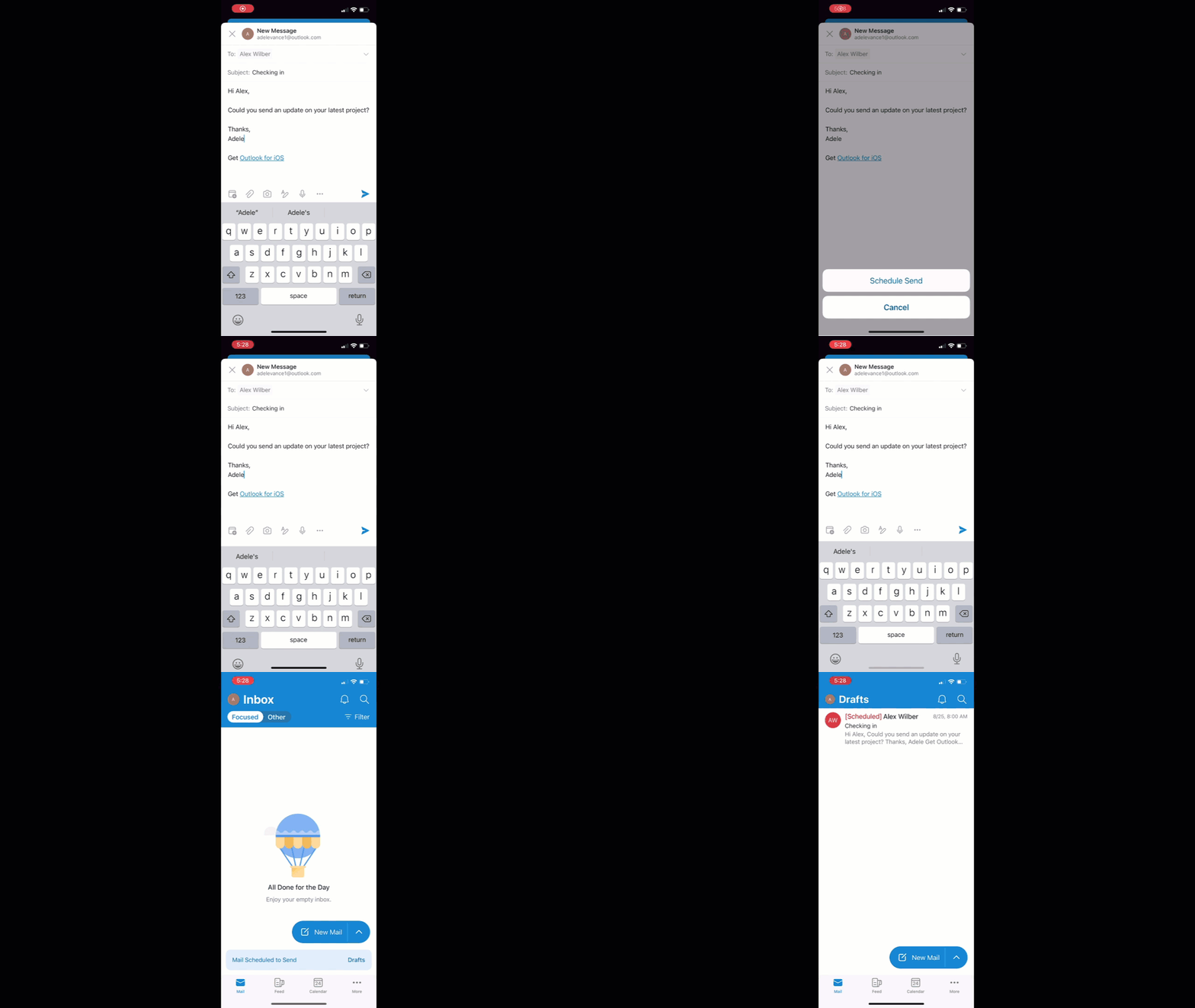
If the option is missing, check for an app update and confirm which account is selected. Try the same mailbox in its supported web interface, or ask IT to check availability. You do not need to install an unfamiliar email add-in as your first troubleshooting step.
Do not confuse sending later with snoozing. A Schedule or swipe action on an email you have already received can hide that incoming message until later. It does not schedule a new outgoing email. Microsoft’s explanation of inbox scheduling
Need help getting your mailbox onto your phone first? See TechVertu’s guide to Outlook on Android.
How to edit, cancel or send a scheduled email now
Make changes before the scheduled time, leaving enough time for them to save. Use the account and app where you scheduled the message first.
New Outlook and web
Open the scheduled draft and select Cancel send. Edit and schedule it again, leave it unsent or choose Send for immediate sending. Some web interfaces instead show an Edit pencil > Send Now route. Microsoft’s scheduling controls, alternative web controls
After rescheduling, reopen the message and check the new time. This catches the easy mistake of editing the email but leaving it as an ordinary unscheduled draft.
Classic Outlook
Open the message in Outbox and change its delivery time, then select Close > Send again. For immediate sending, clear Do not deliver before, then close and send. To cancel, delete it from Outbox before it is due. Microsoft’s delayed-message controls
If you used a Viva Insights suggestion
Viva Insights can suggest a delivery time based on working hours. This has a different management workflow: Microsoft documents pending messages in Drafts on the web or Sent Items on Windows, with Send now and Don’t send controls.
That is why a scheduled email appearing in Sent Items does not always mean the recipient has received it. Microsoft also says delay rules need to be turned off to use these suggestions. Microsoft’s Viva Insights scheduling guidance
Check your setup before an important scheduled email
For a proposal, customer update or other important message, run this short rehearsal using harmless content. It checks your actual account and device conditions without risking the real email.
- Use the intended sender. Choose the same mailbox you will use for the real message, especially if you normally switch between personal, work or shared addresses.
- Send to an inbox you can check independently. Give the test an unmistakable subject, such as “Scheduling test — expected at 14:10”.
- Choose a time about ten minutes ahead. Record the selected date, time and time zone. Confirm the schedule and inspect the saved message.
- Reproduce the intended conditions. If you want to close your browser or switch off the laptop for the real send, do that during this test. Check receipt on another device. For classic Outlook in cached mode, keep the computer awake and connected instead.
- Check receipt, then tidy up. Compare the intended time with the received message. Repeat the test after correcting any problem, using a clearly different subject.
One successful test is useful evidence for that setup, not a guarantee against a future outage. For a hard deadline, leave a delivery buffer and arrange an acknowledgement if receipt matters.
Planning to close the browser or switch off your laptop?
For a Microsoft 365 mailbox, Outlook on the web is the practical alternative to relying on classic Outlook’s local queue. Save the schedule while connected, confirm it remains visible after refreshing the page, and run the closed-browser test above before relying on it for an important message.
Do not assume every mailbox added to Outlook behaves identically. The sending account and scheduling method are more useful checks than the Outlook name alone.
Check that the content will still make sense when it arrives
Read your email as though it is already the scheduled delivery day:
- Use explicit dates where helpful. “The meeting on 24 September” is clearer than “tomorrow’s meeting” if you write the message two days in advance.
- Check attachment and link access. A correctly timed email is still unhelpful if its recipient cannot open the proposal.
- Resolve dependencies first. If the message needs approval or its wording depends on a client’s reply, keep it as a draft until that condition is resolved.
- Set a review reminder for sensitive timing. A customer announcement prepared well in advance may need a final content check before it goes out.
Schedule for the recipient’s time zone, including GMT and BST
Start with the recipient’s intended local date and time, then work backwards to the time you need to enter. Use the date of the scheduled send, particularly around clock changes.
For example, suppose you work in London and want a message sent at 09:00 in New York. In 2026, the UK clocks go back on 25 October, while US daylight saving time ends on 1 November. The gap changes during the intervening week. UK clock-change dates, US daylight saving rules
| Intended time in New York | Equivalent London time to use if your scheduler is set to London |
|---|---|
| 09:00 on 20 October 2026 | 14:00 BST |
| 09:00 on 27 October 2026 | 13:00 GMT |
| 09:00 on 3 November 2026 | 14:00 GMT |
Worked example calculated from the clock-change rules above. A remembered five-hour difference would be wrong for the middle row.
Check any time-zone information shown in the scheduling window and review the saved time afterwards. If the interface is unclear, compare it with your device and Outlook settings rather than assuming it uses the recipient’s location. Microsoft documents Outlook’s calendar time zones under Settings > Calendar > View in new Outlook and web; that calendar setting alone does not explain every scheduled-email behaviour. Outlook time-zone settings
If you want separate messages to reach London and New York at the start of each recipient’s working day, prepare separate scheduled sends. Also check the actual working day: a Monday morning may be a bank holiday for one recipient.
Outlook scheduled email not sending: what to check
Begin with the message’s location and status. Recreating it immediately can leave you with two copies scheduled to go out.
| What you see | What to check next |
|---|---|
| No scheduling option | Confirm the app version and From account. Check that account’s scheduling support before reinstalling Outlook. |
| A message in Drafts with no scheduling notice | Check whether you completed the final confirmation or cancelled the schedule while editing. |
| A message still queued after the selected time | Recheck the date, time zone and connection. If you used classic Outlook, consider the cached-mode requirement above. |
| A message in Sent Items but no receipt | Inspect any Viva scheduling notice, check for a failure notification and ask the recipient to check junk mail. |
| Two similar queued messages | Compare sender, recipients, subject and scheduled time. Cancel the unwanted copy once you have identified it. |
| The problem only occurs for a shared mailbox | Test with that exact From address and ask IT to check the mailbox setup and your sending permissions. |
Scheduled, sent and received are different checkpoints. A chosen time does not guarantee arrival in the recipient’s inbox at that exact minute. Once submitted, a message may still be deferred, filtered or rejected. Microsoft 365 administrators can use Exchange Online message trace to investigate what happened after submission.
To make a support request useful, include the sender, recipient, subject, intended send time with time zone, Outlook version and the folder where the message is visible. Add a screenshot of any scheduling notice, removing unrelated confidential content. TechVertu’s remote IT support can help investigate persistent Outlook problems.
More questions about scheduling Outlook emails
Can Outlook automatically send the same email every week?
For a repeating message, use a recurring workflow. Microsoft documents scheduled cloud flows in Power Automate, including tasks such as emailing reports. Specify the recurrence, time zone, sender and recipients, then test it. Choose an owner who will maintain it when staff or account permissions change.
Can I delay every email by a few minutes?
Classic Outlook supports an outgoing delay rule of up to 120 minutes. Start at File > Manage Rules & Alerts > New Rule, apply it to outgoing messages and choose defer delivery by a number of minutes. Review the conditions and exceptions before enabling it. This rule runs on the client, so Outlook must stay running during the delay. Microsoft’s delay-rule instructions
A brief correction window is useful for spotting a missing attachment; it is a different job from choosing tomorrow morning for one message.
Is Schedule send the same as Undo Send?
No. Undo Send gives you a short opportunity to stop an email immediately after pressing Send. Microsoft documents a delay of up to 10 seconds in new Outlook, under Settings > Mail > Compose and Reply > Undo send. Microsoft’s new Outlook tips
What is the best time to schedule a business email?
Choose a time that suits the recipient and the purpose. A routine team update can wait until working hours; an urgent service problem may require an immediate message and a call. Check time zones, local holidays and whether the recipient has enough time to act. Do not select 09:00 simply because a guide recommends it for every situation.
Get help with Outlook and Microsoft 365
If scheduling behaves differently across your team’s computers, bring the problem back to the account, app and sending method. Those details make it easier to find a reliable setup.
TechVertu provides Microsoft 365 services for businesses, including setup and ongoing support. For an immediate check, schedule a harmless test from the mailbox you actually use, confirm its saved time and verify receipt before relying on the same method for a customer email.
Lets Talk!
If you have additional comments or questions about this article, you can share them in this section.