

To set two-factor authentication for Microsoft Office 365, you will need to follow the below steps:
How to setup two-factor authentication for Microsoft 365
1. Sign in to Office 365
Sign in to Office 365 with your work or school account and password like usual.
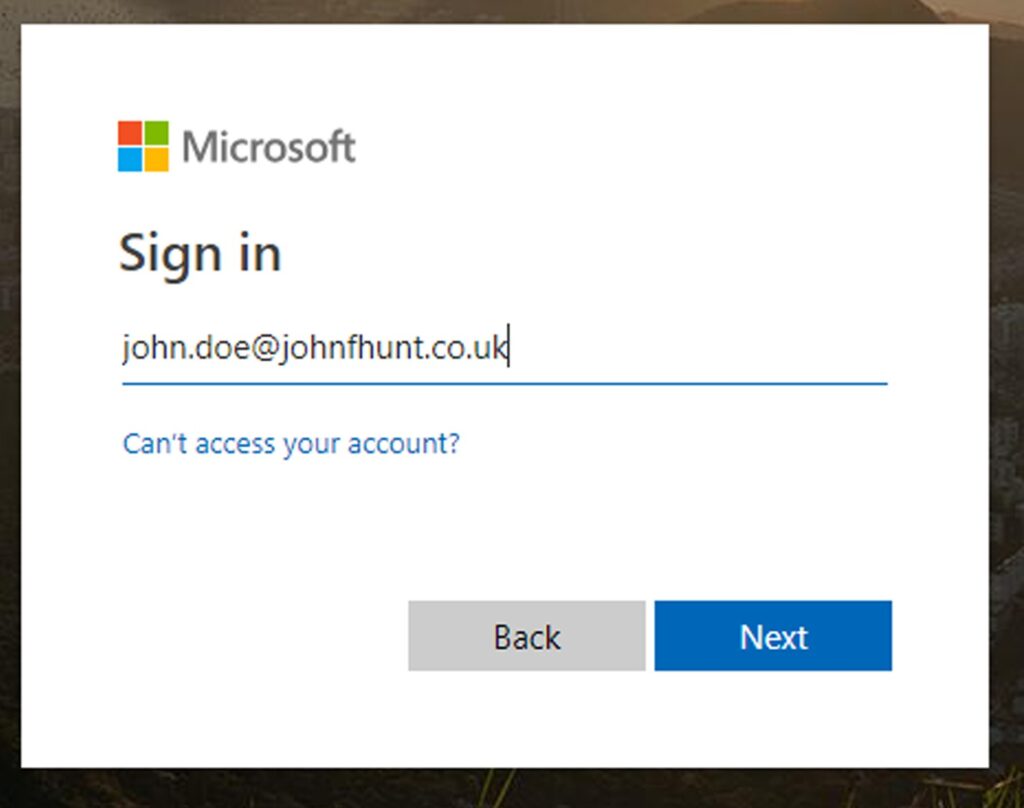
2. The account verification message shows up
After you choose Sign in, you’ll see this page:
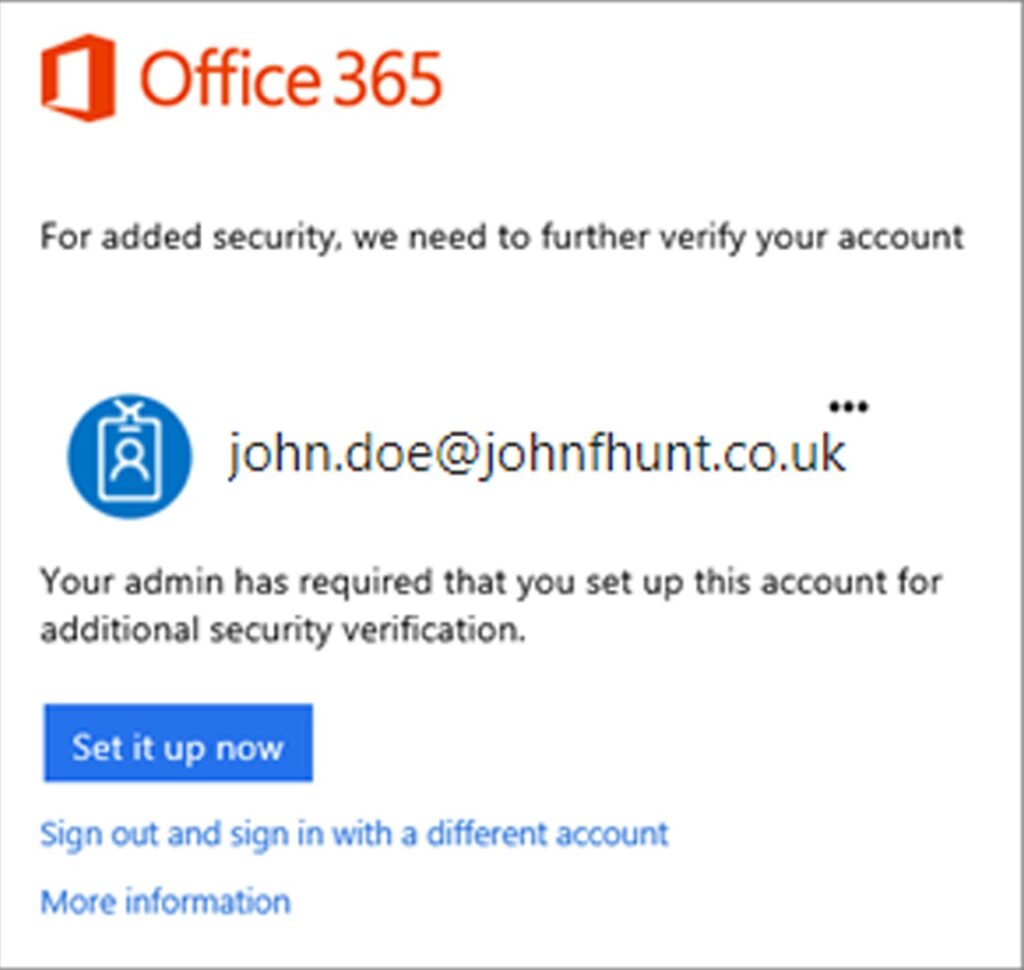
3. Choose “Set it up now”.
4. Select your authentication method
Select your authentication method and then follow the prompts on the page. For Example, here, we add a UK Mobile number
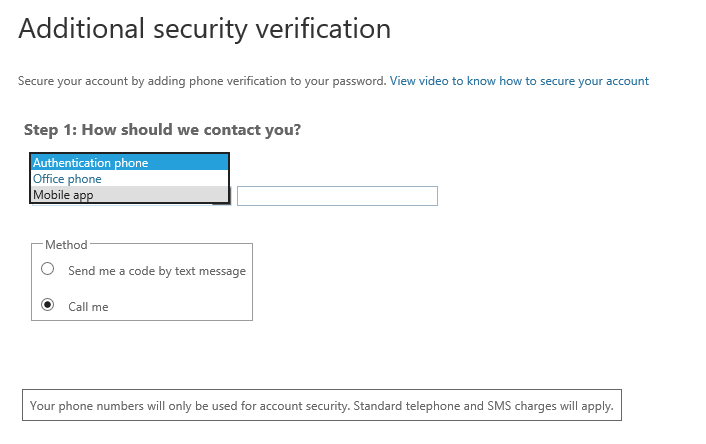
5. After you verify your alternate contact method, choose “Next”.
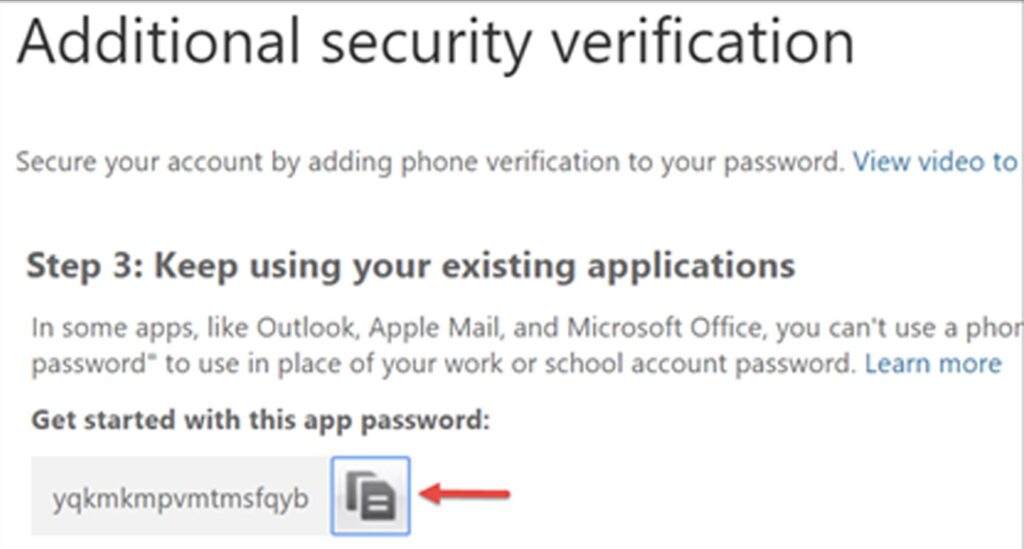
6. You will receive an app password
You will receive an app password that you can use with your email applications.
Choose the copy icon to copy the password to your clipboard.
You won’t need to memorize this password.
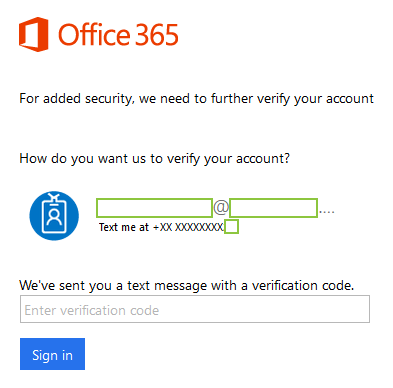
7. The next time you sign in to Office 365, you’ll be prompted to enter the code
Once you complete the instructions to specify how you want to receive your verification code, the next time you sign in to Office 365, you’ll be prompted to enter the code sent to you by text message, phone call, etc.
You can refresh the page by pressing F5 for a new code.
Lets Talk!
If you have additional comments or questions about this article, you can share them in this section.
After switching on two-factor authentication, will the Outlook app on my Android need the app password, or does it handle the code itself?
The Outlook app handles the code itself — it supports modern authentication, so you sign in with your normal email address and password, then approve the verification prompt. App passwords are only for older clients that can't prompt, such as basic IMAP or POP apps. If Outlook was set up before enabling 2FA, remove and re-add the account.
More detail: Install and Configure the Outlook App on an Android Phone.