

To investigate automatic email forwarding, identify the setting that sends the mail, check who authorised that exact route and trace what Exchange Online actually delivered. Save the setting and its destination before changing it. If sensitive mail is still leaving the business, have an authorised administrator contain the route immediately and record the time.
One of the easiest email forwarding security risks to miss is a working inbox. A finance team can keep receiving every invoice while a second copy goes elsewhere. Equally, a payroll provider may have a legitimate, time-limited arrangement. A familiar address or a user saying “I set that up” settles neither question.
Download the Forwarding Investigation Worksheet
Use one copy per forwarding route. The three-page form works on screen or on paper. Record the approval, the evidence for delivery, any gaps and who owns the next decision. Use case references in the form and keep original exports in your restricted incident folder.
Find What Is Forwarding the Email
For a business user, the safest first step is to phone IT on a known number. Give them the affected mailbox, when you noticed the problem and any alert reference. If you suspect someone can read the mailbox, use a separate channel for the investigation.
For an administrator, a useful starting point is Exchange admin centre → Reports → Mail flow → Auto forwarded messages. The Auto forwarded messages report shows external forwarding by type, user and destination domain. The default view covers seven days. Widen the date range if needed. An empty report leaves internal routes and activity outside the report window unresolved.
| Where to look | What to record |
|---|---|
| Inbox rule. In Outlook on the web, open Settings → Mail → Rules for the mailbox. An authorised Exchange administrator can use Get-InboxRule with IncludeHidden for a fuller view. | Save the rule name and ID, whether it is enabled, its conditions, exceptions and actions, and every forwarding or redirect address. Also record actions that move or delete the original. |
| Mailbox-level forwarding. In the Exchange admin centre, open Recipients → Mailboxes, choose the mailbox, then Mailbox → Email forwarding → Manage email forwarding. | Record the destination and whether Exchange also delivers a copy to the original mailbox. Microsoft’s mailbox forwarding settings apply across the mailbox, so an empty Outlook Rules list does not clear it. |
| Organisation-wide mail flow rule. Open Exchange admin centre → Mail flow → Rules. If the forwarding report supplies a transport rule ID, match it to the rule. | Capture its ID, state, priority, recipient actions, conditions and exceptions. Identify the other mailboxes or teams covered before changing a shared rule. |
If the destination is a contact, alias or another mailbox, resolve it to its actual recipient and check whether that mailbox forwards again. A familiar display name can hide a different address.
For a read-only check, connect to Exchange Online PowerShell with an authorised account. Replace the sample address with the affected mailbox. These two commands inspect its current settings.
Get-InboxRule -Mailbox '[email protected]' -IncludeHidden |
    Format-List Identity,Name,Enabled,Priority,Description,ForwardTo,RedirectTo,ForwardAsAttachmentTo

Get-Mailbox -Identity '[email protected]' |
    Format-List ForwardingAddress,ForwardingSmtpAddress,DeliverToMailboxAndForward
Access differs by task. A Security Reader can view the mail flow reports. Global Reader and Exchange View-Only Organization Management alone cannot run the inbox-rule command. For changes, Microsoft lists Recipient Management for mailbox settings and Organization Management for mail flow rules. Use an administrator with the relevant scoped permissions.
Decide Whether the Route Is Authorised
Follow these questions in order. Record who authorised the route separately from what happened to messages. A fully blocked attempt can still expose an account problem.
- Does a current approval match the whole route? Check the exact recipient address, mailbox, business purpose, permitted messages and expiry or review date. Confirm with the owner using a trusted contact record. A supplier’s genuine domain can contain several different mailboxes. If the route matches, go to question 2. If approval is missing, expired or different, go to question 3.
- Does the observed activity fit the approval? Compare the rule’s scope and change time with the ticket, then trace representative messages. If all match and there are no unexplained changes, record an authorised exception, its owner and next review. If the rule forwards more mail than agreed, treat the excess as unapproved and go to question 3.
- Is the route unauthorised or is there evidence of misuse? If a rule exceeds its approval, record it as unauthorised, even if delivery is unknown. An owner denying the change, delivery to an unapproved recipient, or a new rule alongside an unexplained sign-in warrants suspicious status and immediate escalation. If confirmation or logs are missing, mark it unresolved, assign an investigator and set a deadline. Have the incident lead decide straight away whether the risk justifies suspending the route while checks continue.
Illustrative example. A ticket permits the payroll mailbox to forward pension returns to a named bureau for one week. IT finds the right address, but the live setting forwards all payroll mail. The destination matches and the scope exceeds approval. Preserve the ticket and setting, contain the excess routing, then trace the period it was active. If the arrangement instead concerns a leaver, compare the rule with the access and review date in the Microsoft 365 offboarding checklist.
Preserve the Evidence and Trace Delivery
Capture the configuration. Record the mailbox, exact destination, rule ID, conditions, state, copy setting and collection time in UTC. Save the alert, the approved change record and an original export or read-only capture. Record who collected each item and the restricted storage reference. Give the next investigator those references rather than copying payroll or customer correspondence into a general ticket.
Find the change. In Microsoft Purview, open Audit and search a UTC window starting before the first suspected forward. A user with View-Only Audit Logs or Audit Logs can search the audit log. For an inbox rule, check rule creation, change and removal and Outlook client updates recorded as UpdateInboxRules. For mailbox-level forwarding, inspect Set-Mailbox events for forwarding parameters. For an organisation-wide rule, look for transport rule operations such as New-TransportRule and Set-TransportRule. If a mailbox-level event is missing, ask an investigator with unrestricted Purview administrative-unit scope to repeat the search. Microsoft limits visibility of Set-Mailbox events for scoped administrators. The person making the change may be a delegate or administrator. Leave the actor filter open initially and match the affected object in the results.
Establish delivery. In Exchange admin centre → Mail flow → Message trace → Start a trace, use the suspected destination, a narrow time window and, where available, a known message ID. Check the event details for that recipient and export the result. Record the first and last observed forwards. Microsoft’s message trace guidance covers the previous 90 days and summary searches in ten-day slices. An Exchange Administrator can run the trace.
| Evidence you have | Conclusion you can record |
|---|---|
| Current rule or audit event only | A route exists or was changed. Delivery is unknown. Compare the configuration with trace evidence. |
| Trace shows delivery towards the external recipient | Exchange recorded delivery for that message and destination. Whether a person read it remains unknown. |
| Trace shows failure with an external-forwarding policy error | That attempt was blocked. Check earlier dates, other recipients and applicable policies before setting an exposure window. |
| Trace or audit returns no relevant rows | Record the dates, filters, permissions and retention available. Mark delivery or authorship unknown and set a follow-up owner. |
Check whether auditing was active at the time. Microsoft’s audit enablement guidance identifies Business Basic, Standard and Premium as plans where auditing needs to be enabled manually by default. Audit Standard generally retains recorded events for 180 days. The audit retention guide explains how licensing and policies alter the window. Entra sign-ins have separate default retention periods of seven days on Free and 30 days on P1/P2. Ask a Reports Reader to preserve relevant sign-ins promptly and check for earlier exports if the portal window has expired.
Contain the Route and Verify the Result
Have the authorised administrator disable the identified inbox rule, switch off the affected mailbox’s forwarding, or contain the relevant mail flow rule with its owner. Capture the before-state first if this can be done promptly. For a shared transport rule, agree how legitimate mail will reach the teams that rely on it. Log the administrator, change, UTC time and a route for restoring approved business delivery. If using PowerShell, read Microsoft’s Disable-InboxRule warning first. Changing a rule this way can remove Outlook client-side rules from the mailbox.
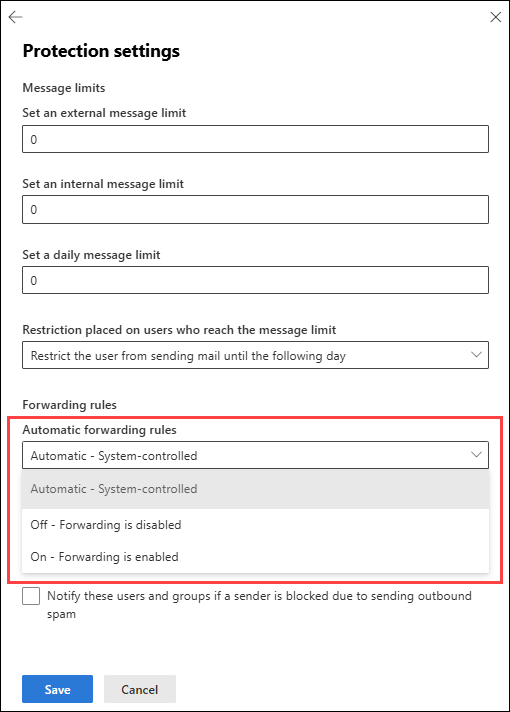
Check the outbound spam policy that applies to this mailbox. Microsoft’s external forwarding policy guidance says Automatic – System-controlled blocks forwarding in new organisations but can still allow it in tenants already using that setting when Microsoft changed its behaviour in 2021. An explicit Off blocks automatic external forwarding by inbox rules and mailbox forwarding. Internal forwarding is outside that setting. Review transport rules separately and keep the organisation’s wider protections in place.
Re-read the setting after the change. Check subsequent trace events for continuing forwards and confirm with the service owner that approved internal delivery still works. Use a harmless message and a controlled destination for any authorised test. Keep the suspicious recipient out of the test. If an essential workflow broke, have its owner approve a safe alternative, such as delegated access to a shared mailbox.
If the change points to account compromise, escalate to the identity and incident leads immediately and use the business email compromise first-response checklist to coordinate the investigation. Microsoft’s compromised account guidance covers blocking sign-in, revoking sessions and reviewing authentication methods. Include the account that made the change. If the user recently entered a password or approved an unexpected sign-in, collect the details of the suspected phishing interaction on a trusted channel. If invoices or payment instructions were involved, alert finance through a known number and verify any pending payment. TechVertu’s business email compromise examples illustrate why a genuine supplier conversation can still contain a fraudulent payment request.
If personal data may have reached an unauthorised recipient, notify the data protection lead promptly. Record when the organisation became aware, what information was involved, the recipients and what remains uncertain. Under the ICO’s personal data breach guidance, the controller must notify the ICO without undue delay and, where feasible, within 72 hours of becoming aware, unless the breach is unlikely to pose a risk to people’s rights and freedoms. Document the decision even if notification is unnecessary.
Review Your Business Email Protection
Once the incident lead has contained the route, use the evidence to review mailbox ownership, overdue exceptions and how staff report suspicious messages. TechVertu’s email security service covers protection and phishing awareness for business teams.
Lets Talk!
If you have additional comments or questions about this article, you can share them in this section.