
If you’ve ever wondered how to password-protect a folder or file in Windows, you’re not alone. With more of our lives stored digitally, keeping sensitive documents, work files, and personal photos secure is more important than ever. Windows doesn’t make this process obvious, but there are several reliable methods – ranging from built-in features like BitLocker and Encrypting File System (EFS), to third-party encryption tools like VeraCrypt or 7-Zip.
In this guide, we’ll walk you through every option – what works, what doesn’t, and which method is right for you. We’ll cover Windows 10, Windows 11, and even touch on Windows Server, so you’ll leave knowing the safest and most practical way to secure your files.
- Why password-protect files and folders?
- Built-in Windows methods
- Password-protecting with ZIP/7-Zip archives
- Using VeraCrypt and container-based encryption
- Third-party tools (Free & paid)
- Command line & script workarounds
- Limitations, risks, and recovery options
- Best practices for password security
- Performance & compatibility considerations
- Frequently Asked Questions (FAQ)
- Final thoughts
Why password-protect files and folders?
Windows is no longer just a one-size-fits-all operating system. Each edition of Windows 11 is tuned for a different audience:
- Home is streamlined for everyday personal use.
- Pro adds work-focused tools and advanced management features.
- Enterprise is designed for IT-heavy organisations with strict security needs.
- Education caters to schools and universities.
Choosing the wrong one can mean overpaying for features you’ll never use – or, worse, missing out on critical tools that would save you time and hassle.
Even if you already use a Windows login password, that doesn’t stop someone with physical access (or remote access via malware) from snooping through your files. Password protection and encryption:
- Keep confidential data private from co-workers, family, or hackers.
- Help comply with regulations (GDPR, HIPAA, company IT policies).
- Protect backups stored on external drives or cloud storage.
Think of it as putting your documents in a digital safe instead of leaving them in a desk drawer.
Built-in Windows methods
Microsoft provides several ways to secure data, though they differ in scope, strength, and ease of use.
Encrypting File System (EFS)
- Available in: Windows Pro, Enterprise, and Server editions (not Home).
- Purpose: Encrypts individual files and folders, making them unreadable without your Windows account credentials.
Dive Deeper into Windows 11 Editions
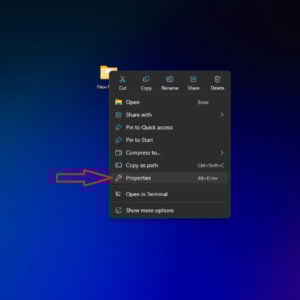
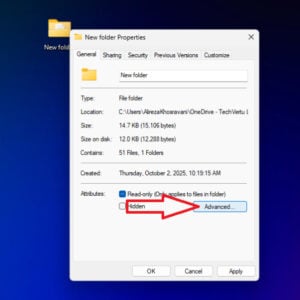
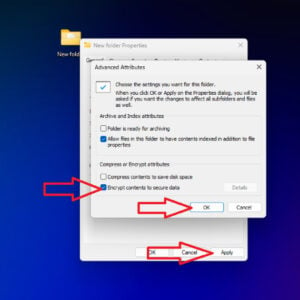
How to Use EFS:
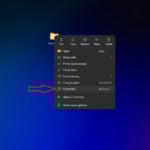
- Right-click the folder or file → Properties.
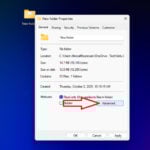
- Under the General tab, click Advanced.
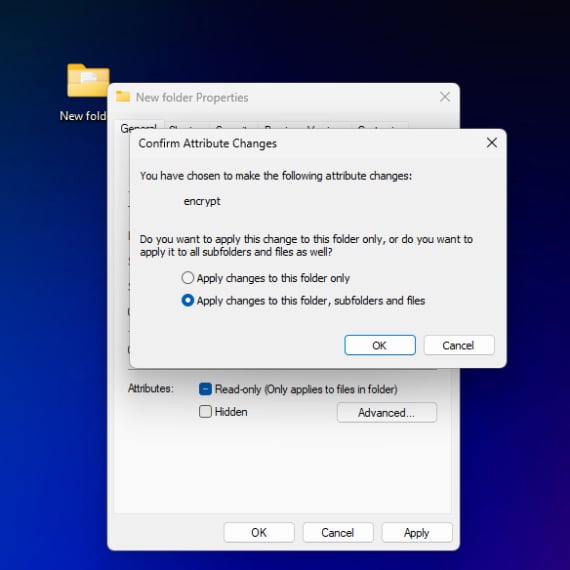
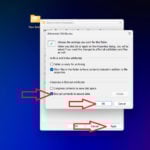
- Tick Encrypt contents to secure data → OK→ Apply.
- Windows will prompt to encrypt the folder only or folder + subfolders.
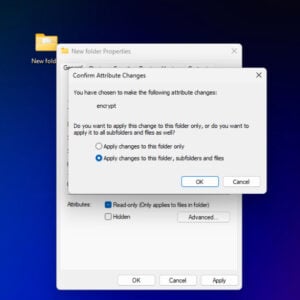
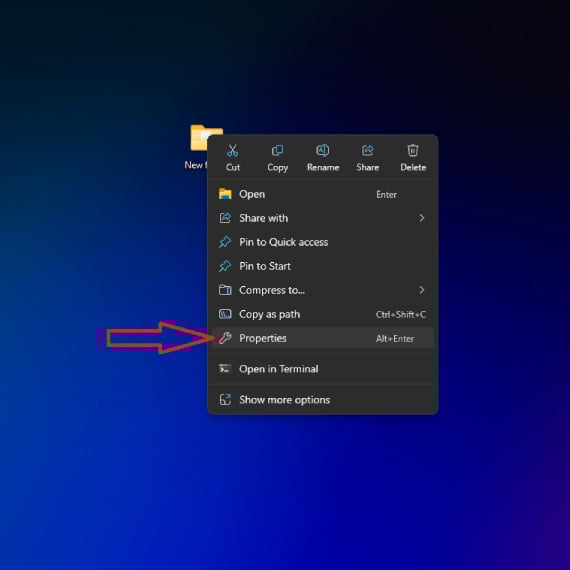
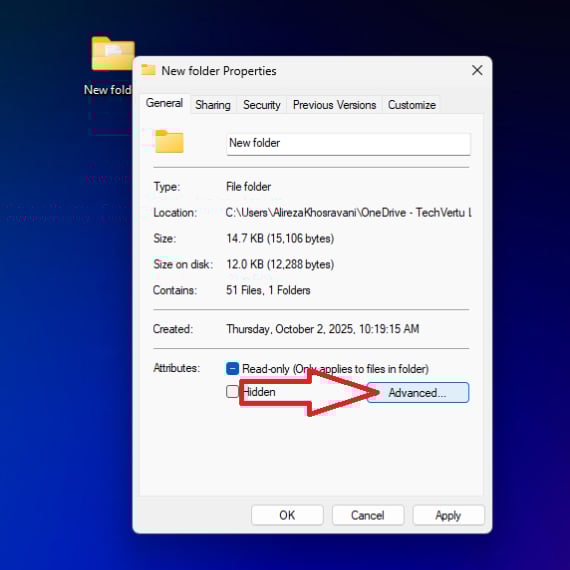
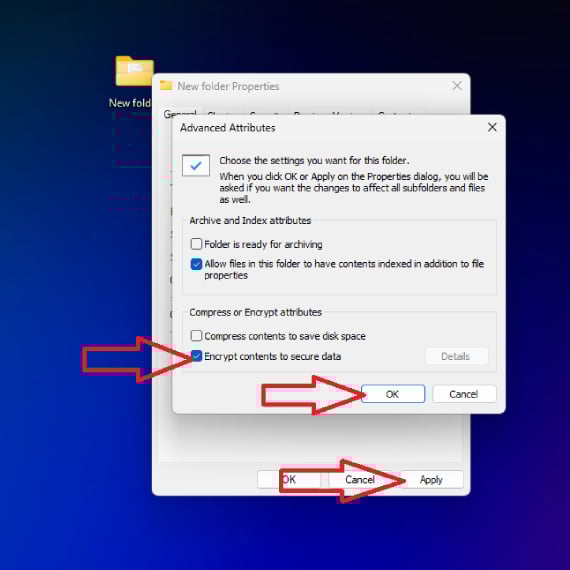
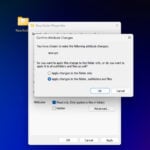
🔑 Important: EFS ties encryption to your Windows user account. If your account or encryption certificate is lost, recovery is almost impossible unless you’ve backed up your certificate/keys.
Pros:
- Built-in, no extra software needed.
- Transparent use – files open normally for authorised users.
Cons:
- Not available in Windows Home editions.
- Weak against physical attacks if account credentials are compromised.
- Backups must also be encrypted to stay secure.
Dive Deeper: Windows 11 Home Vs Pro
How to Run Windows on Mac with a Virtual Machine: The Complete Guide
How to Take a Screenshot in Windows: The Complete 2025 Guide
Windows 11 25H2 Features: How it Differs from 24H2
BitLocker drive encryption
- Available in: Windows Pro, Enterprise, Education editions (some Windows 11 Home devices now ship with “Device Encryption”, a BitLocker subset).
- Purpose: Encrypts entire drives (internal, external, USB).
How to Use BitLocker:
- Open Control Panel → BitLocker Drive Encryption.
- Select the drive → Turn on BitLocker.
- Choose unlock method: password, smart card, or auto-unlock.
- Save the recovery key (very important – store it securely).
🔒 BitLocker uses strong AES encryption (128-bit or 256-bit).
Pros:
- Very secure – protects the whole disk.
- Transparent once unlocked.
- Works well with TPM (Trusted Platform Module).
Cons:
- Overkill if you only want to encrypt one folder.
- Can’t easily share encrypted folders across devices.
- Recovery key loss = permanent lockout.
NTFS permissions (Access Control)
Windows lets you set permissions to restrict access to files and folders.
Steps:
- Right-click the folder → Properties → Security tab.
- Adjust permissions for users/groups (e.g., deny “Read” for certain users).
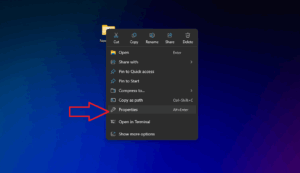
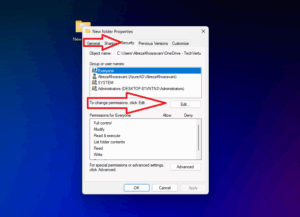
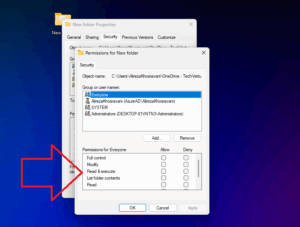
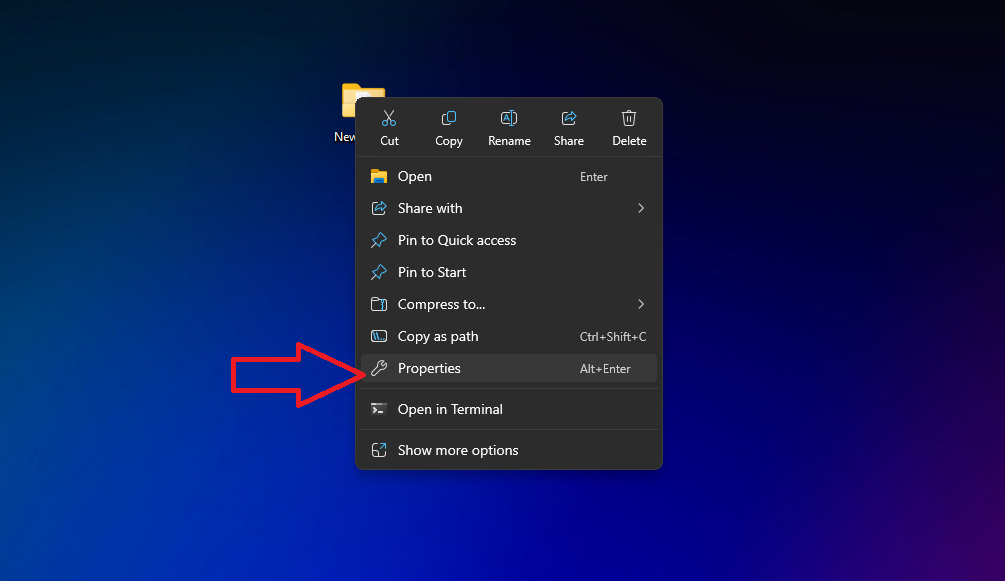
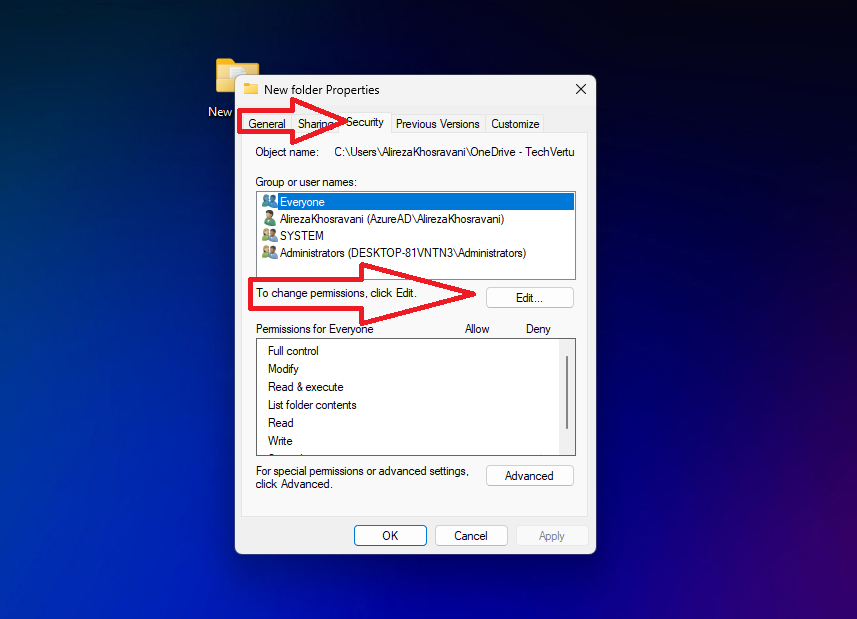
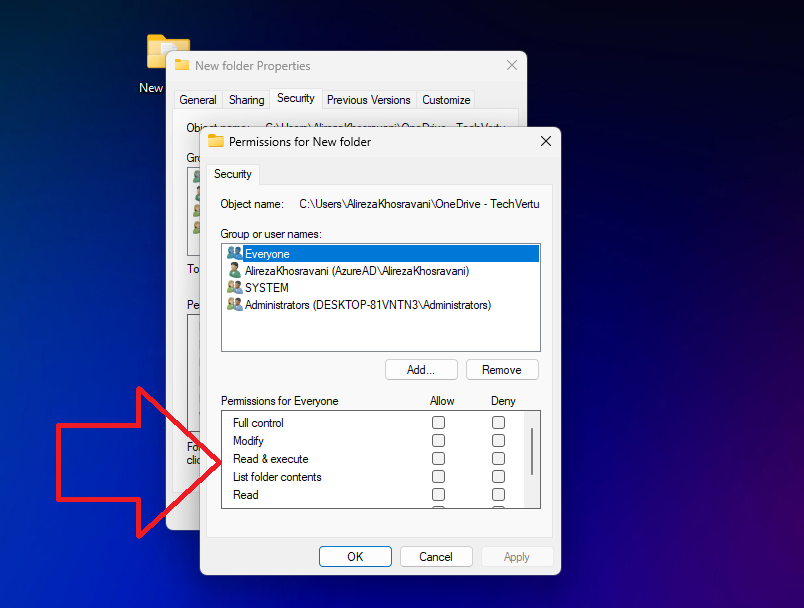
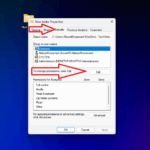
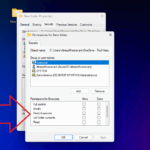
⚠️ Note: This is not encryption. A savvy attacker can bypass it by booting from another OS. It only works in controlled environments (e.g., office PCs with multiple user accounts).
Windows built-in “password protection” myths
Some websites claim Windows has a simple “add password to folder” feature – it does not. Unless you use EFS or BitLocker, Windows cannot natively add a standalone password to a folder. For password-style protection, third-party tools are required.
Password-protecting with ZIP/7-Zip archives
The simplest way to share or protect files individually is to compress them with password protection.
Using 7-Zip (Free & open source)
- Install 7-Zip.
- Right-click a file/folder → 7-Zip → Add to archive.
- Set Archive format: 7z (stronger) or zip (more compatible).
- Enter a strong password and select AES-256 encryption.
Pros:
- Free, widely used, cross-platform.
- AES-256 encryption.
- Great for emailing/sharing.
Cons:
- Files must be extracted to use.
- No seamless integration like EFS/BitLocker.
Using VeraCrypt and container-based encryption
VeraCrypt is the successor to TrueCrypt and remains one of the strongest tools for folder/file protection.
How it works:
- Creates a virtual encrypted “container” (a single file that acts like a secure drive).
- You mount it with a password (or keyfile), then copy files inside.
- When unmounted, it’s just an encrypted blob.
Steps:
- Download VeraCrypt and install.
- Open → Create Volume → select Create an encrypted file container.
- Choose file size, encryption (AES recommended).
- Set a password.
- Mount the container as a drive letter.
Pros:
- Extremely strong security.
- Works on Windows, Linux, and macOS.
- Supports hidden volumes for plausible deniability.
Cons:
- More technical setup.
- Slower than using BitLocker on very large containers.
Third-party tools (Free & paid)
While VeraCrypt and 7-Zip cover most needs, other tools provide extra convenience:
| Tool | Free/Paid | Features | Notes |
| AxCrypt | Free/Paid | File-level AES encryption | Good for casual users |
| Folder Lock | Paid | Folder passwords, file shredding | More user-friendly |
| Wise Folder Hider | Free/Paid | Hide + password protect | Less secure than encryption |
| WinRAR | Paid (trial) | Archive + password | Similar to 7-Zip |
🔑 Tip: Always check that tools use AES or equivalent modern encryption. Avoid outdated methods like ZIP’s legacy ZipCrypto.
Command line & script workarounds
Some guides suggest using a .bat script to simulate folder passwords. These typically just hide a folder and check for a password when you double-click.
⚠️ Reality check: These are not secure. Anyone can edit the batch file and read the “password” inside. They may be fun tricks, but don’t rely on them for real security.
Limitations, risks, and recovery options
- Lost Passwords/Keys: With true encryption (BitLocker, VeraCrypt), recovery without the key is impossible. Always back up recovery keys securely (cloud vault, offline storage).
- Performance: Encryption can slightly slow file access, though modern CPUs with AES-NI make this negligible. Large containers (VeraCrypt) may take longer to mount.
- Compatibility: EFS-encrypted files may not open on another PC without exporting certificates. 7-Zip is better for cross-platform sharing.
Best practices for password security
- Use long, unique passwords (preferably 12+ characters with symbols).
- Store recovery keys in multiple secure locations.
- Avoid using the same password across tools.
- Encrypt sensitive backups as well.
- Keep Windows updated – vulnerabilities are patched regularly.
Performance & compatibility considerations
| Method | Performance | Portability | Security Level | Ease of Use |
| EFS | High | Low | Medium | Easy |
| BitLocker | High | Medium | Very High | Moderate |
| 7-Zip | Medium | High | High (AES) | Easy |
| VeraCrypt | Medium | High | Very High | Technical |
| Folder Lock | High | Medium | Medium/High | Very Easy |
Frequently Asked Questions (FAQ)
Final thoughts
Password-protecting files and folders in Windows isn’t as straightforward as clicking a “lock” button – but with the right method, you can achieve strong protection. For everyday file sharing, 7-Zip works brilliantly. For full security, BitLocker or VeraCrypt is unmatched.
Choose the method that matches your needs: convenience, cross-platform use, or maximum strength. And remember: encryption is only as strong as the password or key you set.
Lets Talk!
If you have additional comments or questions about this article, you can share them in this section.