

To set up a mobile hotspot on Android, open Settings, search for “hotspot”, check the network name and password, then turn it on. On the device you want to connect, open Wi-Fi, choose that name and enter the password. No extra hotspot app is needed.
A mobile hotspot shares your phone’s internet connection with a laptop, tablet or another phone. For mobile-data sharing, first check that the phone can browse with Wi-Fi off and that your plan allows tethering; limits or extra charges may apply.
The screenshots below show an older Samsung interface. Current labels vary by phone and software: Samsung Galaxy: Settings > Connections > Mobile Hotspot and Tethering > Mobile Hotspot. Google Pixel: Settings > Network & internet > Hotspot & tethering > Wi-Fi hotspot. See Samsung’s hotspot settings or Google’s Pixel instructions.
Method A for Android phone hotspot setup:
Step 1: Slide your finger to view the shortcuts
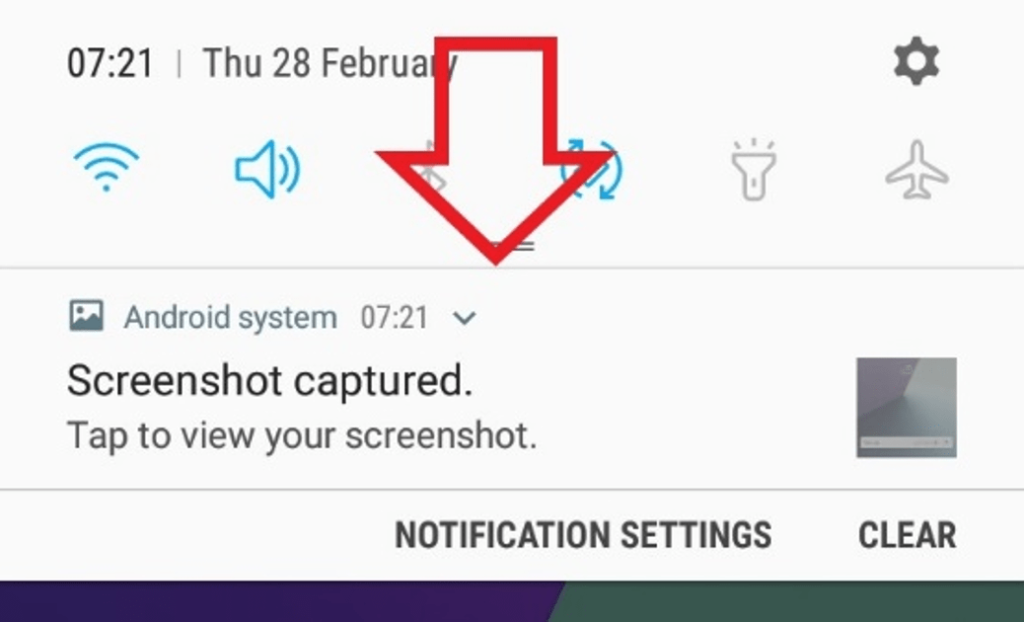
Swipe down from the top of the screen to open Quick Settings. On newer Samsung phones, swipe down from the top-right if the panels are separate.

Step 2: Slide again
If needed, swipe down again to expand the shortcuts, then look for Hotspot or Mobile Hotspot. If it is missing, use Method B below.
Step 3: Hold your finger on the hotspot icon
Touch and hold the hotspot tile to open its settings. A normal tap switches it on or off; holding it lets you check the name and password first.

Once the settings open, skip to configuring mobile hotspot settings.
Method B for Android phone hotspot setup:
Step 1: Search and open the setting app
Open the Settings app on your phone. You can also use its search box to find “hotspot” directly.
On the Samsung interface shown, swipe up from the home screen to see your apps.
Then select Settings.


Step 2: Open connections
On Samsung Galaxy, open Connections. On Pixel, choose Network & internet instead.

Step 3: Open mobile hotspot and tethering
On Samsung, open Mobile Hotspot and Tethering. On Pixel, open Hotspot & tethering.

Step 4: Tap on mobile hotspot
Tap Mobile Hotspot to open its settings, rather than only tapping the switch. On Pixel, select Wi-Fi hotspot.

Configuring mobile hotspot settings:
Step 1: Turn on the mobile hotspot
Check the name and password below, then turn on the Mobile Hotspot switch.
Find your network name and password. The screenshot’s “Tether-Name” and “Password” are examples; use the details on your own phone.
Tap the name or password to edit it; newer Samsung versions may use an information section or Configure. Use a strong, unique password and keep security enabled.

Step 2: Connect to your mobile hotspot
On your laptop, tablet or second phone, turn on Wi-Fi and select your phone’s hotspot network name.
Enter the hotspot password shown on the sharing phone and connect. Open a webpage to check internet access; joining the Wi-Fi network alone does not confirm that mobile data is working.
On Samsung, check Connected devices to see which devices have joined. Turn off the hotspot when you finish.
Once you are online, our Outlook on Android setup guide covers installing the app and adding your email account.
How to turn on an iPhone hotspot
Open Settings > Personal Hotspot (or Mobile > Personal Hotspot), turn on Allow Others to Join and note the Wi-Fi Password. Keep that screen open while the other device joins your iPhone’s name from its Wi-Fi list. Apple’s connection guide also covers USB and Bluetooth.
How to connect Windows to your phone’s hotspot
In Windows 11, open Quick Settings from the network, sound or battery area of the taskbar. Select Manage Wi-Fi connections beside Wi-Fi, choose your phone’s hotspot, then Connect and enter its password. See Microsoft’s Wi-Fi connection steps.
Sharing from the PC instead? Windows’ Settings > Network & internet > Mobile hotspot shares an existing PC connection; it does not join your phone’s hotspot. Choose Share my internet connection from, select Wi-Fi under Share over, check Properties > Edit, then turn on Mobile hotspot. Microsoft explains PC hotspot sharing.
Mobile hotspot not working? Start with the symptom
- Hotspot missing or will not turn on: search Settings for “hotspot” and check your carrier’s tethering allowance. On Pixel, turn off Data Saver to use Wi-Fi tethering.
- The other device cannot see it: keep the devices nearby and refresh the Wi-Fi list. On Samsung, try the 2.4 GHz band and turn off Hidden network if enabled. On iPhone 12 or later, try Maximise Compatibility; Apple warns it may reduce performance and Wi-Fi security.
- Password rejected: check the hotspot password on the sharing phone, not your phone’s unlock code. If you changed it, forget the saved network on the joining device and reconnect.
- Connected without internet: test a webpage on the sharing phone with Wi-Fi off. If that fails too, check mobile data, coverage and remaining allowance. If it works, restart both devices and check whether your plan restricts tethering.
- Connection keeps dropping: check the hotspot’s automatic timeout and keep the phone nearby. If Wi-Fi remains unreliable, connect Android to a Windows PC by USB and enable USB tethering in the same hotspot menu; the cable must support data.
For device-specific fixes, use Samsung’s hotspot troubleshooting or Apple’s Personal Hotspot help. If you need a longer-term connection, compare the options in our guide to internet connection types.
Lets Talk!
If you have additional comments or questions about this article, you can share them in this section.